How to Run a Player Break on Stream (Step by Step)
· Breaker Labs
In a player break, buyers buy a player instead of a team. Every card of that player pulled during the break goes to them. It is also called pick your player, or PYP. (New to the formats? See types of card breaks, explained.)
Player breaks are hard to show on stream because the boards are big. The 2026 Topps Chrome Baseball checklist in the screenshots has 524 players. A team board fits on one screen; a player board needs pages. This guide builds the board from the product's checklist, shows it a page at a time, and sells any player in a few taps.
Before you start
- Pro, or the 7-day free trial. Player Breaks is a Pro feature.
- OBS, or any streaming app with a Browser Source. No OBS? You can show the board full screen on a monitor or tablet instead.
Step 1: Pick the product
On your dashboard, select Create widget and choose Team Tracker. On What's the break?, open the Player Breaks tab and search for your product, for example Topps Chrome.
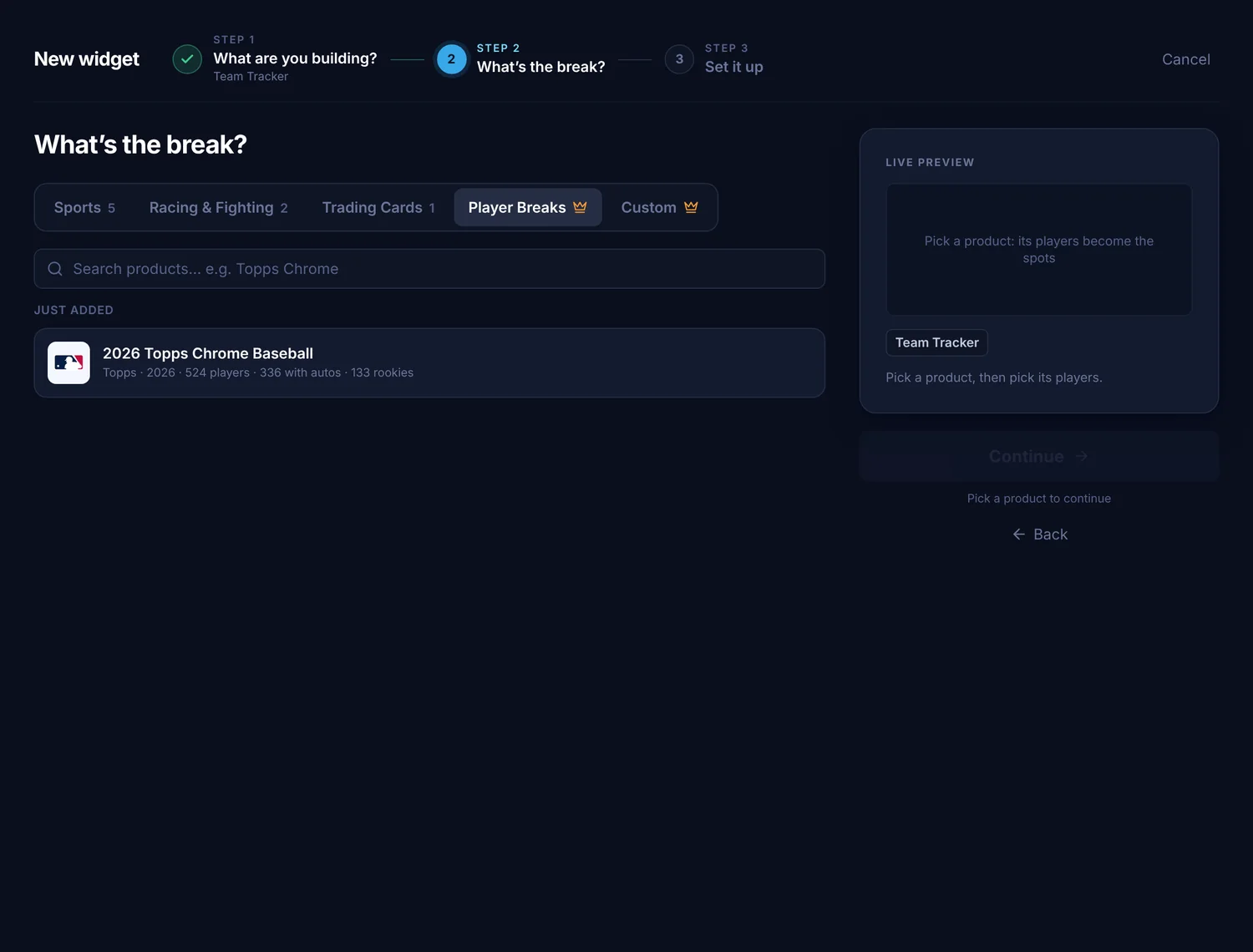
Each product comes with its full player checklist, so you don't type a single name.
Breaking more than one product
Running two or three products in the same break? Select each one. Every product you pick is listed under On this board (up to five, all from the same league), and selecting one again takes it off. The checklists are combined into one board, and a player who is in more than one product gets a single spot that covers all of them.
We add checklists as new products come out. If the product you're breaking isn't listed yet, you can still run the break: paste your list of players into a custom board.
Step 2: Pick the players
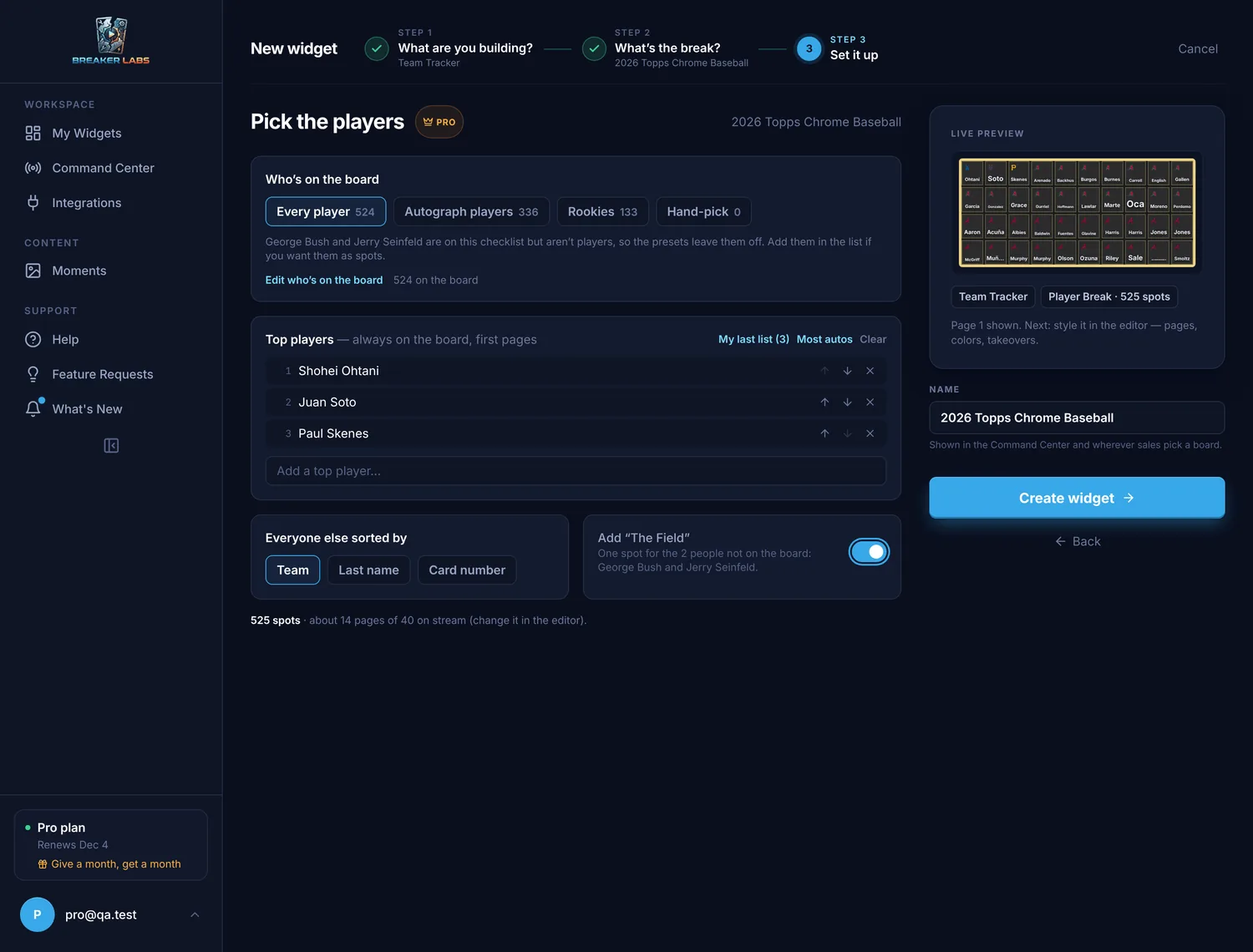
Next, Pick the players. Start with a preset under Who's on the board:
- Every player in the checklist
- Autograph players only
- Rookies only
- Hand-pick, to choose them one by one
Players who aren't players
Checklists include cards of people who don't play the sport: celebrities, presidents and other insert subjects. Breaker Labs names them and leaves them off the board, marked NOT A PLAYER. If you sell them, find them with Filter players and tick them to put them back.
Top players
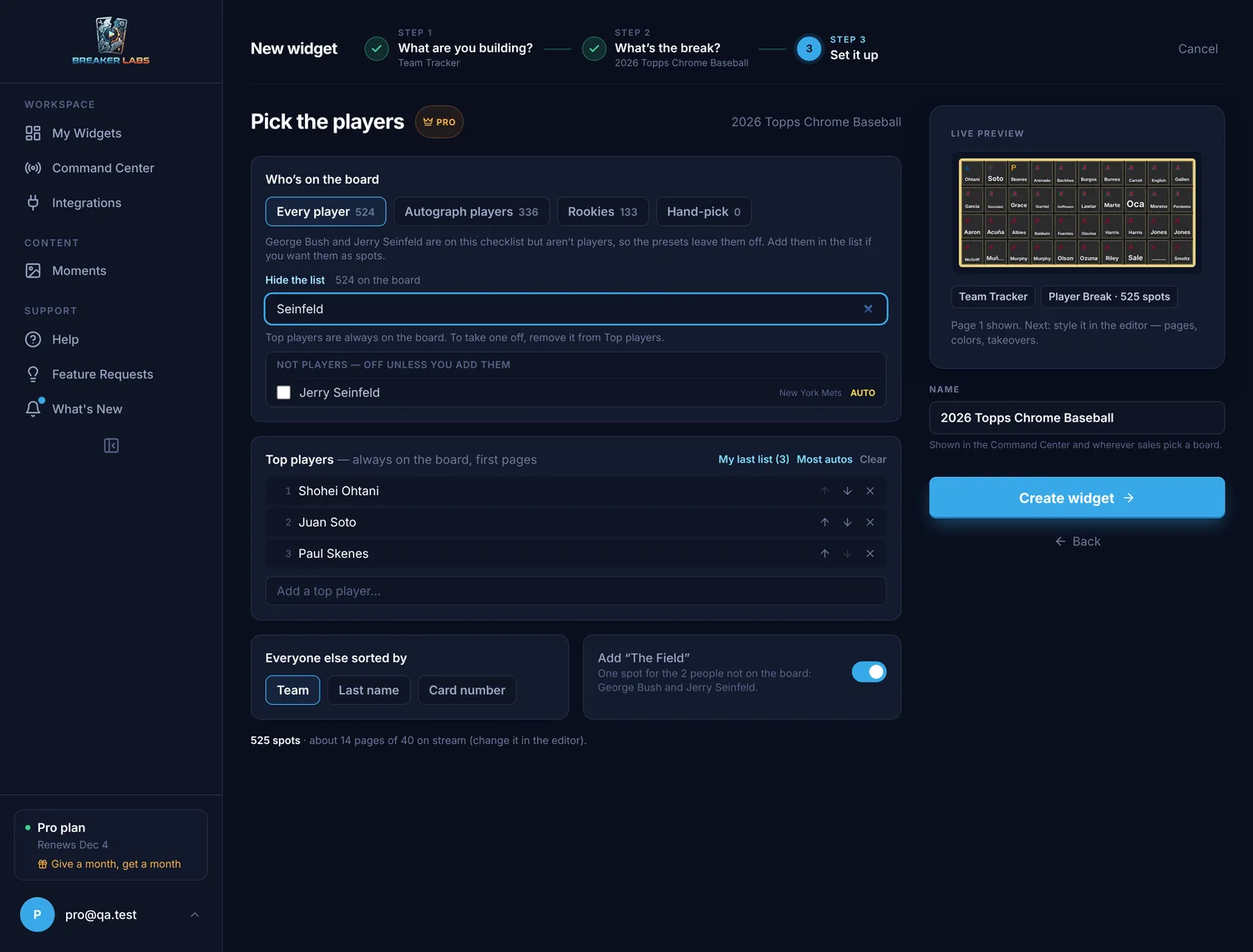
Top players are always on the board and fill the first pages, so your chase names are the first thing viewers see. Add them one at a time with Add a top player, or start from a list:
- My last list reuses the top players from your last player break.
- Most autos picks the players with the most autograph cards in the products you picked.
Put them in the order you want with the up and down arrows. On stream, the footer marks their pages TOP.
Everyone else
Choose how the rest of the board is ordered under Everyone else sorted by: Team, Last name or Card number.
The Field
Turn on Add "The Field" to add one spot for every player not on the board. It's how a hand-picked or rookies-only board still sells the whole checklist: the Field buyer gets every card of every player who isn't on the board. The switch says how many players that is, and names them when it's only a few.
The bottom of the step shows the total, for example 525 spots · about 14 pages of 40 on stream. A board holds up to 1,000 spots. Select Create widget when it looks right.
Step 3: Style the board
The board opens in the editor. Colours, your logo, fonts, takeovers and the ticker all work as they do on any board. Each tile shows the player's first name small over their surname in big type, with their team's logo in the corner, so viewers can read them on a phone. A sold player's tile and name both dim.
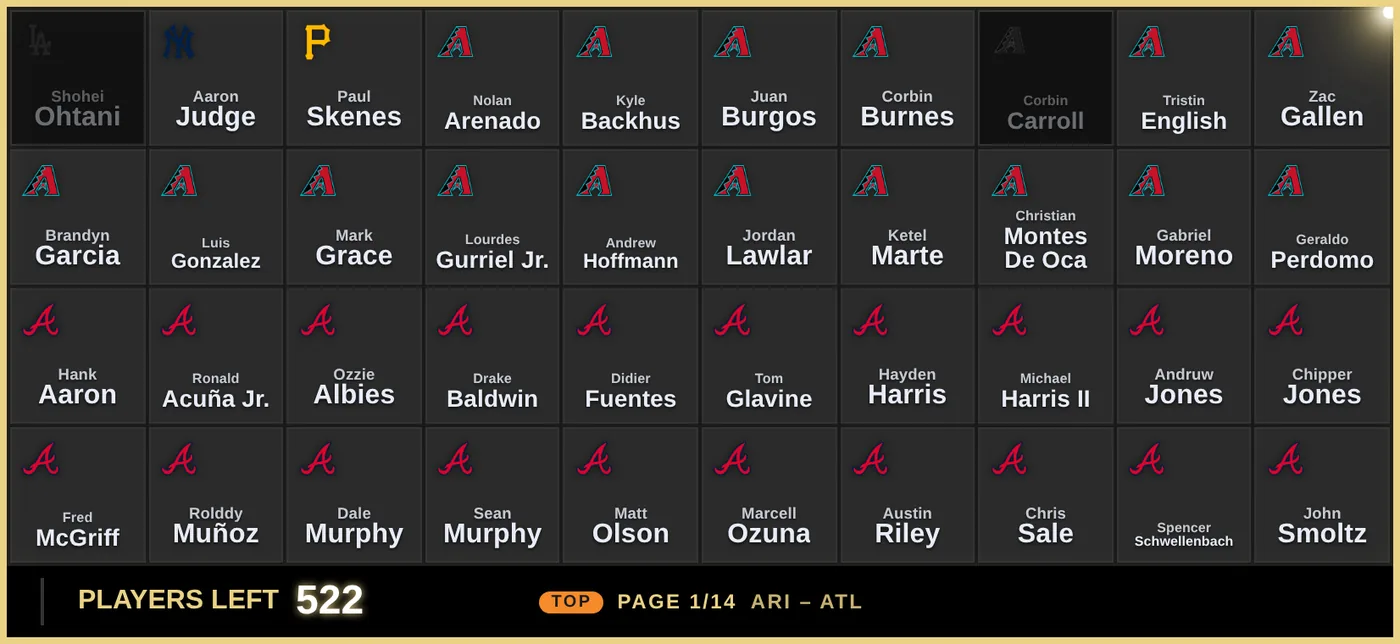
The counter reads PLAYERS LEFT. To show viewers where the board is, turn on Show the page in the footer in Layout → Pages: the footer then shows the page number and what the page holds, the first and last team on a board sorted by team (ARI – ATL), or the first and last surname on a board sorted by last name.
Step 4: Set up the pages
A player board shows one page at a time. Set how it pages in Layout → Pages:
- Tiles per page: from 12 to 60. The default is 40.
- Stream starts on: Pages, By team or Only unsold.
- Pages: Hold stays on one page until you change it. Cycle moves to the next page on its own.
- Seconds per page: how long each page stays up when cycling. The default is 8 seconds.
- Top pages stay up: keeps your top players' pages up 1×, 2× or 3× as long.
- Jump to a player's page when it sells: the board goes to the sold player so viewers see the sale, then carries on.
By team shows one tile per team, with how many of its players are still for sale, for example 3 LEFT. Good for the start of a break, when buyers are shopping by team.
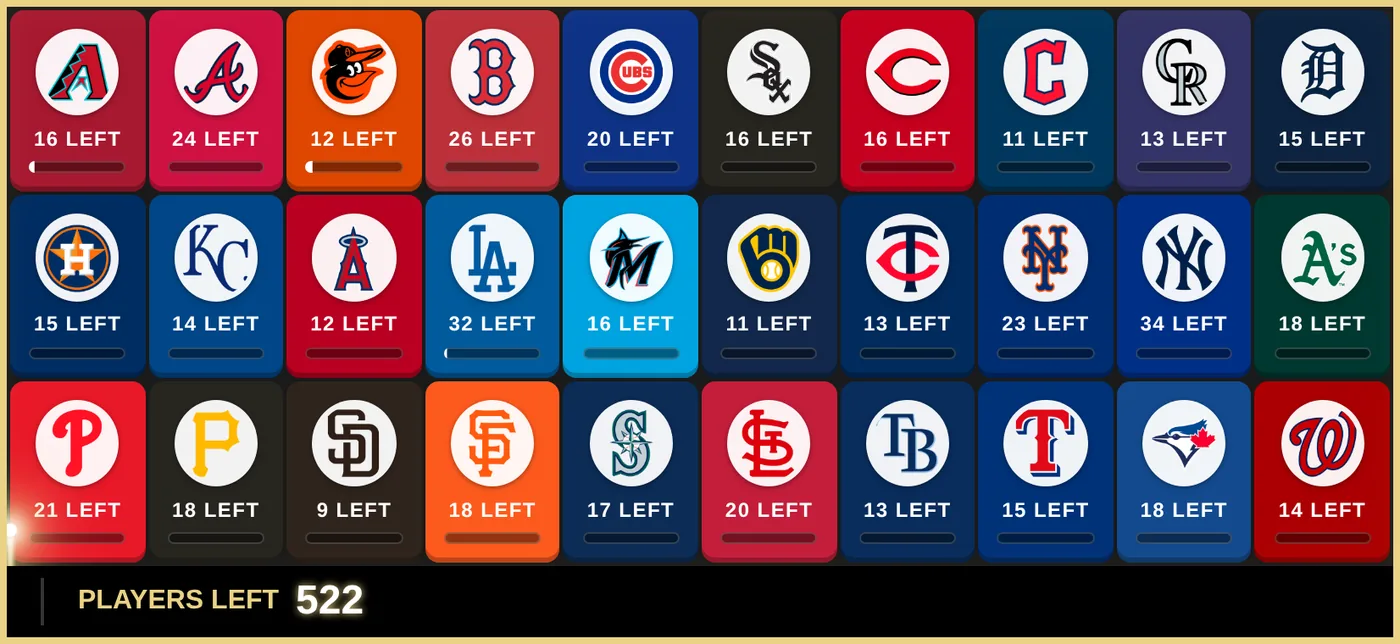
Only unsold pages through the players still for sale. Good near the end, when most of the board is gone.
Select Save, then add the board to OBS: in the Stream Command Center, select Add to OBS. The OBS Direct Sync setup guide covers the one-time connection.
Step 5: Sell players live
Open the board in the Stream Command Center. Find a spot sits above the board, and the page controls sit below it: the Pages / By team / Only unsold view, the page arrows, and Hold or Cycle. Change any of them mid-break and the stream follows.
To sell a player, type their name in Find a spot. You don't need to find their page first: the result tells you where they are, for example Juan Soto · page 8.
You can do it all from the keyboard: press / to start typing, use the up and down arrows to choose a match, and press Enter to sell. Esc clears the search. After a sale the box is ready for the next name.
- Sell marks them sold. With Claim Names on, add the buyer's name (up to 20 characters) and it shows on the tile.
- Show puts their page on stream without selling, for when chat asks "is Soto still open?".
Everything else from team breaks works by player too:
- High Bid: type the player's name, pick them, and the bid goes on stream, on their page.
- Top players ranks your hottest players with badges on their tiles, the way Top Teams does on a team board.
- Last player holds a player back for the end of the break. A held player can't be sold by a stray click until you release it.
Step 6: Change the players mid-break
Product checklists change, and so do breaks: a player gets added late, a name is spelled differently, or you want someone off the board.
In the editor, go to Layout → Players and select Edit players.
- From the checklist: search the product's checklist and add anyone who isn't on the board, including the non-players you left off.
- Paste a list: add players who aren't on the checklist.
- Filter the players on the board to find one fast.
- Rename, reorder or remove any player. Move to the top takes a player to the first tile in one click.
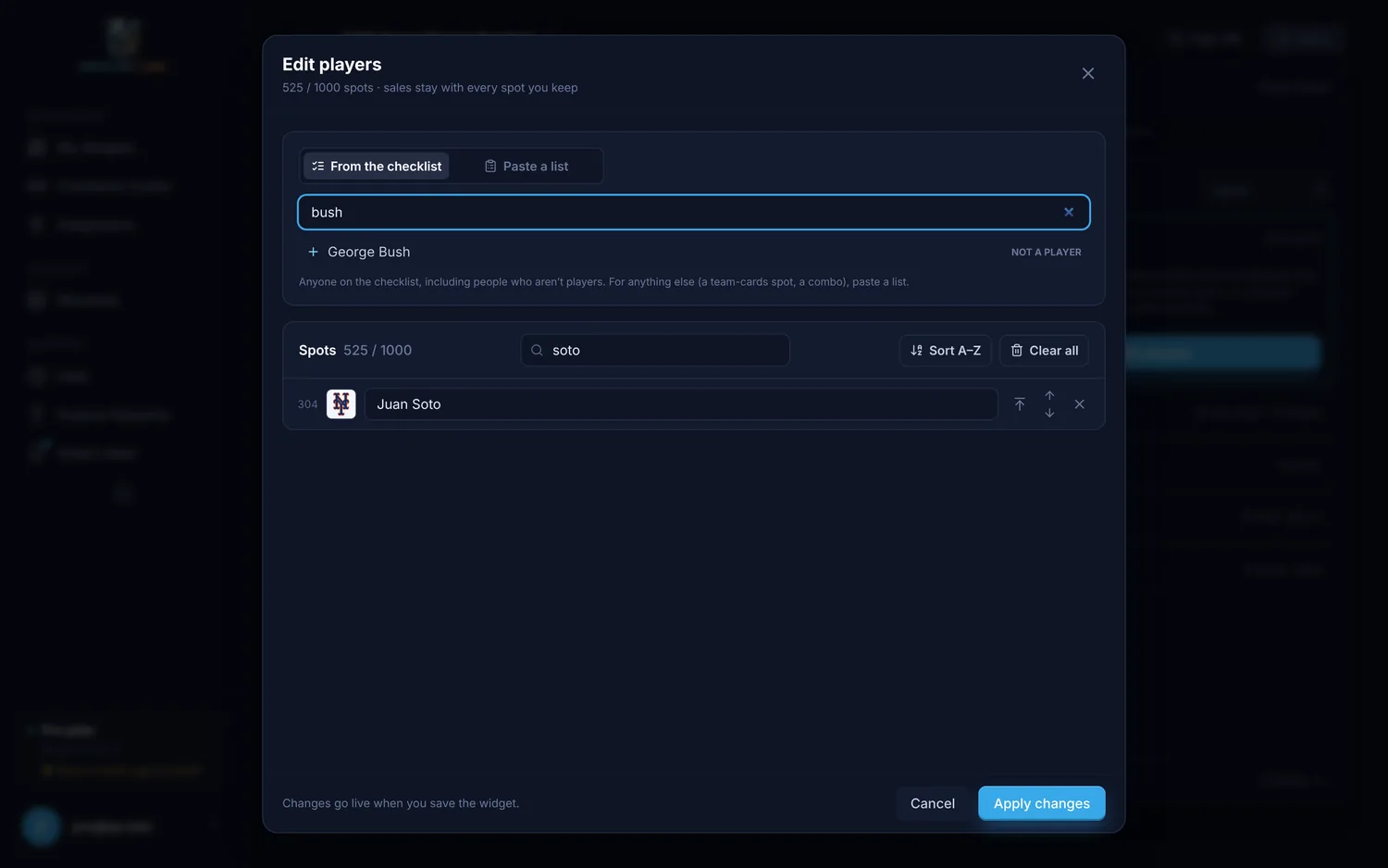
Sales stay with every player you keep. Removing a player who's already sold asks you first and names the buyer, so you can't take a sold spot off by accident. Select Apply changes, then Save.
Add or remove a product
Adding a box of another product to the break? Under Layout → Players, select Products. Pick the product to add, then choose which of its players join the board: Every player, Autograph players, Rookies or None yet. They go in where the board's order puts them, and a player already on the board keeps their one spot.
Selecting a product again takes it off, along with the players only that product lists. A sold spot always stays on the board, and so does any spot you added yourself. Select Apply, then Save.
Quick answers
What is a player break? A break where buyers buy a player instead of a team. Every card of that player pulled in the break goes to the buyer.
What is "The Field" in a player break? One spot for every player not on the board. The Field buyer gets every card of every player who isn't on the board, so a short board still covers the whole checklist.
How many players can a board hold? Up to 1,000 spots, shown a page at a time. Each page holds 12 to 60 tiles.
Why isn't a celebrity on my board? Checklists include people who don't play the sport. Breaker Labs leaves them off and marks them NOT A PLAYER. Add them back with Filter players when you build the board, or from Edit players later.
My product isn't listed. Can I still run a player break? Yes. Paste your list of players into a custom board. Turn on pages in Layout → Pages and you get the same page controls and Find a spot.
Do I need Pro? Yes. Player Breaks is a Pro feature, and it's included in the 7-day free trial.