No OBS? No Problem!
— Breaker Labs
Until now, getting a Breaker Labs board in front of your viewers meant OBS. If you break on Whatnot, TikTok LIVE or Instagram Live straight from your phone, your viewers never saw the board.
That changes today. Every board in the Stream Command Center now has a Fullscreen button. Prop up an iPad, or point your camera at a laptop or monitor, hit Fullscreen, and your live board is on stream. No OBS, no browser sources, no setup.
How it works
- Open the Stream Command Center on the screen you'll show on camera.
- Hit Fullscreen on your Team Tracker, Randomizer or Break Results.
- Angle the screen into your shot.
It's the same live board OBS users get, not a copy. Spots fill, takeovers fire and the teams-left counter ticks down in real time.
To leave, tap Exit fullscreen in the top corner, or press Esc on a keyboard.
Built to sit in your shot
- Fills the screen without stretching. If your board and your screen are different shapes, you get clean black bars, never a squashed board.
- Stays awake. Fullscreen asks your device to keep the screen on, so it won't dim halfway through a break.
- Stays out of the way. After a few seconds the exit button fades on a tablet and hides on a computer, so it isn't sitting in your shot.
Claim teams right on the board
Fullscreen isn't just for show. Tap a team on the board to claim it, and the takeover plays right there in your shot. Tapped the wrong team? Tap it again to release it.
Run the wheel from one iPad
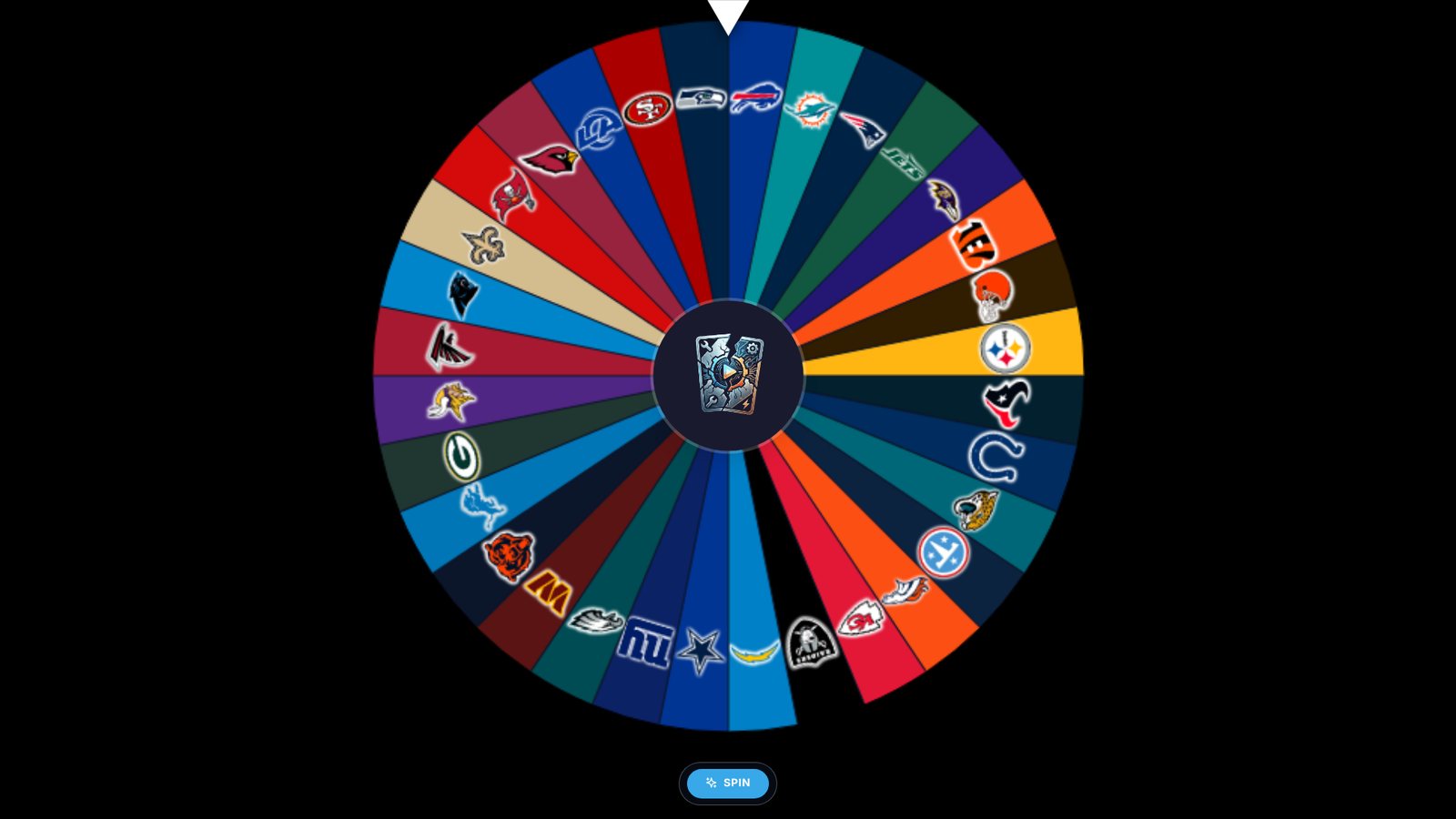
The Randomizer puts its controls right under the wheel: Spin, then Confirm or Re-spin. One iPad can run the whole spin without leaving fullscreen.
- Confirm waits for the wheel to stop. The bar shows "Spinning…" until the wheel lands, so nothing gives the result away early.
- No spoilers under the wheel. The bar holds buttons only, never the team name. The pointer tells the story, and Confirm plays the takeover.
- Errors stay off your board. If a spin fails, the message shows in the bar, not as a pop-up over the wheel.
Good to know
- You need a second screen in the shot. The phone you stream from can't show the board at the same time.
- iPhone works a little differently. Safari on iPhone doesn't allow true fullscreen, so the board fills the page and Safari's bars stay visible. iPad, Android, Mac and Windows get true fullscreen.
- Fight the glare. Turn the screen's brightness up and angle it away from your lights.
- OBS users: nothing changes. Add to OBS works exactly as before.
What you need
- An active subscription or a 7-day free trial.
- A screen your camera can see: an iPad or other tablet, a laptop, or a monitor hooked up to a computer.
It's live now
Open the Stream Command Center, pick a board and hit Fullscreen. New to Breaker Labs? Start your 7-day free trial.