How to Run a Pokémon Type Break on Stream (Step by Step)
· Breaker Labs
In a Pokémon type break, each buyer buys a type. Every card of that type pulled during the break goes to them: the Fire buyer gets every Fire card, the Water buyer every Water card, and so on.
This guide sets up the three things viewers see during a type break: the type board that shows which types are sold, a type wheel if you give types out at random, and a results board for after the packs are opened.
Before you start
- Pro, or the 7-day free trial. Pokémon type breaks are a Pro feature.
- OBS, or any streaming app with a Browser Source. No OBS? You can show the board full screen on a monitor or tablet instead.
Step 1: Create the type board
On your dashboard, select Create widget.
- What are you building? Choose Team Tracker. That's the live board.
- What's the break? Open the Trading Cards tab and choose Pokémon · Type breaks.
- Name the board in the Name box on the right, then select Create widget.
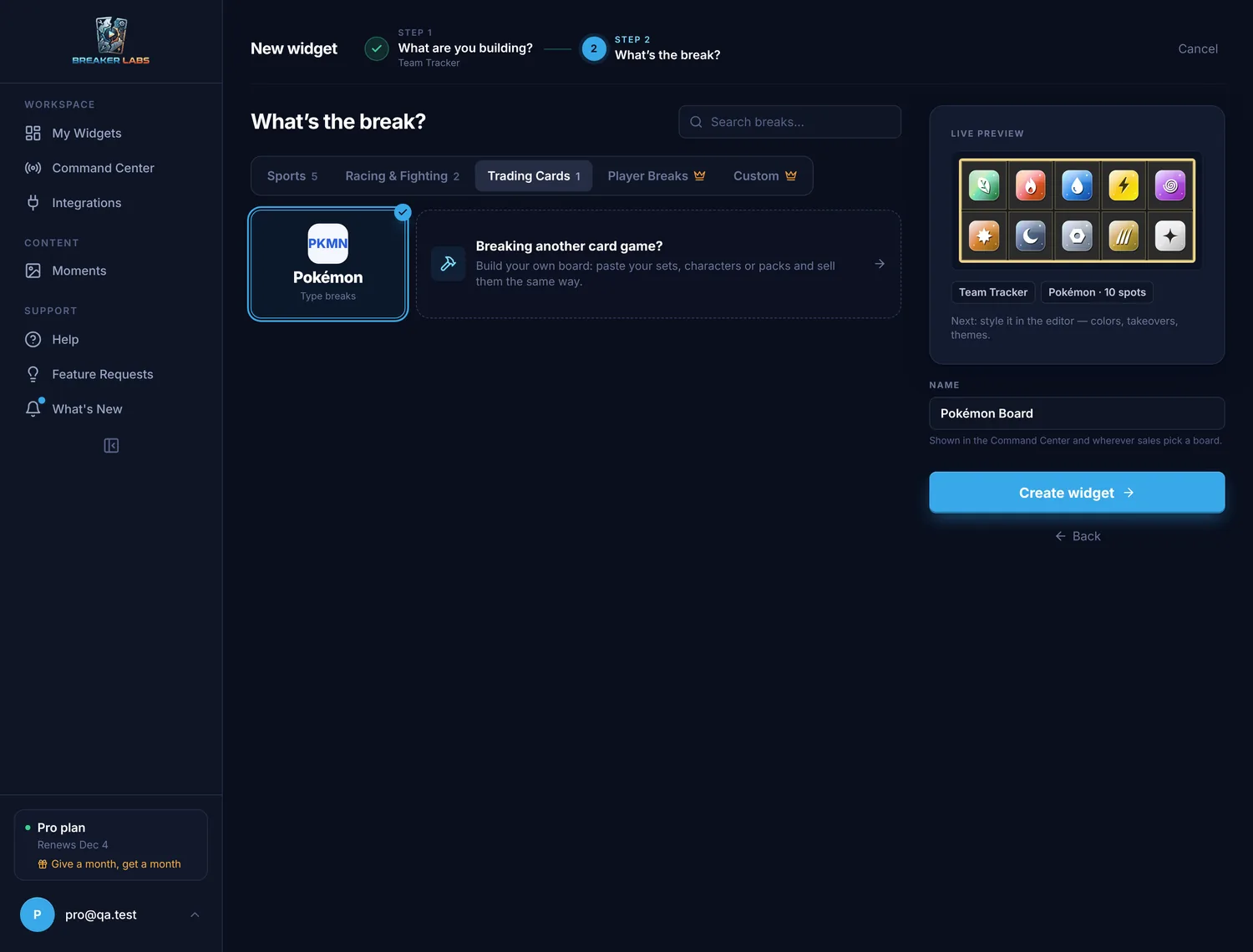
The board has ten spots, one for each type: Grass, Fire, Water, Lightning, Psychic, Fighting, Darkness, Metal, Dragon and Colorless. The counter on the board reads TYPES LEFT, so viewers can see how many are still for sale.
Step 2: Choose the tile artwork
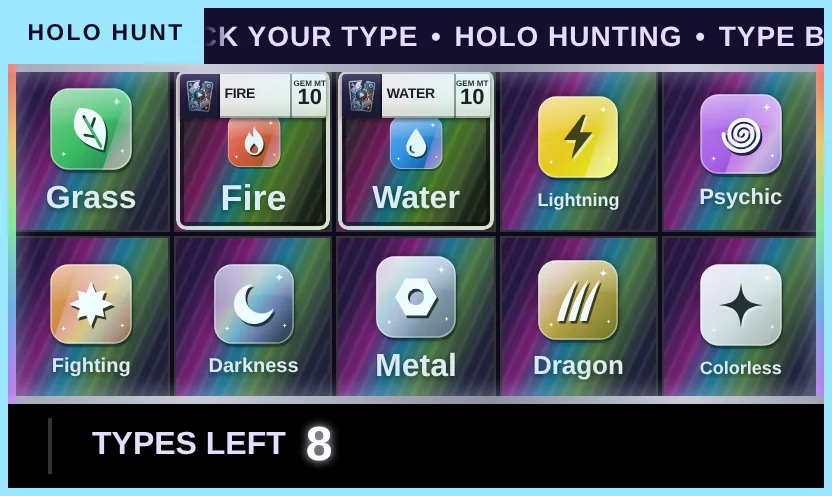
Every new board starts with Holo tiles: each type's symbol on a foil card. For a retro look, open the editor and go to Cards & Claims → Tile Artwork, then choose Pixel.
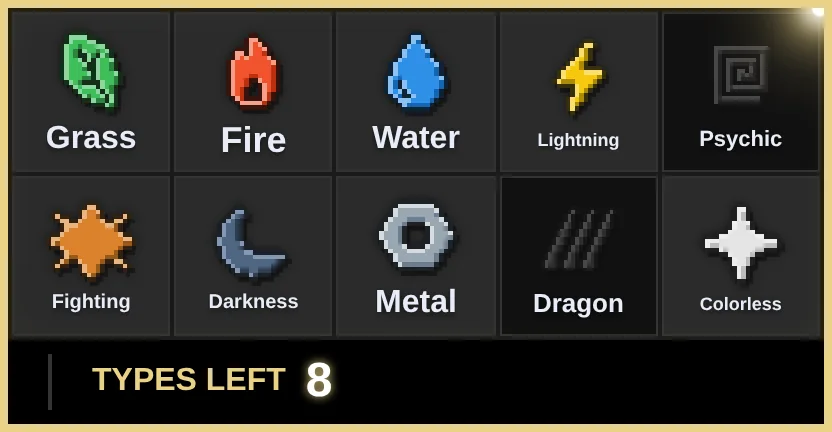
You can switch between them at any time, even mid-break. Sold types stay sold.
Step 3: Pick a theme
Open Themes at the top of the editor's settings. On a Pokémon board, four themes made for type breaks come first:
- Holo Rare
- Type Clash
- Retro Handheld
- Champion's Gold
Each theme sets the colours, the card finish, the sold look, a ticker and a takeover in one click. Pick one, then change anything you like: colours, your logo, fonts and the ticker all work as they do on any board.
Step 4: Choose a takeover
A takeover is the animation that plays over the board when a type sells. Go to Takeovers & Effects and pick one of the four trading card takeovers made for this board:
- Type Surge
- Holo Pull
- Battle Intro
- Energy Charge
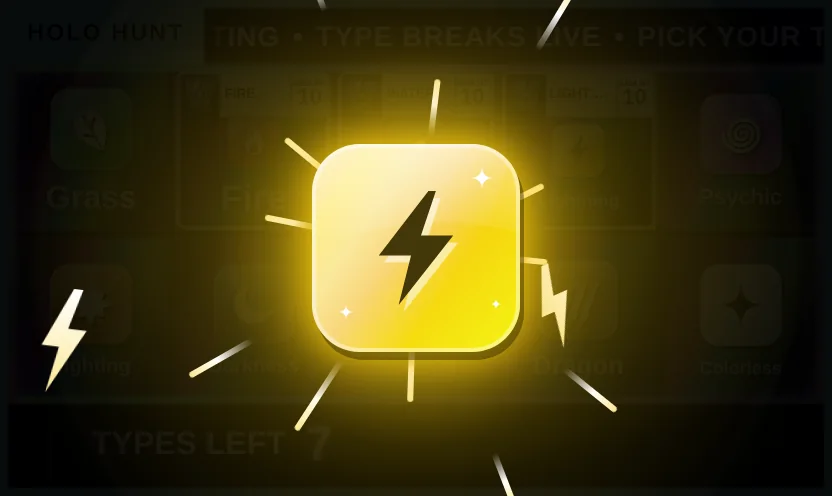
Every other takeover works on a Pokémon board too.
Select Save when the board looks the way you want.
Step 5: Add the board to OBS
Open the Stream Command Center, find your board and select Add to OBS. Breaker Labs creates the Browser Source in the scene you pick, at the right size. The OBS Direct Sync setup guide covers the one-time connection.
Prefer to do it by hand? Copy the board's browser source URL and add it as a Browser Source in OBS.
Step 6: Sell types live
Run the break from the Stream Command Center. When a type sells, select it. The tile turns to sold, the takeover plays, and TYPES LEFT counts down on stream.
With Claim Names on, you can type the buyer's name as you sell, and it shows on the type's tile.
Selling trainers and energy as their own spot
The board has the ten types only. Trainer and Energy cards don't belong to a type, so agree before you go live where they go. Many breakers sell them as an eleventh spot.
To do that, add an Additional spot called "Trainer & Energy". It shows on the board with the types and sells the same way. The Additional Spots guide shows how.
Step 7: Give types out at random (optional)
For a random type break, buyers buy a spot and the wheel decides their type.
On your dashboard, select Create widget, choose Randomizer, then Trading Cards → Pokémon. You get a wheel with all ten types on it.
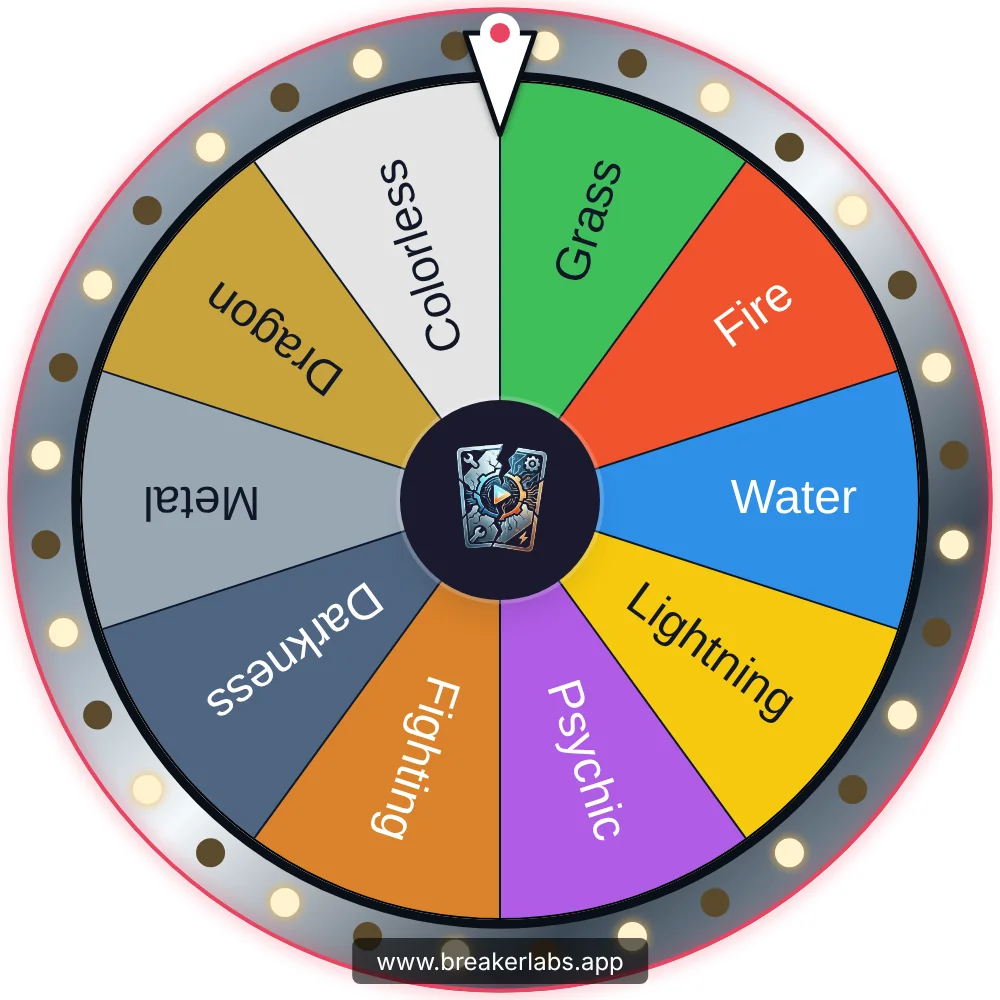
Add it to OBS the same way as the board, and spin it from the Command Center. Mark each type sold on the board as the wheel gives it out.
Step 8: Show who got what
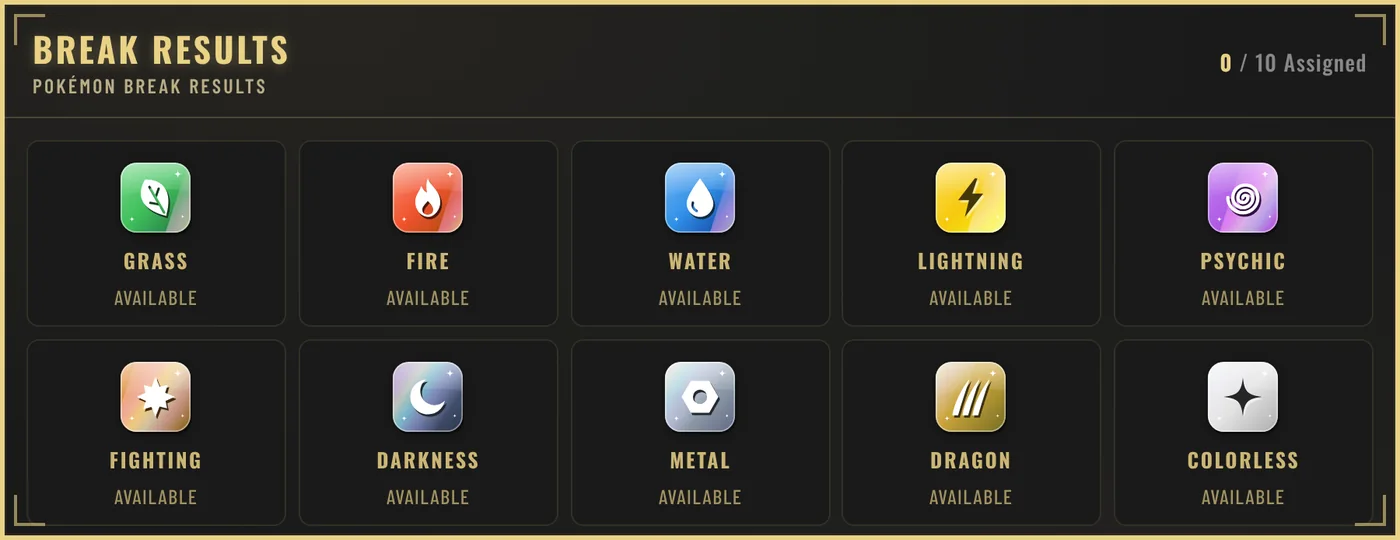
After the break, a Break Results board shows each type and who owns it, so buyers can see what they won.
Select Create widget, choose Break Results, then Trading Cards → Pokémon. Fill in each type's buyer from the Command Center as you go.
Quick answers
What is a Pokémon type break? A break where each buyer buys one of the trading card game's types. Every card of their type pulled during the break goes to them.
Do I need Pro? Yes. Pokémon type breaks are a Pro feature, and they're included in the 7-day free trial.
Can I add a Trainer or Energy spot? Yes, as an Additional spot. Step 6 above shows how, and the Additional Spots guide covers the layout.
Can I run a break for another card game? There isn't a ready-made board for other card games yet, but you can build one in a few minutes: paste your list of spots into a custom board.
Can I use it without OBS? Yes. Open the board in the Command Center and select Fullscreen to show it on a monitor or tablet pointed at the camera. See No OBS? No Problem!
Pokémon is a trademark of Nintendo, Creatures Inc. and GAME FREAK inc. Breaker Labs is not affiliated with or endorsed by them.