How to Add Extra Spots to Your Team Board (Step by Step)
· Breaker Labs
This guide adds extra spots to a team board and puts every spot on the Randomizer Wheel. The screenshots show a Bowman football break, 32 NFL teams plus 18 college programs for 50 spots, but the steps are the same for anything you sell on top of your teams: a bonus spot, a mystery spot, a case hit, anything with a name.
If you just want the announcement, it's over here.
Before you start
- A Team Tracker. Any sport works, including a divisional board. Additional spots are added to a board you already have, so use the one that's already set up in OBS if you have it.
- Pro, or the 7-day trial. Additional Spots is a Pro feature.
- A picture for each spot (optional). PNG, JPEG or WebP, up to 2MB. A logo on a transparent background looks best on the board's cards. You can skip the pictures and add them later.
Step 1: Add the spots
Open the Stream Command Center and select your board. In Stream controls, on the Selling tab, select Additional spots. It shows how many you have, out of 18.
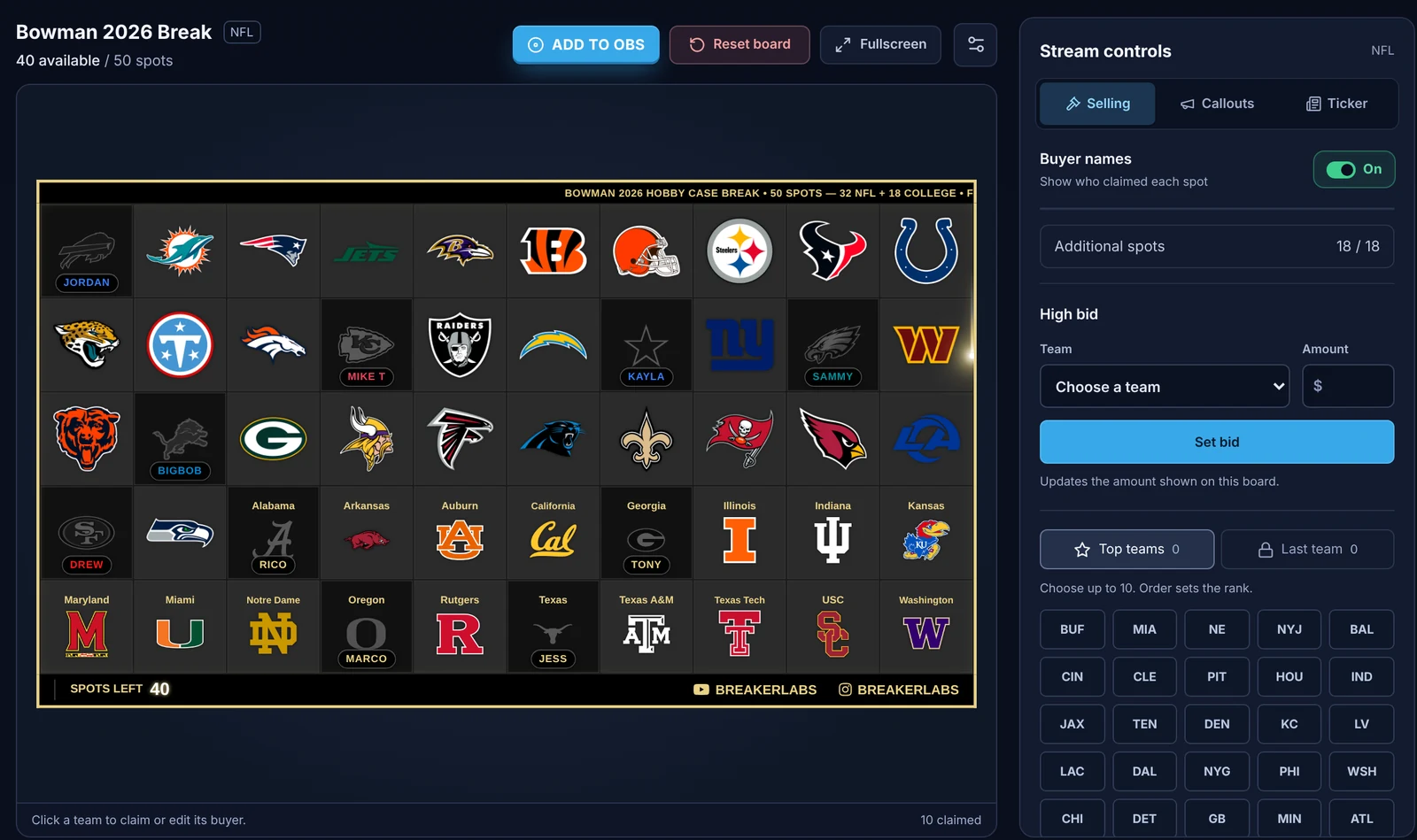
A form opens. On a board with no spots yet, the first row is ready for you to type in.
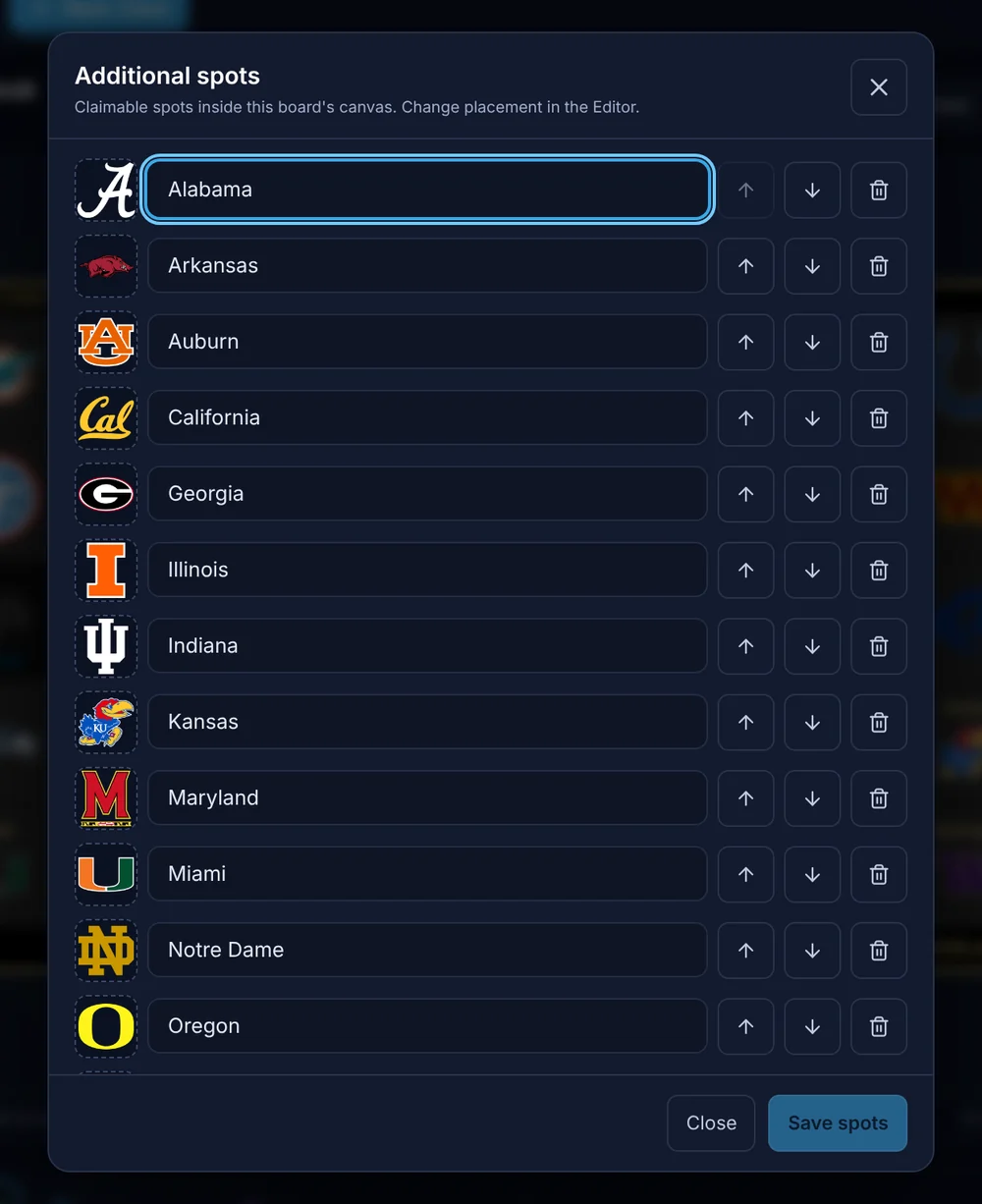
For each spot:
- Type its name, for example
AlabamaorMystery Spot. This is what the card, the takeover and the wheel show, so use the name your buyers know. Every spot needs a name; Save spots won't go through with a blank one and points you to it. - Add a picture (optional). Select the picture square at the start of the row, then upload an image or choose one you've already uploaded.
- Put it in order with the up and down arrows. The board shows the spots in this order.
Select + Add spot for the next row, and repeat for each spot, up to 18. Nothing changes on the board until you select Save spots. Saving updates the board everywhere at once, including OBS.
A spot without a picture shows your board's own logo, or the Breaker Labs logo if your board doesn't have one, so a card is never blank.
Step 2: Lay them out
Open the board in the editor and go to Layout → Additional spots.
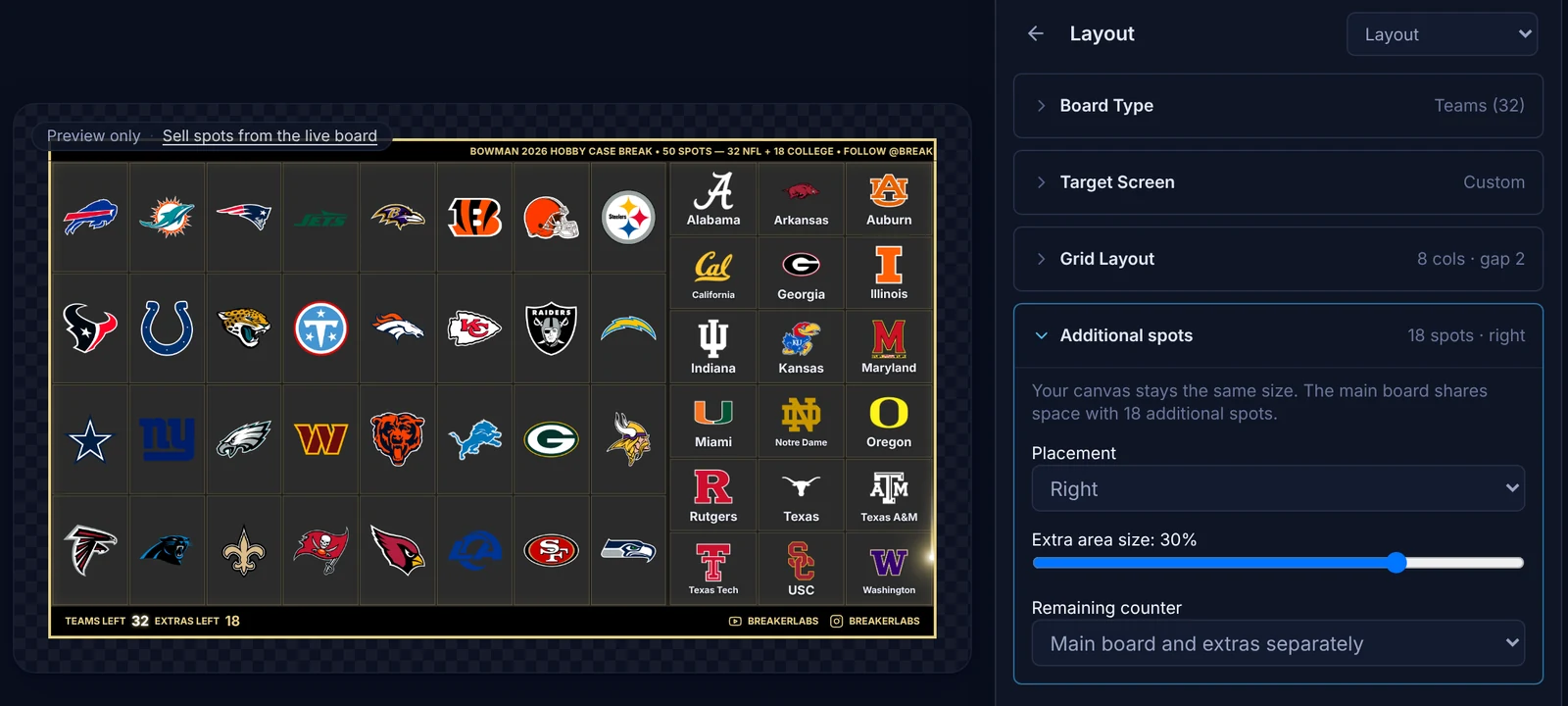
Your board keeps the same size. The spots take space from the teams' area, and the cards resize to fit. That means you never have to re-add the board in OBS, but it also means you should pick the layout that keeps every card readable.
Placement has four choices:
- In the main grid puts the spots in the same grid as the teams, so the board is one big grid. This gives the most room to every card, and it's the best choice when the extras are worth the same as the teams.
- Right or Left puts the spots in a rail beside the teams. Good when you want buyers to see the extras as their own group.
- Bottom puts them in a band under the teams.
For Right, Left and Bottom, Extra area size sets how much of the board the spots take, from 15% to 35%. Drag it until the extras' cards and the teams' cards look about the same size.
Remaining counter shows one number for every spot, or teams and extras separately (for example TEAMS LEFT 26 · EXTRAS LEFT 14).
Fill the board with no gaps
Empty cells make a board look unfinished, so pick a column count that divides your spot count evenly. With the spots in the main grid, go to Layout → Grid Layout. The column buttons count the spots too, and show columns × rows:
- 32 teams + 18 spots = 50: choose 10x5. Ten columns, five full rows.
- 32 teams + 8 spots = 40: choose 8x5 or 10x4.
With a rail or a band, the teams keep their own grid (8x4 fills all 32) and the extras are arranged in their area for you.
Select Save when you're happy with the preview.
Step 3: Put it in OBS
If the board is already in your OBS scene, you're done: the spots appear as soon as you save them, and the board's size hasn't changed.
If it's a new board, use Add to OBS in the Command Center, or copy the widget URL into a Browser Source at the size shown.
Step 4: Put every spot on the wheel
Create a Randomizer Wheel if you don't have one, then open it in the Command Center. Under Entries, select the Team Board tab, and in Use the spots from, choose your board.
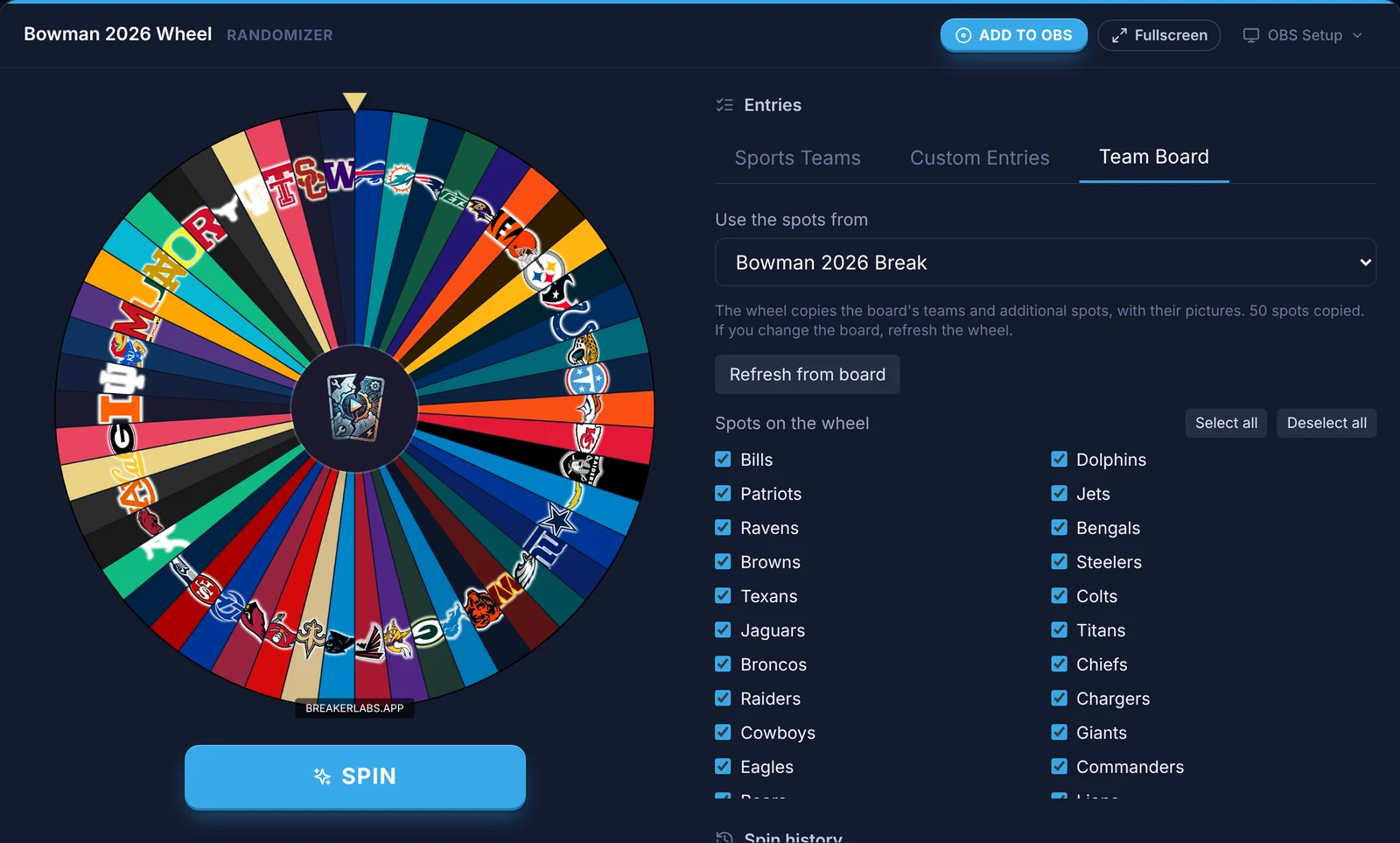
The wheel copies every team and every additional spot, with their logos, pictures and colors. Under Spots on the wheel, untick any spot you don't want on this wheel; Select all and Deselect all do the whole list.
To show logos and pictures on the slices instead of names, open the wheel in the editor and turn on Wheel → Show team logos. A spot without a picture, or whose picture fails to load, shows its name instead.
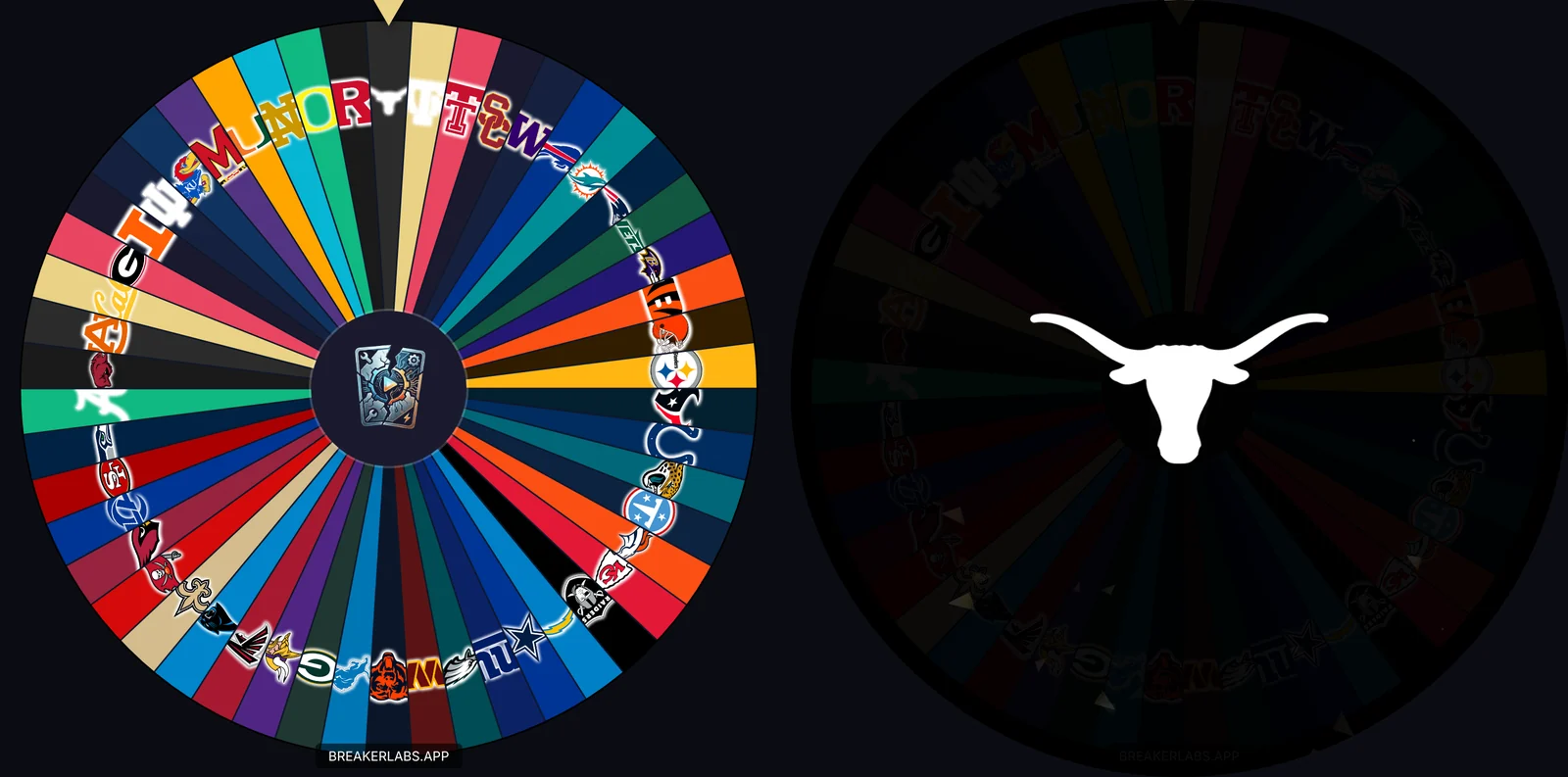
During the break
Selling. Select a spot on the board in the Command Center to claim it and type the buyer's name, exactly as you do for a team. The card shows the buyer, the counter goes down, and the takeover plays with the spot's picture and name.
Spinning. Spin the wheel from the Command Center as usual. Confirm the result and that spot comes off the wheel.
Starting over. Reset board clears every sale, spots included. Your spots stay on the board, ready for the next break.
When the list changes mid-break
Adding a spot. Open Additional spots, add it, and save. It appears on the board straight away, ready to sell.
Removing a spot. Remove it and save. If the spot was sold, the form asks first and shows who bought it, so you can't clear a buyer by accident. If someone else changes the spots from another window while you're editing, saving tells you so instead of overwriting their change, and keeps your draft. Select Reload saved spots to start again from what's saved.
Updating the wheel. The wheel keeps its own copy, so a change to the board doesn't reach the wheel by itself. Select Refresh from board on the wheel's Team Board tab. If the refresh removes a spot the current break already used, the wheel asks before it resets the break.
Common questions
Can I have more than 18 additional spots? Not today. Tell us on the Feature Requests page if your format needs more.
My spot shows the Breaker Labs logo. That spot has no picture. Select the picture square next to its name in Additional spots to add one. If you've added your own logo to the board (a Pro feature), spots without a picture show that instead.
My spots disappeared from the board. Check your plan in Account & billing. Without Pro, the board shows only its teams, but your spots, sales and buyers are all kept and come back when you renew. You can still remove spots without Pro.
Does Reset Configuration in the editor delete my spots? No. It resets how the board looks and keeps your spots.
Can a divisional board have extras? Yes. Each extra sells on its own, next to the division tiles, and Buyer names work on divisional boards too.