This Week in Breaker Labs: Live Callouts That Last the Whole Sale
· Breaker Labs
Most of you keep a callout up for the whole time a spot is for sale, usually 15 to 30 seconds. Until now, every style played its entrance and then stood still for the rest of it. This week they keep going.
Live Callouts that last the whole sale
Every style now plays in three parts: its entrance, a loop that keeps running for as long as the callout is up, and its own exit. In every style except Classic, last call then speeds the last few seconds up and turns them red, so chat knows the spot is about to close.
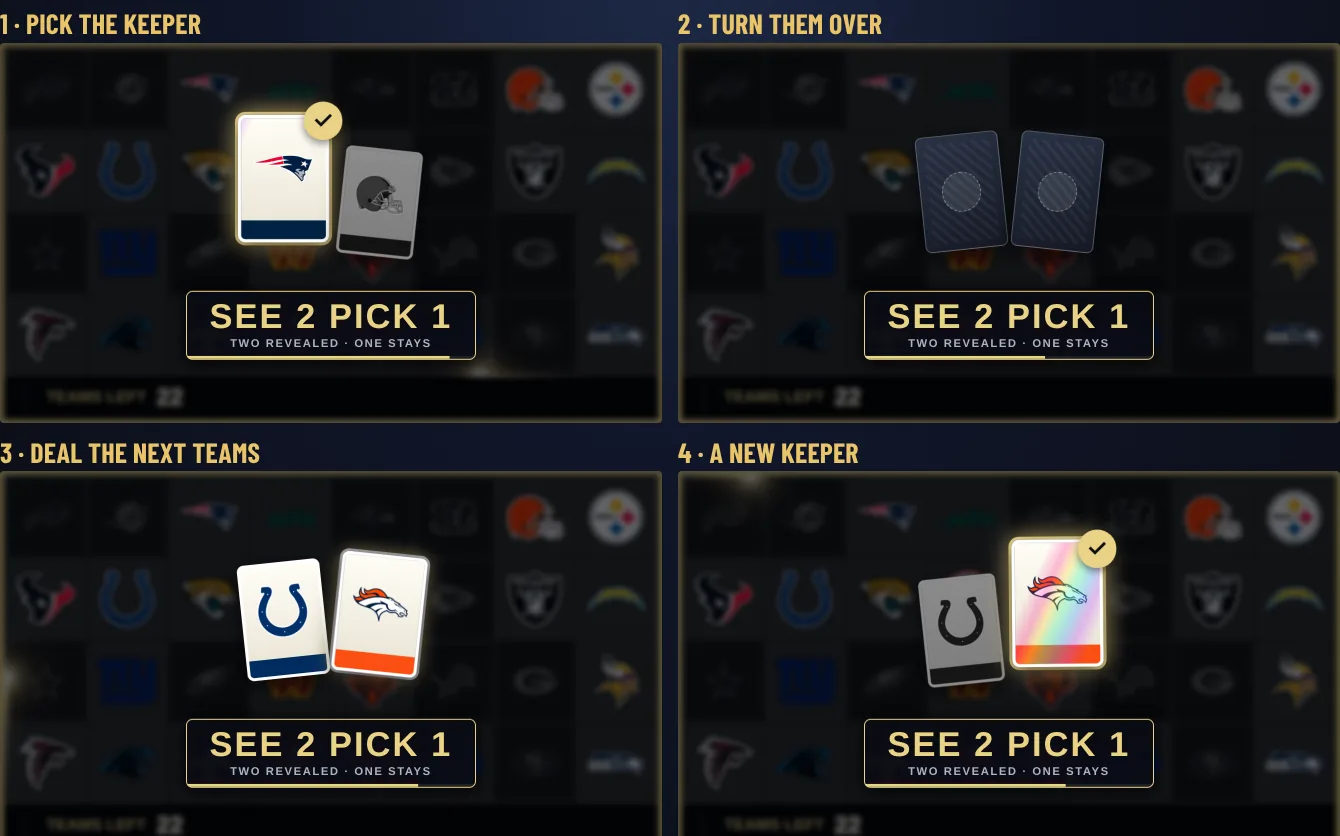
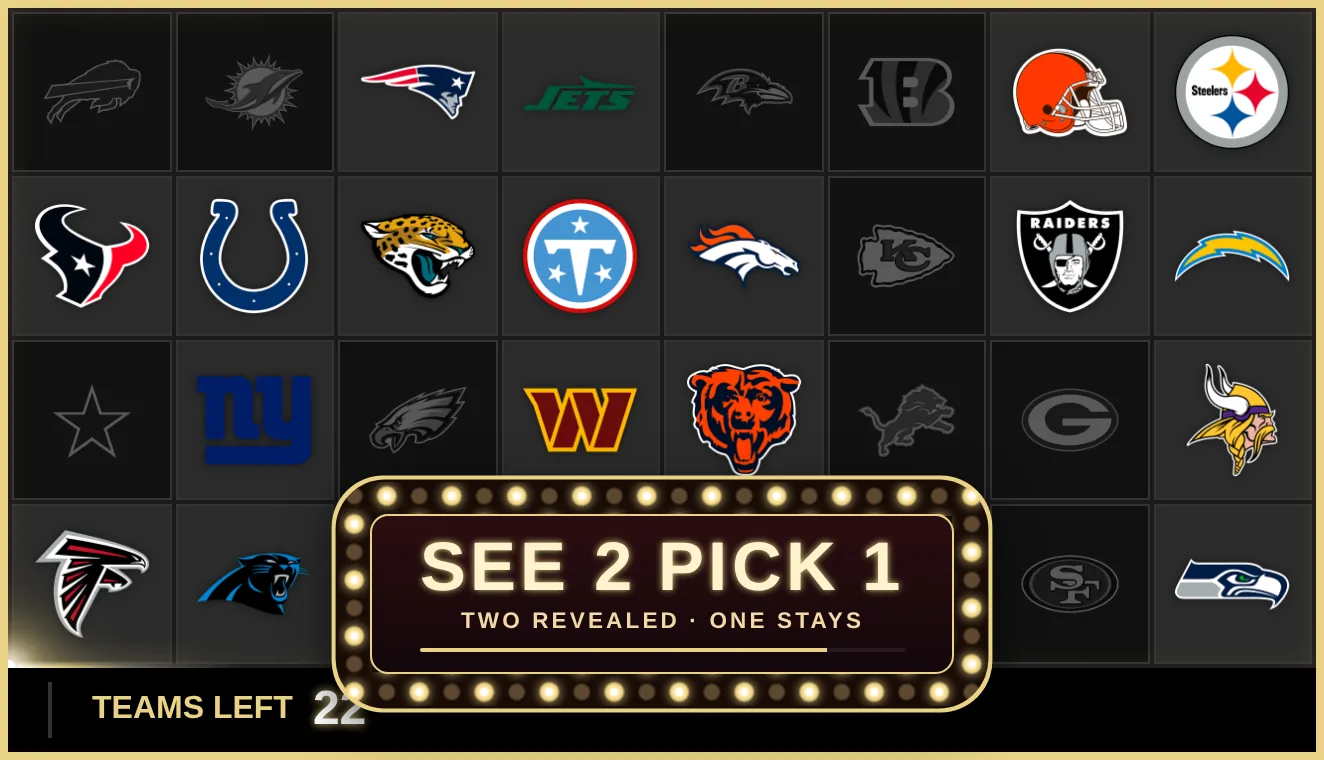
See 2 Pick 1, See 3 Pick 2 and 2 for 1
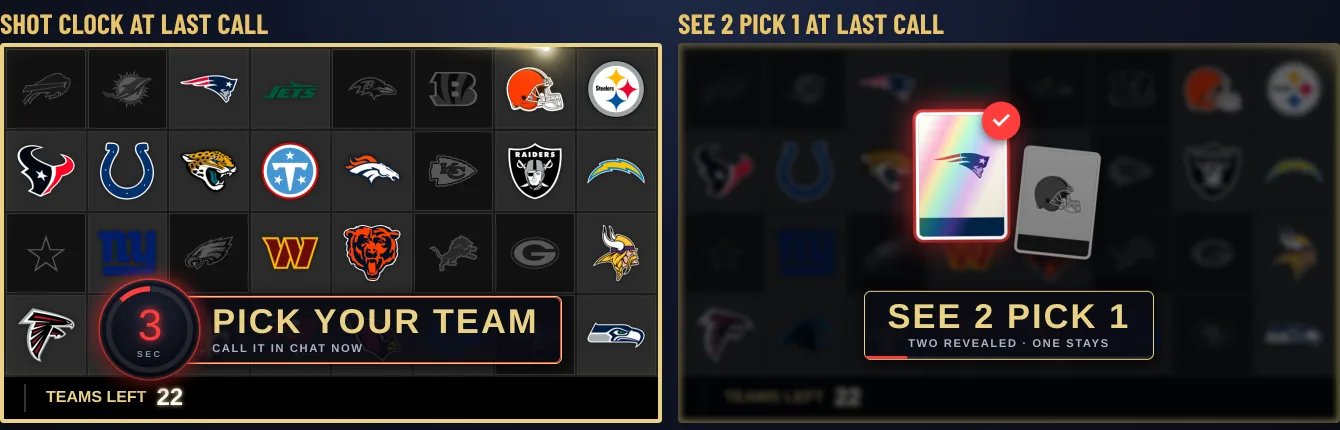
The cards keep dealing. They flip over to show teams still open on your board, a highlight scans across them and locks on the keeper, then they turn back over and the next teams are dealt. A new round comes about every four seconds, and the keeper changes each time.
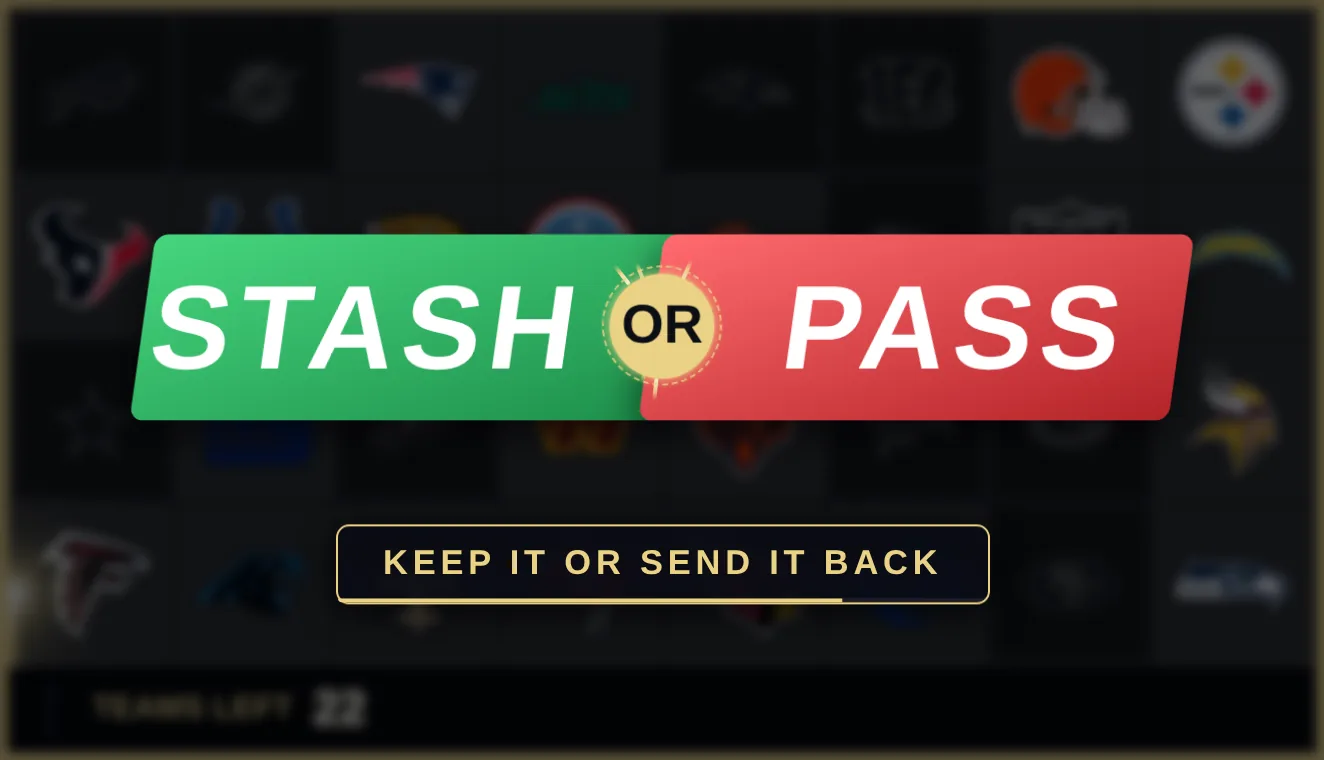
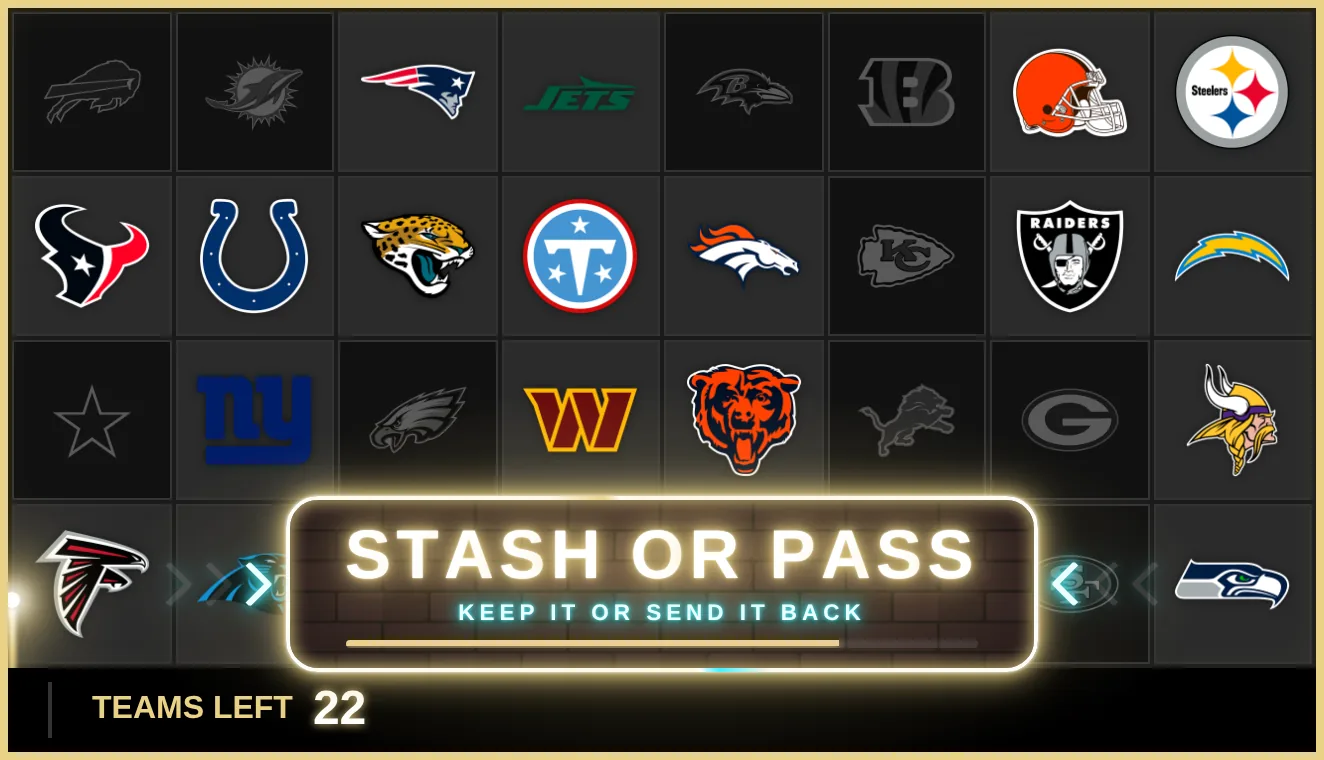
Stash or Pass
The two halves keep pushing against each other, and sparks fly off the seam every time they meet. On exit, they fly apart.
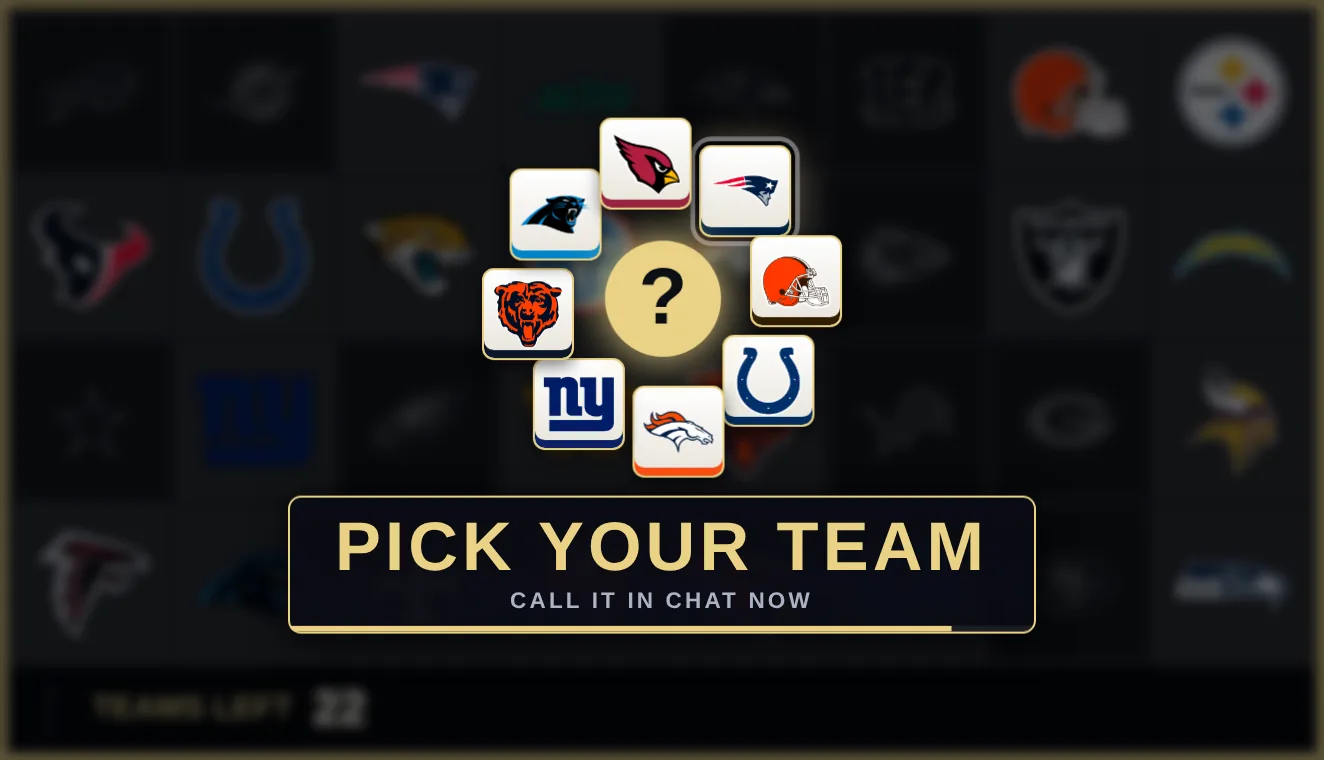
Pick Your Team
The roulette of your open teams keeps orbiting, with a light running around the ring.
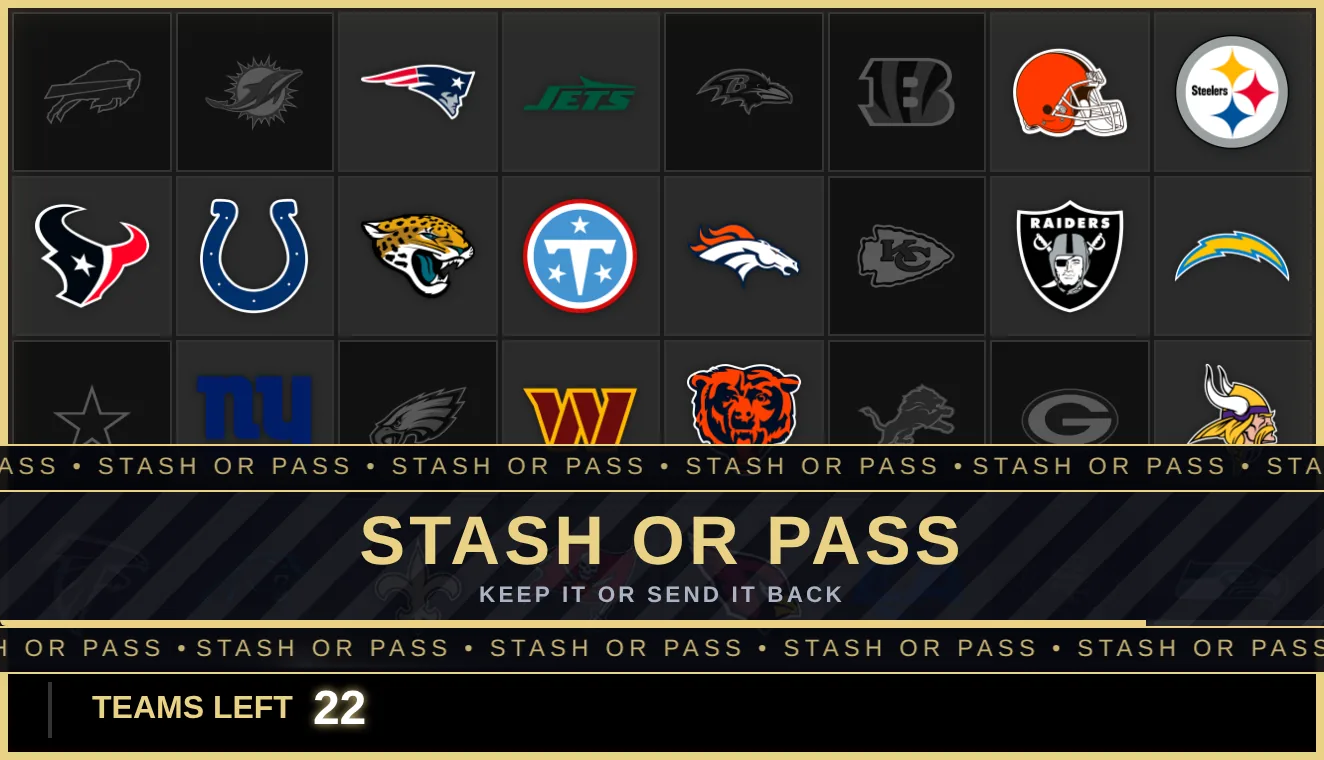
Slam, Marquee, Spotlight and Classic
- Slam lands with speed lines, then holds on a heartbeat.
- Marquee keeps its stripes scrolling, with stadium crawls running above and below the ribbon.
- Spotlight sweeps two searchlights across the board while a shine runs through the title.
- Classic, the original banner, now glows softly and catches a light sweep while it holds.
Three new styles
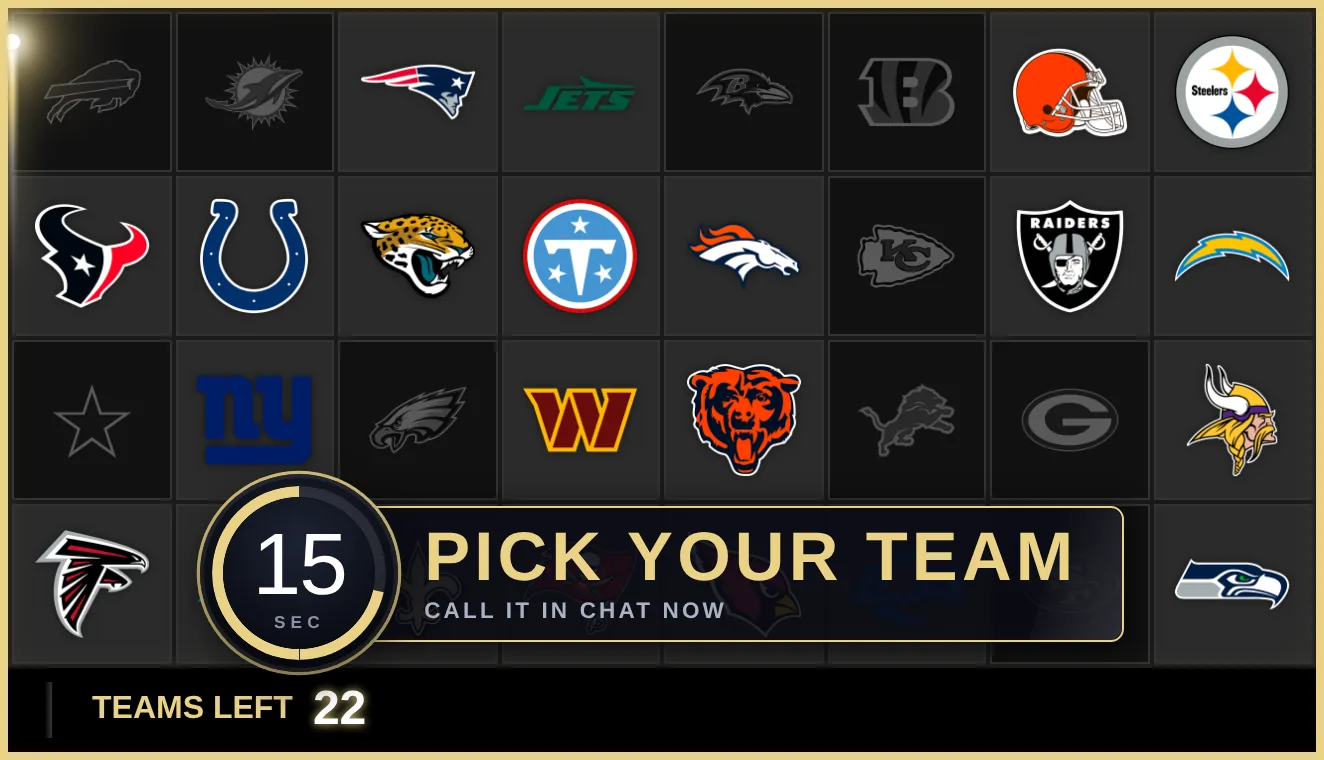
Shot Clock
A dial drains beside the banner and the seconds tick down, so chat can see exactly how long the spot is open. In the last few seconds the dial and the number turn red.
Neon
A neon sign on a brick wall. Light runs around the tube, arrows chase in from both sides, and every few seconds the letters go dark, light back up one at a time, and the whole sign flashes. At last call, it turns red.
Vegas
Your callout on a marquee sign framed in chasing bulbs. The letters pop on one at a time, then a ripple keeps running through them.
Make it bigger
A new Size setting makes your callout bigger, so chat can't miss it, even on a phone. There are three options:
- Standard is the size callouts have always been.
- Large makes the callout up to 1.4 times bigger. It never goes past the edge of your board.
- Fill the board makes it as big as your board allows. It plays in the middle of your board, over your teams, whatever position you picked.
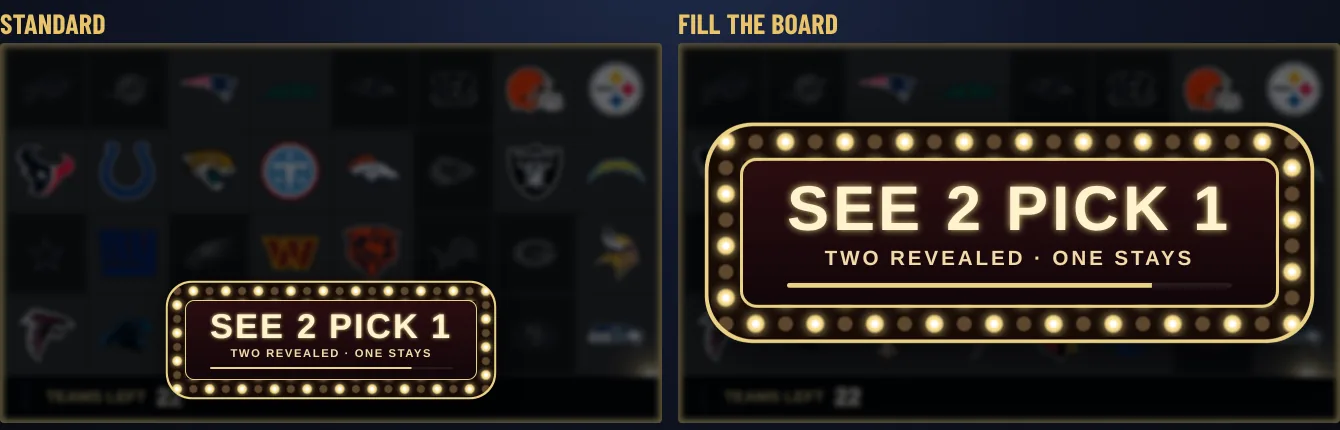
Size works with every style except Classic. If your callout text is long, the callout stops growing before the text gets cut off.
Built for the whole sale
- Up to 60 seconds. Callouts used to stop at 15. Set your default in the editor, or pick a length for each callout in the Command Center, from 5 to 60 seconds. New widgets start at 20.
- Last call. The final stretch of a callout (the last quarter, up to 5 seconds) runs hot. It's on by default for callouts of 6 seconds or more, in every style except Classic.
- Clear when it sells. After you send a callout to your board, the Command Center shows it with a countdown. If the spot sells early, select Clear and it leaves the board straight away.
- Long callouts fit. In the big-event styles, long custom text now shrinks to fit instead of getting cut off.
- Easier on your streaming PC. Callouts no longer redraw the board on every frame while they're up, so they stay light for the whole 60 seconds.
Set it up
- Pick a style. Open a Team Tracker in the editor, select Text & Banners, then Live Callouts. Every style plays right there in the preview.
- Set how long it stays up. Use Stays up for in the same section. Match it to how long your spots are usually for sale.
- Make it bigger. Use Size in the same section: Standard, Large or Fill the board.
- Turn last call on or off. It's under Big-event extras, with Dim the board, Screen shake, Countdown bar and Subtitles.
- Send and clear. In the Command Center, send a callout from Live callouts. Use Stays up to set its length and Style to change its style. Once it's on your board, Clear appears next to its countdown.
Your widgets keep the style and length you set. If a widget is still on 5 seconds, raise Stays up for so your callouts cover the whole sale.
Already in OBS? Reload the board once after the update so it picks up the new callouts. Select Reload in OBS on the widget in the Command Center, or open the browser source's properties in OBS and select Refresh cache of current page.
Also new
- A one-row Command Center. The top bar now fits on one row: your view tabs, then Audio Guard, Capture Moment and one OBS button. Your board starts higher on the screen. Views that don't fit are under More. Scenes, Auto-switch and Set Up My Break are under the OBS button. The Command Center guide shows the new layout.
- Boards named for what they are. New widgets get names like "NFL Board" or "MLB Wheel" instead of "My Widget", and you can change the name before you create it. Rename one anytime from its name at the top of the editor.
- A quieter editor. We cut about 40% of the editor's help text. The live preview shows what each setting does.
- Announcement banners. Scheduled maintenance, incidents and product updates now show up in a banner at the top of your dashboard. You can close any of them.
Getting started
Shot Clock, Neon, Vegas and the other big-event callout styles are Pro features, included in the 7-day free trial. Every Live Callout style is set up in the editor, and you send them from the Command Center.
New to Live Callouts? The Showtime post covers every preset, your own preset names and saved callouts.
Want something built next? Add it or vote for it on the Feature Requests page.