Make It Yours: Meet the New Breaker Labs Editor
— Breaker Labs
Your board has more ways to make it yours than ever. Finding the right setting should still be easy.
The refreshed widget editor brings customization into a floating panel with clearer categories and search. Your board stays in view while you work, so you can see how each choice fits the rest of your overlay.
Find the setting you came for
Looking for your logo, sold appearance, or confetti? Type it into Search customization, then select the matching feature to open its controls.
Prefer to browse? Settings are grouped by what you are changing: Layout, Branding, Cards & Claims, Takeovers & Effects, Highlights, and Text & Banners. The panel only shows the categories and features available for your widget.
Try card styles on your actual board
Card styles now sit inside the panel. Choose a finish and see it on your board immediately, with your current colors and layout. Search the styles or narrow them by category when you have a particular look in mind.
There is no separate card-style popup to compare against the board. Choose a style, check the result, and Save when you are happy with it.
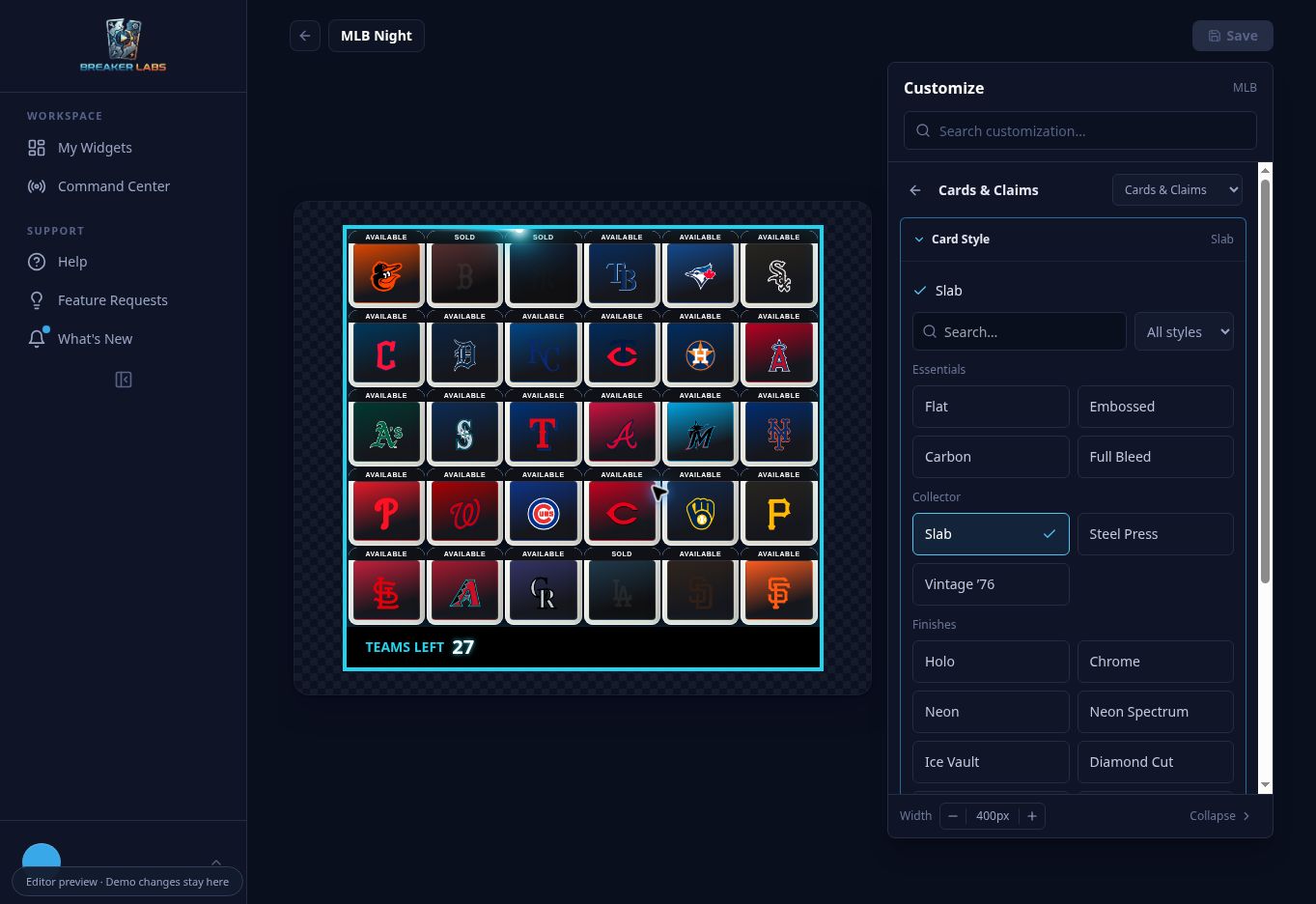
Watch takeovers where they belong
Team Tracker and Wheel Randomizer takeover choices also live in the panel. With takeovers enabled, selecting an animation plays a sample on the board. Replay lets you watch it again without claiming a team or running a wheel spin. Automatic playback respects your reduced-motion preference.
The right controls for each widget
Team Tracker keeps its board, branding, claim, and effect controls together. Break Results presents its card styles, spot colors, dimensions, header, and results layout. Wheel Randomizer focuses on wheel customization and the winner takeover.
On desktop, adjust the floating panel width in deliberate steps or collapse it for more room. On mobile, a shorter settings sheet leaves the board visible above it.
Starter users can find Upgrade to Pro directly in the panel when they want to use Pro customization on stream.
Ready to give your overlay another pass? Open a widget in the editor and start with the setting you want to change. Our widget editor guide walks through finding controls, choosing a style, previewing takeovers, and saving your work.