How to customize your widget in the refreshed editor
— Breaker Labs
Use the widget editor to change how your overlay looks. Keep live break operations, such as updating spot pricing, in the Command Center.
Screenshots use sample boards from the refreshed editor preview.
This guide covers the refreshed editor. For a quick overview of what changed, read the announcement.
1. Open the widget you want to customize
Open your widget for editing. The board is your preview, and the customization panel holds the controls. Before changing anything, check that you have the right widget open—Team Tracker, Break Results, and Wheel Randomizer offer different settings.
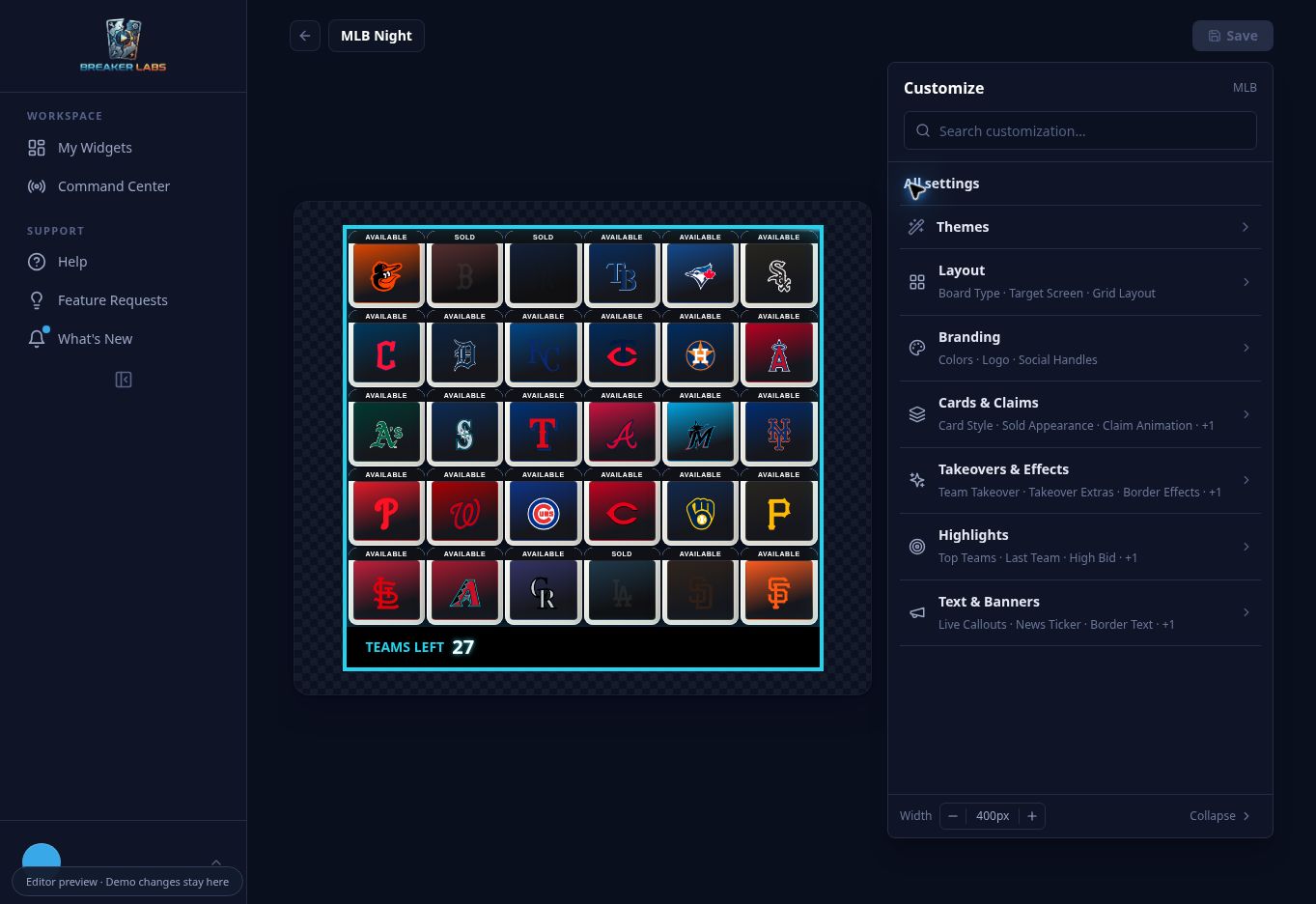
2. Search for a setting or browse a category
Select Search customization and enter a word such as logo, sold, or confetti. Select a result to open that feature's controls. Clear the search to browse again.
Search matches the features available for the current widget. If you do not see a control, check the widget type and board setup before assuming it is missing.
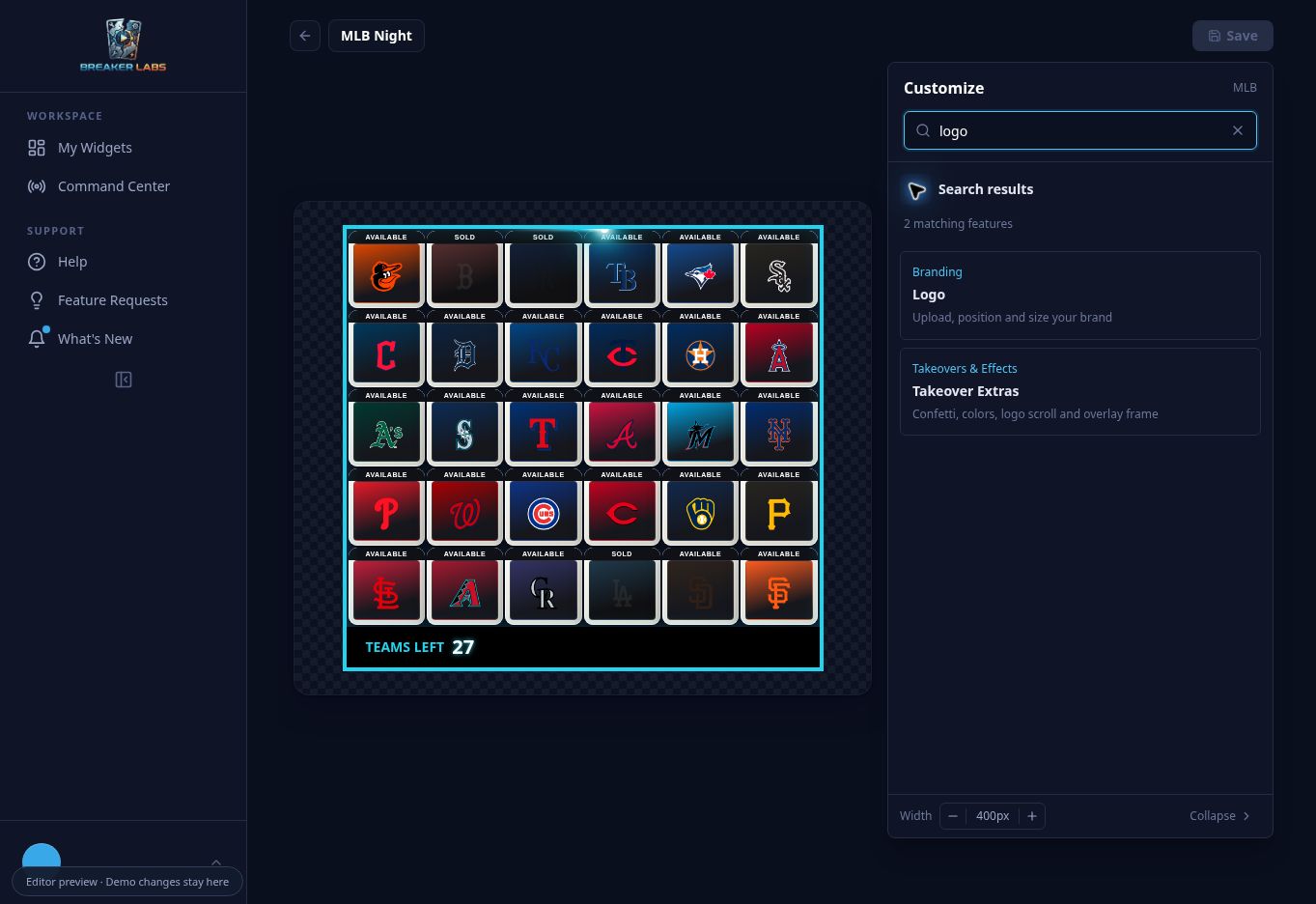
For Team Tracker, the main categories are:
| Category | What you can find there |
|---|---|
| Layout | Target screen, grid layout, and board type where available |
| Branding | Colors, logo placement, and social handles |
| Cards & Claims | Card Style, Sold Appearance, Claim Animation, and Buyer Names where supported |
| Takeovers & Effects | Team Takeover, Takeover Extras, border effects, and milestone controls where available |
| Highlights | Top Teams, Last Team, High Bid, and Chase Cards where supported |
| Text & Banners | Footer, ticker, and Live Callouts where available |
The editor adapts this list to your board. You do not need to work through every category to make one change.
3. Choose a card style
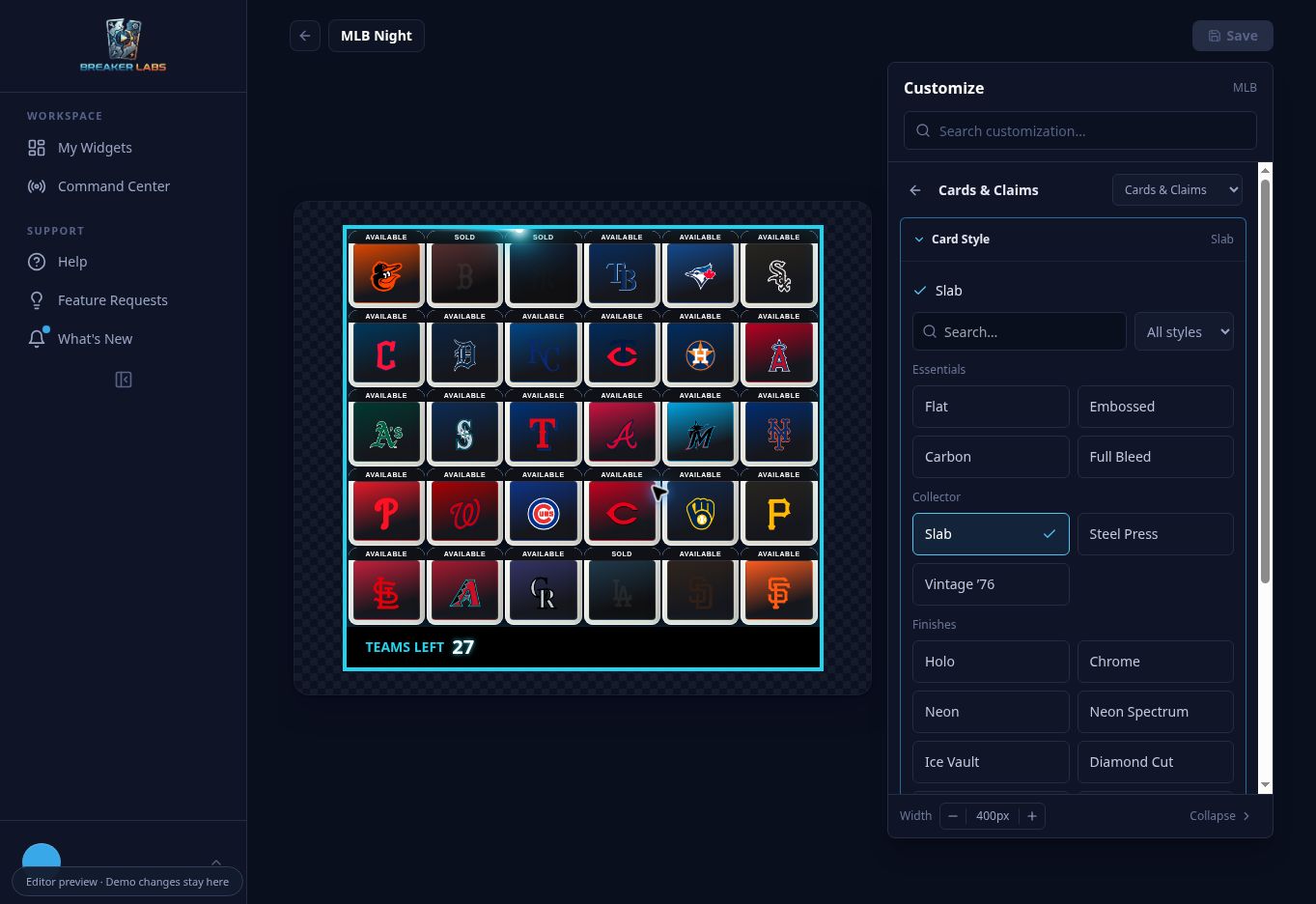
In Team Tracker or Break Results:
- Open Cards & Claims.
- Expand Card Style.
- Choose a style from the buttons in the panel.
- Look at the main board to judge the result with your colors and layout.
Use Search card styles to find a named style, or the category selector beside it to narrow the choices. The selected button has a check mark. Selecting another style immediately changes your draft; there is no separate Apply step in this picker.
4. Preview a takeover
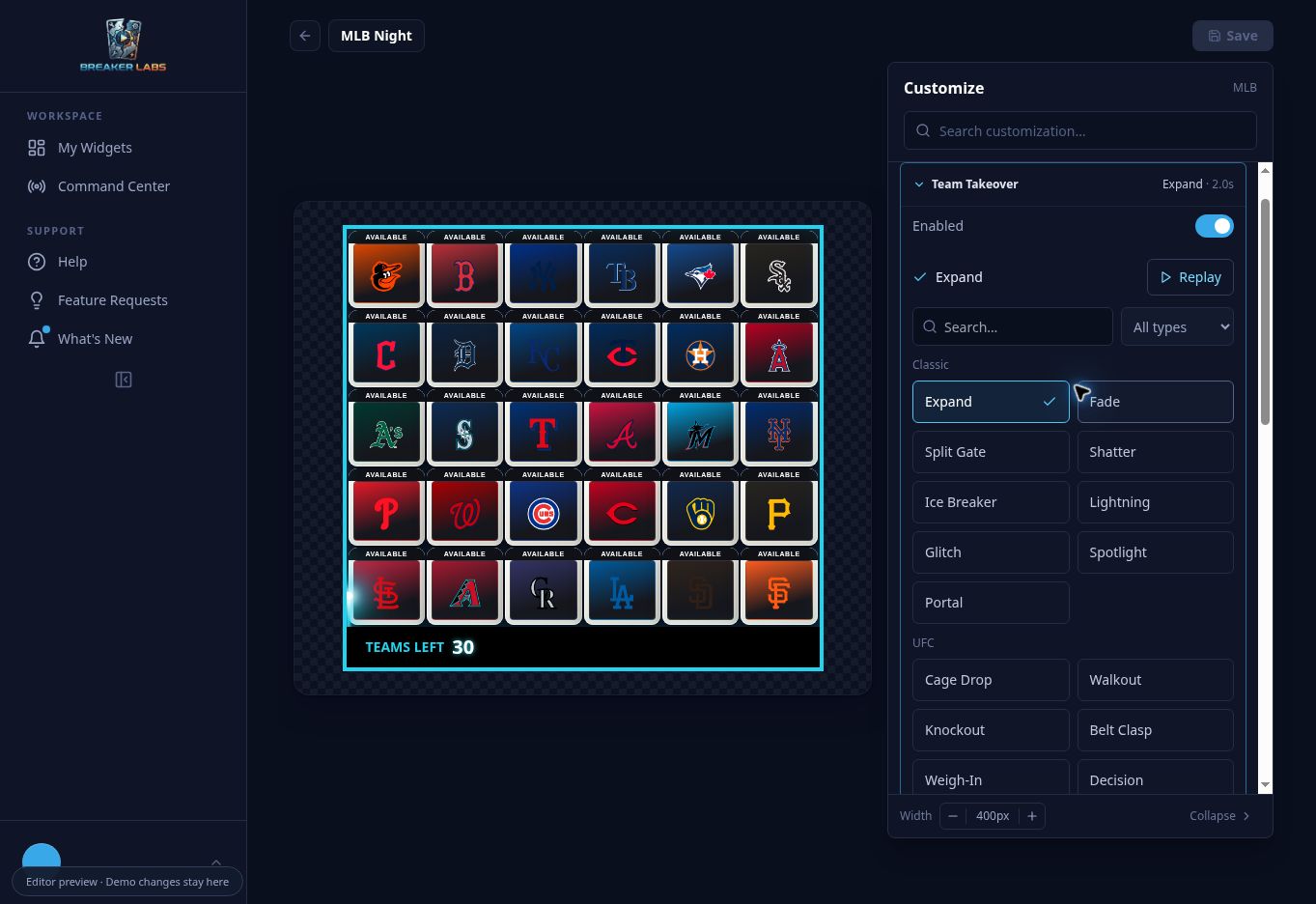
For Team Tracker, open Takeovers & Effects → Team Takeover. For Wheel Randomizer, open Takeovers & Effects → Winner takeover.
Enable the takeover if it is off, then choose an animation. The main board plays a sample so you can assess the effect in context. Select Replay to watch it again. Replaying a sample does not claim a team, record a wheel winner, or change your live break state.
If your device prefers reduced motion, choosing an animation does not automatically play it. You can still select Replay when you want to see it.
For Team Tracker, additional options such as confetti, colors, logo scrolling, and overlay frames live in Takeover Extras. Wheel takeover extras are in its winner takeover controls.
5. Work with Break Results or Wheel Randomizer
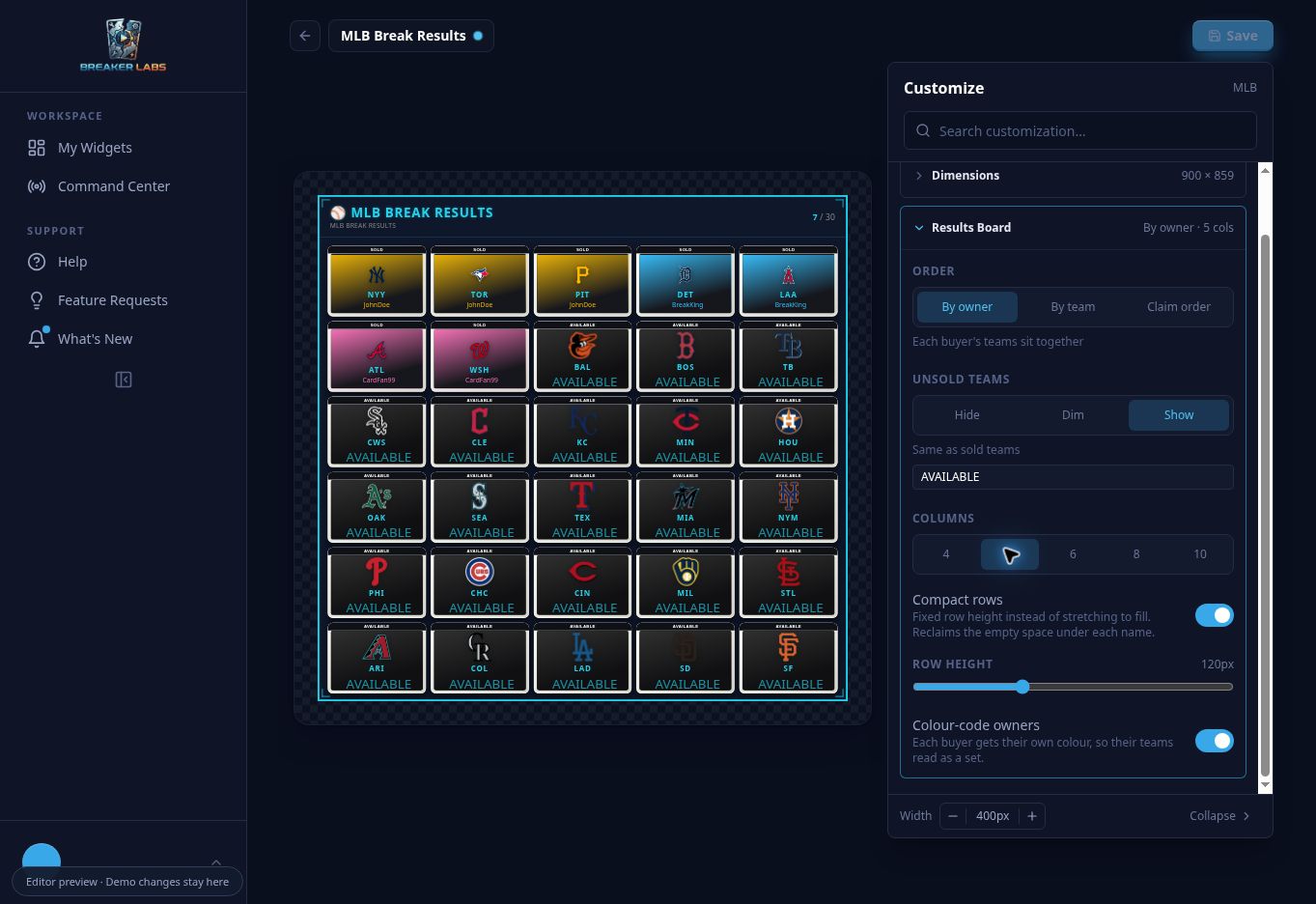
Break Results: use Cards & Claims for Card Style and Spot Colors, Layout for Dimensions and Results Board, and Text & Banners for Header. Results Board controls the presentation of your results, including ordering, density, and unsold spots.
Wheel Randomizer: open Wheel for spin behavior, segment colors, pointer, text, and logo controls. Use Takeovers & Effects for the winner takeover.
6. Give the board more room
On desktop, use the floating panel's width controls to make the panel narrower or wider in steps. Collapse it when you want to inspect the board with fewer controls in view.
On mobile, open the settings sheet to edit. The board remains visible above it, so you can see the result as you choose a style. Close the sheet for a larger view of the board, then reopen it to continue.
7. Save your changes
For card styles and takeover choices, selecting an option updates the editor draft. Select Save when you want to keep those changes. Moving between customization categories keeps your current draft, but it is not a substitute for saving before you leave.
A crown marks Pro choices. On Starter, Upgrade to Pro is available at the bottom of the panel. Previewing a Pro feature does not unlock it for your stream; upgrade if you want to keep and use those options. Saving as Starter keeps the configuration within your plan's available features.
A quick first pass
Set the layout, choose your colors and card style, then add the effects you want. Check the full board before saving. You can always return to one setting later using search.