How to Show Spot Prices on Your Break Board (Step by Step)
· Breaker Labs
Viewers ask "how much for the Yankees?" all break long. With Spot Prices, the answer is on the board: every open spot shows its asking price, and every sold spot shows what the buyer paid, on a gold tag above the buyer's name.
If you just want the announcement, it's over here.
Before you start
- Pro, or the 7-day free trial. Spot Prices is a Pro feature.
- A team board. Any Team Tracker works, including divisional, catalog and player boards, and any Additional Spots on it.
- Buyer names (optional). Turn them on if you want the buyer's name beside the price. They're in the same place as the prices switch.
Step 1: Switch Spot prices on
Open the Stream Command Center and select your board. In Stream controls, on the Selling tab, turn Spot prices on. It sits right under Buyer names and works the same way.
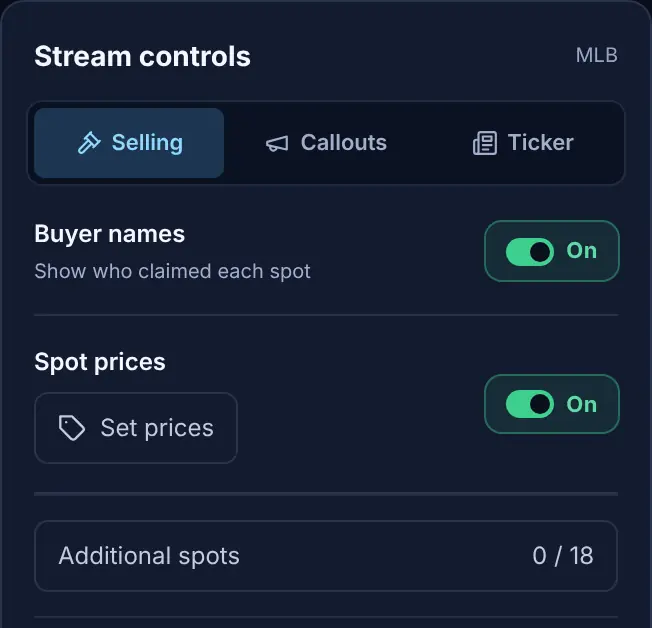
The switch is also at the top of the editor's Cards & Claims → Spot Prices section, as Show spot prices. Either one turns prices on for that board. With the switch off, the board shows no prices, and the prices you've set stay saved for when you turn it back on.
Step 2: Set your asking prices
Select Set prices. A form opens with every spot on the board, Additional Spots included.
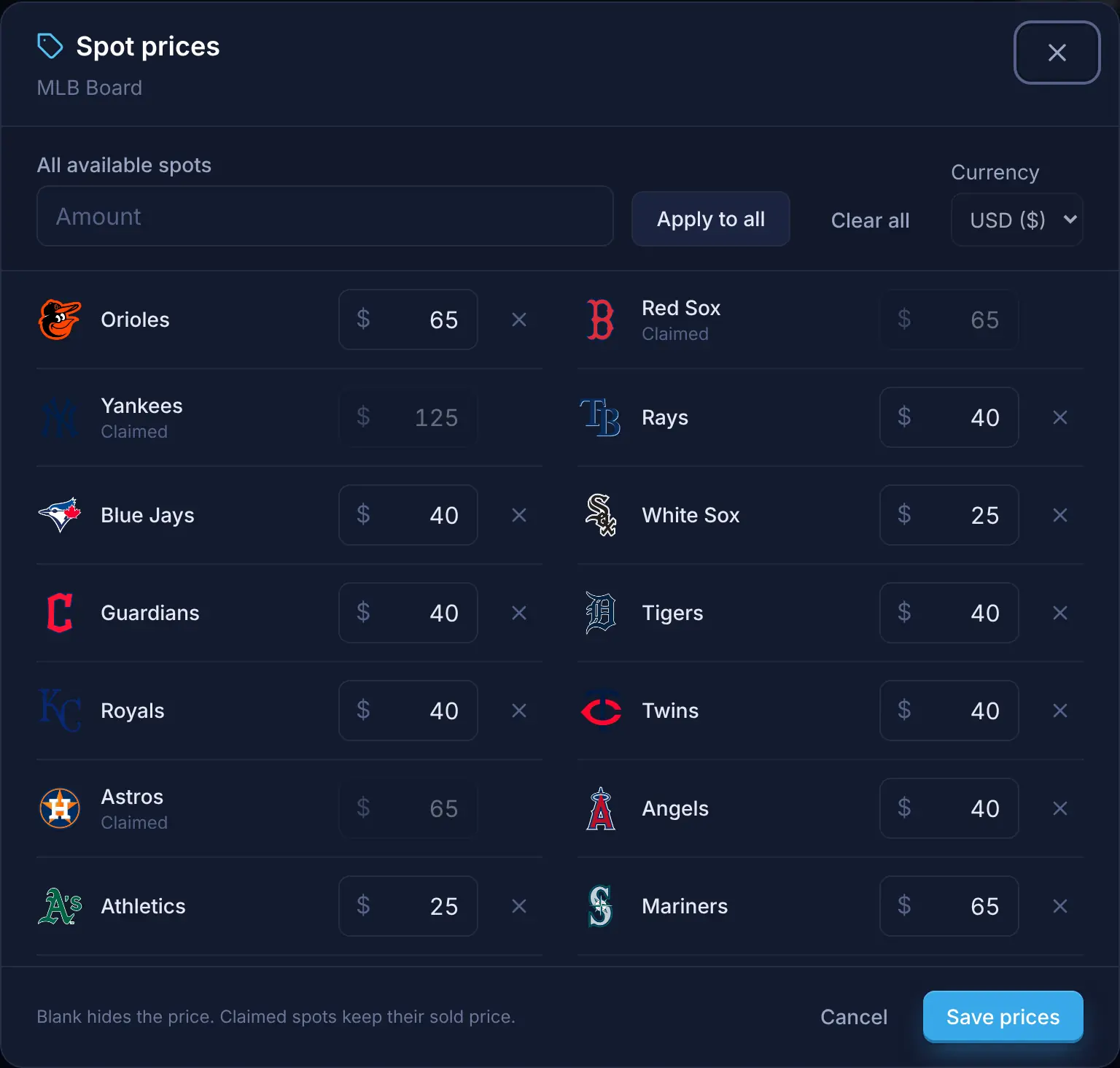
- One price for everything: type an amount under All available spots and select Apply to all. It fills every spot that hasn't sold.
- Spot by spot: type a price in any row. Chase teams can cost more than the rest.
- Leave a spot blank to show no price on it.
- Clear a price with the × at the end of its row, or select Clear all to blank every price on the board.
- Currency is USD or CAD. Prices show with a $ either way.
Select Save prices. The board updates on stream straight away, in OBS and everywhere else it's open.
Amounts can be whole dollars or have cents, from $0 to $999,999.99. Typing 45, 45.50, $45 or 1,250 all work.
Step 3: Sell a spot
Select a spot on the board in the Command Center, as you always do. The prompt that opens has a price box, already filled with that spot's asking price.
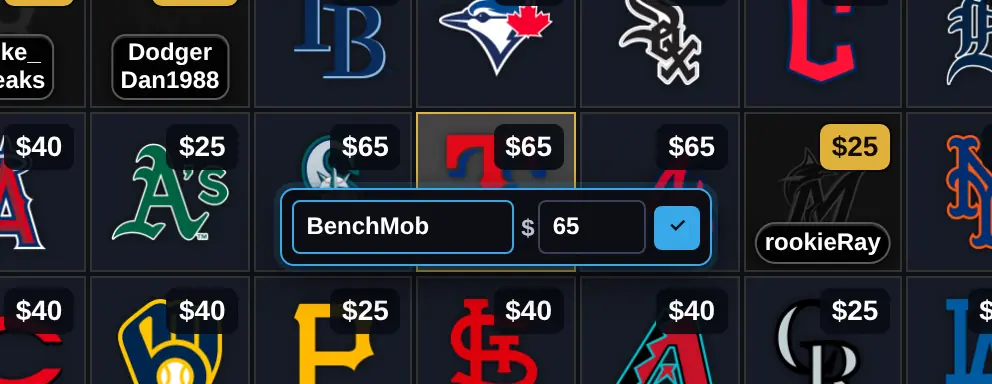
If the buyer paid the asking price, just type their name (if Buyer names is on) and press Enter. If they paid something else, change the price first. Leave it blank to sell the spot with no price.
On a board with pages, like a player break, Find a spot above the board asks for the price the same way: search for the spot, select Sell, and the price box is next to the buyer's name.
On stream, the card swaps its asking price for the price paid, on a tag in your board's accent colour (white, if your accent is too dark to read). The takeover carries it too:
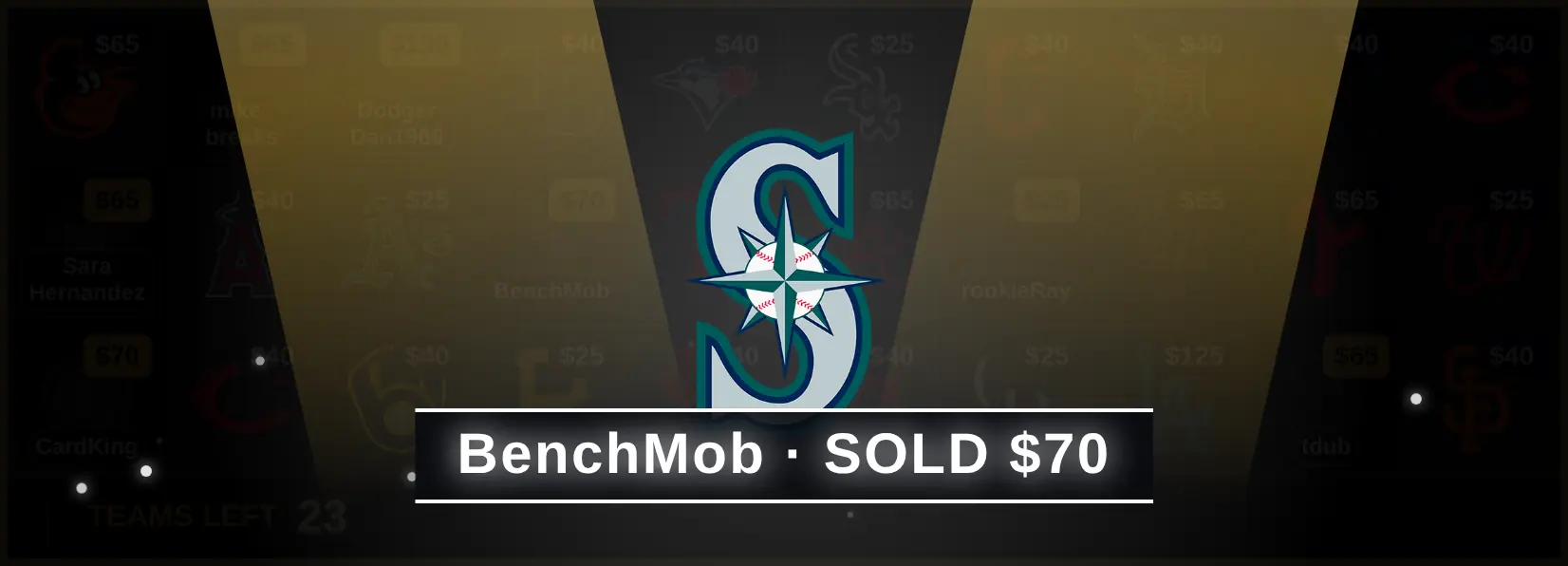
The banner uses your board's own stamp word, so a board that says TAKEN instead of SOLD says "TAKEN $70".
Step 4: Choose the look
Open the board in the editor and go to Cards & Claims → Spot Prices:
- Show available prices, Show sold prices on tiles and Show sold price in takeovers turn each part on or off. Turning one off hides it without deleting any prices.
- Price style: Price tag puts the amount on a small dark tag (the sold tag is your accent colour). Text only drops the tag.
- Placement: the top right or top left corner of each card.
Select Save when the preview looks right.
During the break
Fixing a price. Select the sold spot, change the price in the prompt, and select Save. The card and every OBS source update straight away.
Putting a spot back. Releasing a sold spot drops the price it sold for, and the card shows its asking price again.
Starting the next break. Reset board clears every sale and every sold price. Your asking prices stay, ready for the next break. To change them, open Set prices again.
Changing currency. You can't switch between USD and CAD while spots on the board have sold prices, because a price is never converted. Reset the board first, then change it.
Small cards and big prices
A price never gets cut off on stream. On a card too narrow for the full amount, it moves closer to the edge, then shortens: $12,550 becomes $12.5K, then $12K. Shortened prices always round down, so the board never shows more than the price. If no form fits a very small card, the price is hidden there, and the takeover still shows it in full.
On a divisional or catalog board, prices sit in a bottom corner of each tile, clear of the group name. If a Top Teams rank badge would cover a price, the price moves just below it.
Common questions
Do viewers see the prices in OBS? Yes. Prices show wherever the board does: in OBS, in a full-screen board, and in the Command Center.
Do I have to enter a price for every sale? No. The price box is filled with the asking price, so most sales are just Enter. You can also clear it and sell with no price.
Do prices show on my free board after my plan ends? No. Without Pro, the board shows no prices, but every asking price and sold price is kept and comes back when you renew.
Can I hide the asking prices and only show what sold? Yes. Turn off Show available prices in the editor and keep Show sold prices on tiles on.
I removed an Additional Spot. Where did its price go? It went with the spot. The other spots keep their prices.