Your OBS Cockpit: Drive Every Widget From the Command Center
— Breaker Labs
Last month we shipped one-click Add to OBS. It got your widgets into OBS without copy-pasting URLs. This month we went further: the Stream Command Center now drives OBS while you stream — reload a source, show or hide a widget, switch scenes, and build your whole break scene in one click, all without leaving the dashboard.

There's a new control bar in the Command Center header. When you're connected to OBS, it shows a green status pill (OBS · localhost:4455), a Set Up My Break button, and a live dropdown of your OBS scenes. It all runs over the same obs-websocket connection your browser already holds — no backend, no extra setup beyond the one-time connection you did for Direct Sync.
Connect once, control everything
If you're not connected yet, the bar shows a Connect OBS button. Click it, paste your OBS WebSocket password once, and you're in for the rest of the session.

Same password rules as always: it lives in your browser tab only — never written to disk, never sent to our servers. New to this? The OBS Direct Sync setup guide walks through enabling the WebSocket server in two minutes.
Per-widget Reload and Show/Hide
Every Command Center card now has two new buttons next to Add to OBS: a Reload button and a Show/Hide toggle.
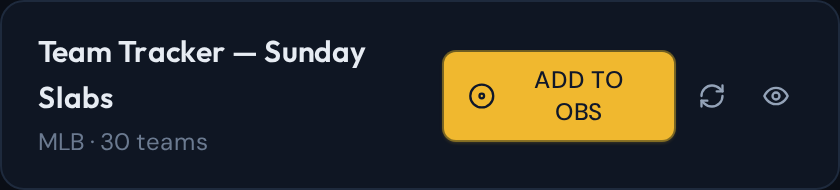
- Reload refreshes that widget's browser source in OBS — the same thing as right-clicking the source and hitting "Refresh," but from the dashboard. Perfect for a source that's gone blank or needs a nudge.
- Show/Hide toggles the widget's visibility on its scene without touching the OBS eyeball. The button reads its real state from OBS when you connect, so it always shows the truth — not a guess.
No more alt-tabbing into OBS to flip a single source on or off between breaks.
Set Up My Break — your whole scene in one click
This is the big one. Hit Set Up My Break and the Command Center creates a fresh OBS scene named after your current view, drops every active widget into it, and switches OBS to it. One click instead of building a scene by hand, source by source.
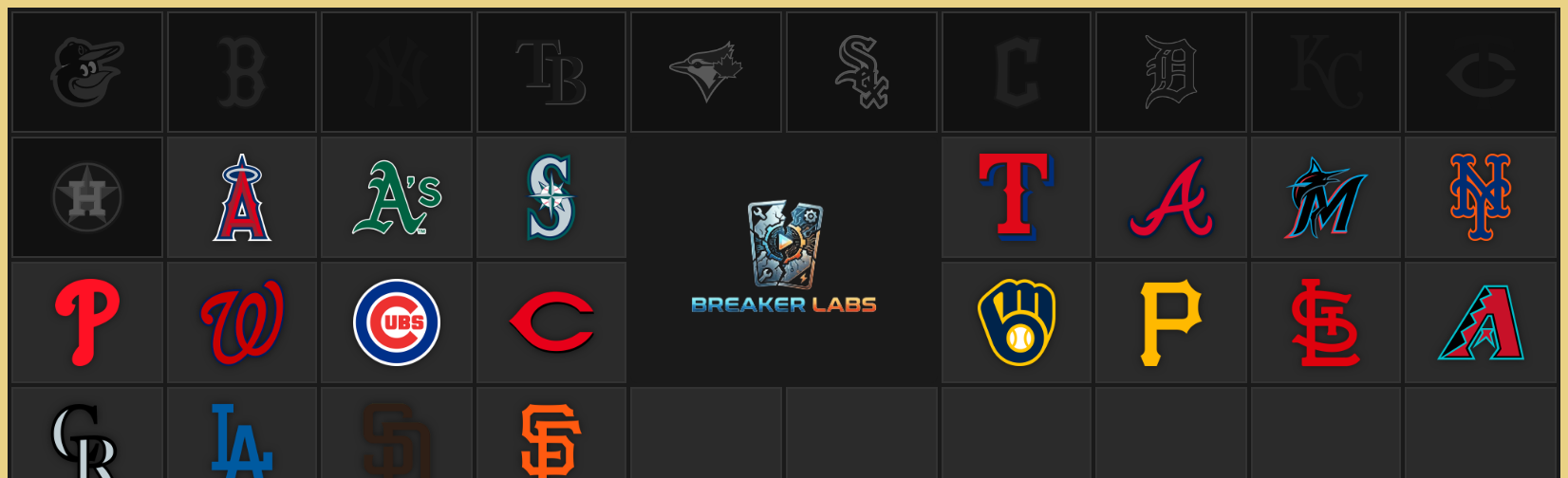
Widgets land at OBS's default placement, so you arrange them once and you're set. Run it again later and it's safe — it reuses the scene instead of piling up duplicates, and if anything fails partway it cleans up after itself. There's a full step-by-step guide here.
The bar always tells the truth
Switch scenes or rename one inside OBS and the Command Center keeps up — the status pill and scene dropdown sync live, so the dashboard never drifts out of step with what's actually on screen. If your OBS connection drops, the next action quietly reconnects. You shouldn't have to think about it, and now you don't.
It's live now
All of this is in the Stream Command Center today. Connect once, and the cockpit is yours. Tell us what chore you want gone next.