High Bid: Put the Number to Beat on the Board
— Breaker Labs
A high-bid break runs on one number.
Teams sell one at a time, and whoever paid the most for any of them takes the last team home. That number is the whole game. It's what chat is doing math on, what the guy who paid $900 is nervously watching, and what decides whether the next spot goes for $200 or $1,200.
And until today it lived in three places, none of them on your stream: your head, the chat scroll, and whatever you last said out loud four minutes ago.
Now it lives on the board.
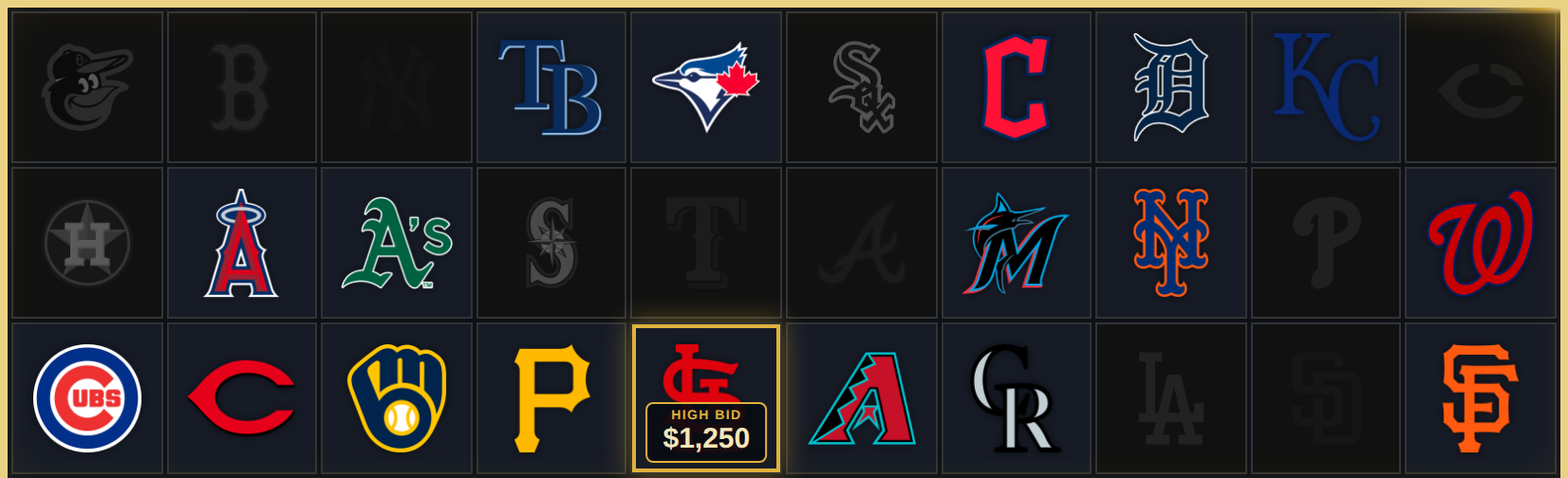
One badge, on the card that matters
The High Bid badge sits on the prize — the last team — and shows the current number to beat. When a spot sells for more, you raise it, and every viewer watching your overlay sees the new number at the same moment.
No re-typing the total in chat. No "sorry, what's it at?" No one paying $600 because they missed that it went to $850 nine minutes ago.
The badge is display-only. It marks the prize; it doesn't reserve it. If you also run a Last Team hold on that card, the hold still does the locking — High Bid just takes over the badge, because once you're taking bids, the number is the more useful thing to show.
Raising it takes two keystrokes
This is the part we spent the most time on, because it's the part you do most.
Raising the bid does not require opening a panel. The Stream Command Center's picks bar shows the running number right on the collapsed row — type the new one, hit Enter, done. It's on the board before you've finished saying it.
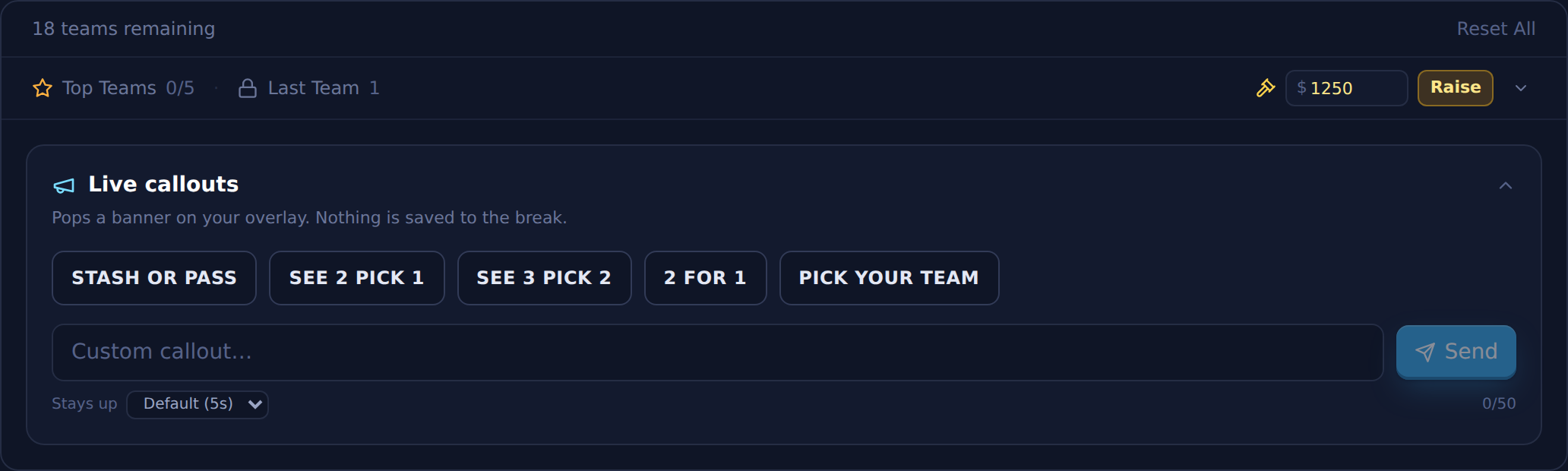
Setting a bid up the first time uses the panel below (you pick which team it rides on, which for most breaks is your Last Team hold — it's pre-selected for you). After that, every raise for the rest of the night is inline.
Whole dollars only. Breakers bid in round numbers, and $1,250 reads at stream distance in a way $1,250.00 does not.
Four treatments
The badge uses the same four looks as the Last Team hold, so it fits whatever your board already runs.
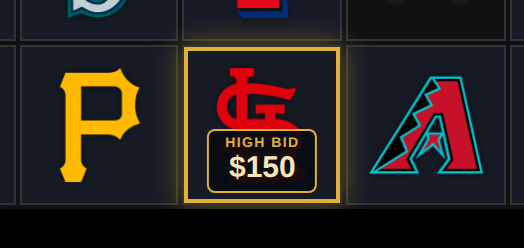
Vault Badge is the default: a gold ring and a chip under the mark. It's the loudest of the four and the one we'd pick for a board where the bid is the headline.
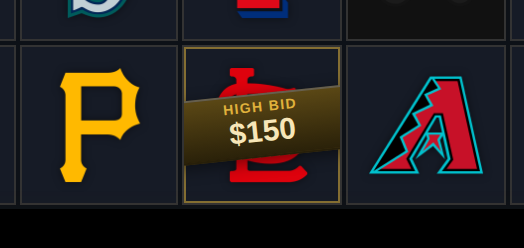
Ribbon runs a sash across the card. Useful on busy boards where a ring gets lost among Top Teams highlights.
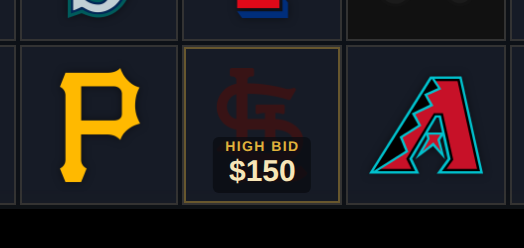
Dimmed pulls the logo back so the number carries the card.
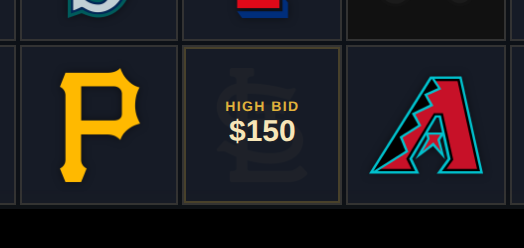
Ghost is the quietest of the four. The mark barely shows and the amount does all the talking — good if your board is already busy and you want exactly one thing shouting.
You can rename the badge (12 characters, so TOP BID or TO BEAT both work) and change the currency symbol if you don't bid in dollars.
The moment it's actually for
The last team never gets sold. It gets awarded — to whoever holds the high bid when the bidding is over.
Which means the real moment isn't the final card. It's the one before it.
When you're down to the second-to-last team, that spot is the last chance anybody has to beat the standing bid. Buy it for more than the number on the board and you take the prize; let it go and you've watched someone else win. Once it sells, the auction is closed and the last team is already decided.
That's the moment the badge exists for. Everyone can see the number they have to beat and exactly how many chances are left to do it — and the room knows it's now or never without you having to say so.
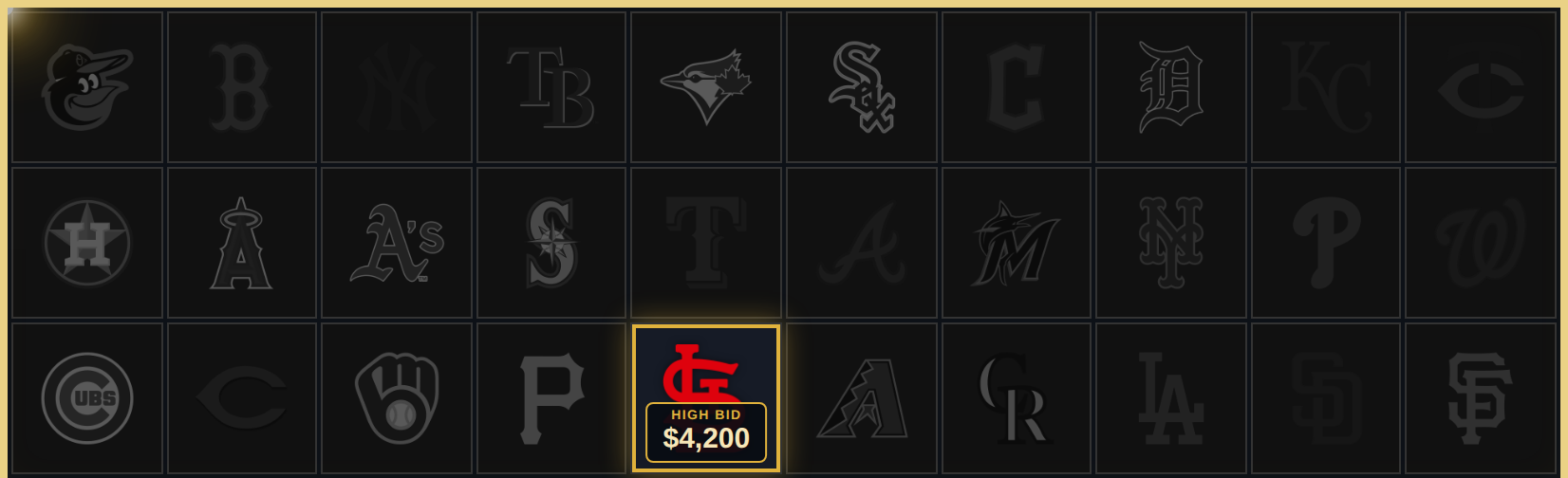
By the time the board looks like this, the number on it isn't a target any more — it's the receipt. The bidding closed one team ago, and the card is showing the room what it took to win.
Getting it
High Bid is a Pro feature and it's live now — no setup, nothing to enable. Open the Stream Command Center on any Team Tracker board, expand the picks bar, pick the team and type a number.
If you want the longer version — where it sits relative to Last Team, how to run the endgame, and what to do when a raise comes in from a co-host — we wrote a full guide.