The New Stream Command Center: One Stage, Your Whole Break
— Breaker Labs
This announcement describes an earlier layout. For the current Auto-switch OBS, Selling / Callouts / Ticker, and mobile controls, use the updated Command Center guide.
The Stream Command Center is where you live during a break — and as widgets piled up, it was starting to feel like it. Every widget you enabled opened another full panel, another live preview, another block of controls, and by widget three you were scrolling a wall mid-stream.
Today that's gone. The Command Center is now built around a stage.
One widget on stage, everything else one click away
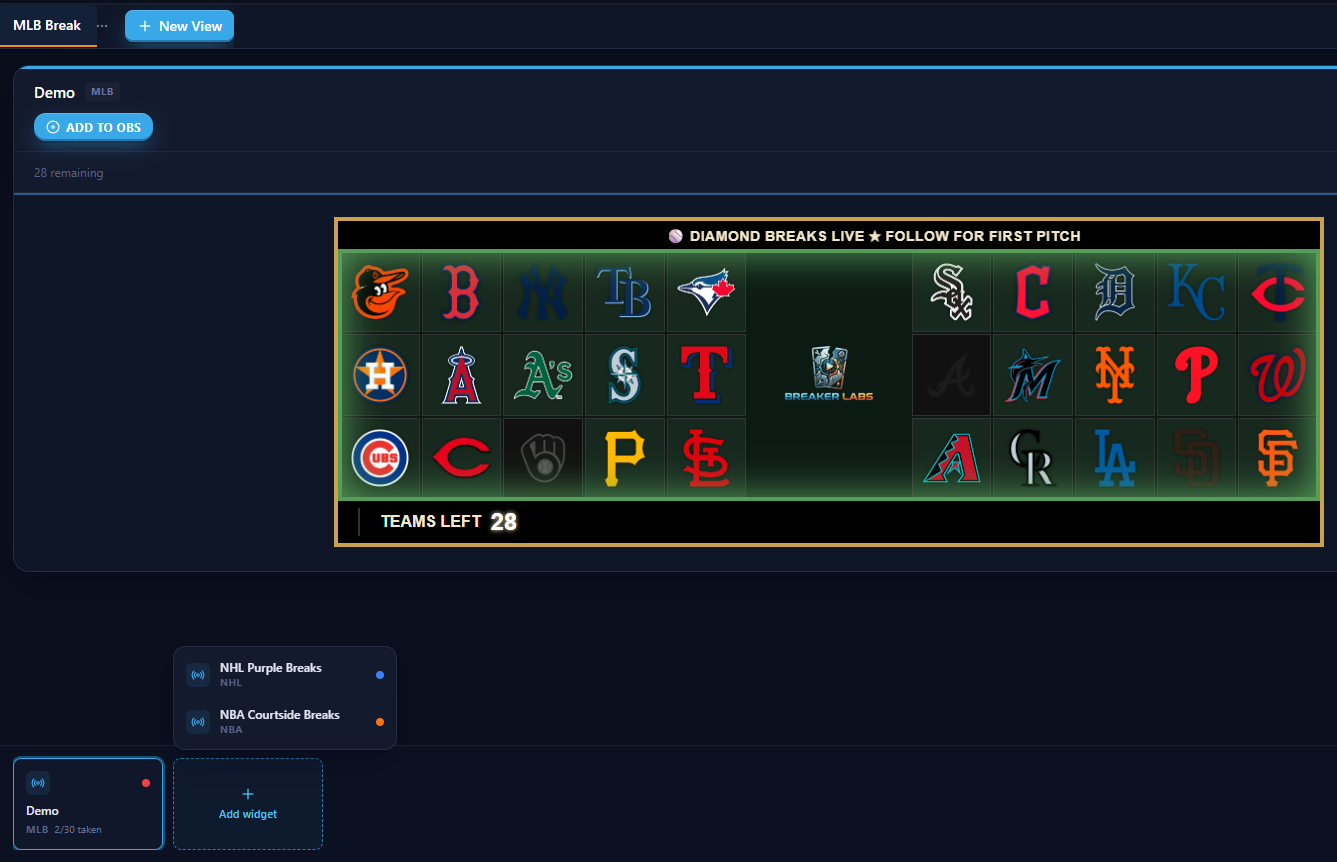
The widget you're actively driving — your Team Tracker during picks, the Randomizer during a spin — gets the whole screen. Every other widget in your view sits in the strip along the bottom as a compact tile with its live count. Click a tile and it takes the stage instantly.
Your views work exactly like before: tabs across the top, one click to switch, auto-saved as you go.
The strip is your break, in one row
The strip isn't just thumbnails — it's where you manage the view now:
- Add a widget with the dashed + Add widget tile — a popover lists everything not yet in the view.
- Remove one with the ✕ that appears when you hover its tile. (That only removes it from the view — your widget and its OBS source are untouched.)
- See state at a glance — teams taken, spots left, per tile, live.
It's also an OBS mixer
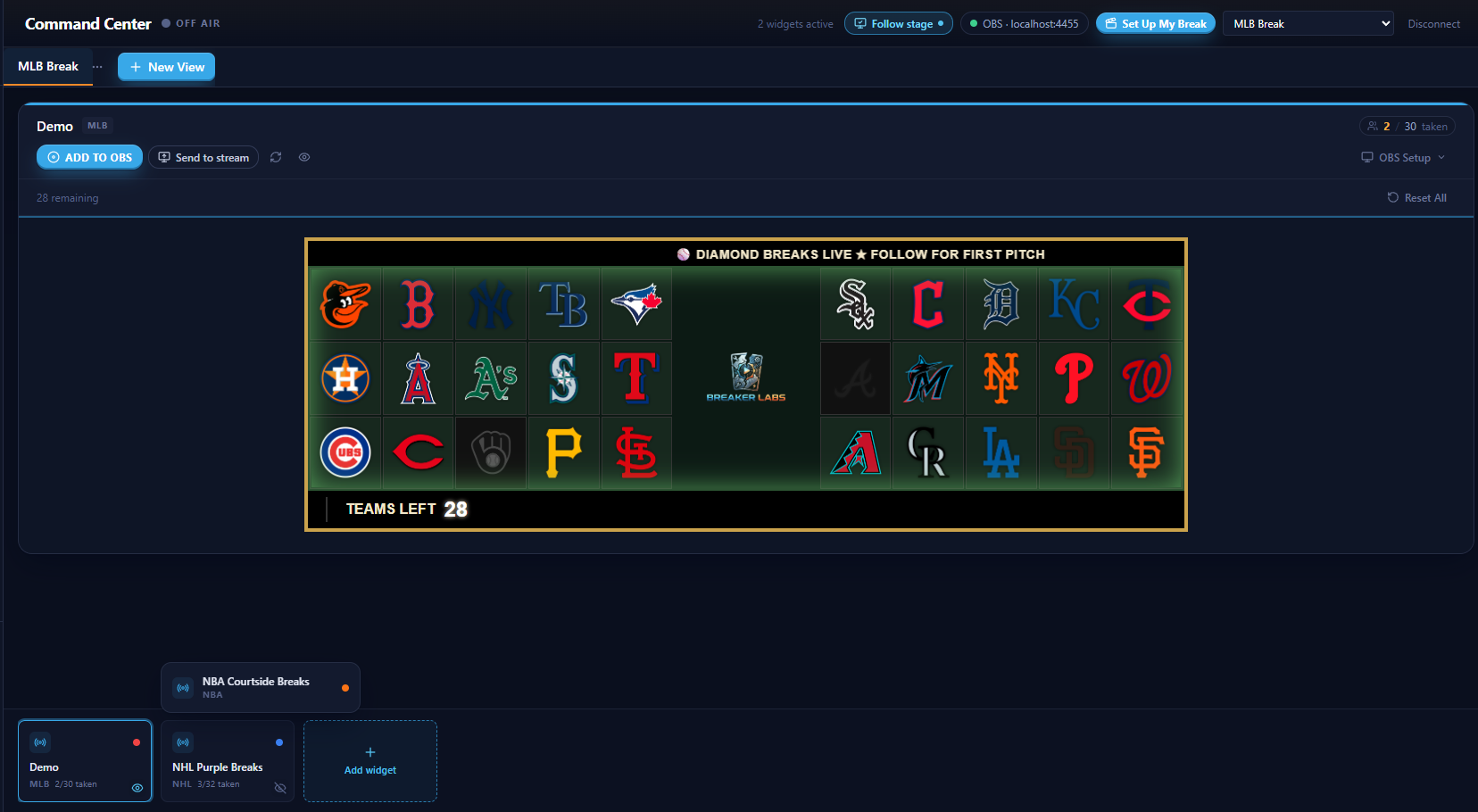
Connect OBS and every tile in the strip grows an eye. That eye is the real visibility of that widget's browser source in OBS — not a guess; we read it straight from OBS when you connect. Click it to show or hide that overlay on stream without leaving the widget you're on. Mid-picks and want the timer overlay gone? One click, done, tracker never leaves your stage.
The staged widget gets two more verbs next to its Add to OBS button:
- Send to stream — show this widget's overlay and hide the view's others. The classic tracker → wheel → tracker move, one click each way.
- The familiar reload and eye for just that source.
Follow Stage: your stage becomes the stream
The header has a new opt-in toggle: Follow stage. Turn it on and whatever you promote to the stage is automatically soloed in OBS — shown on stream, the view's other overlays hidden. Click a tile, and by the time it's on your screen it's on your viewers' screens too.
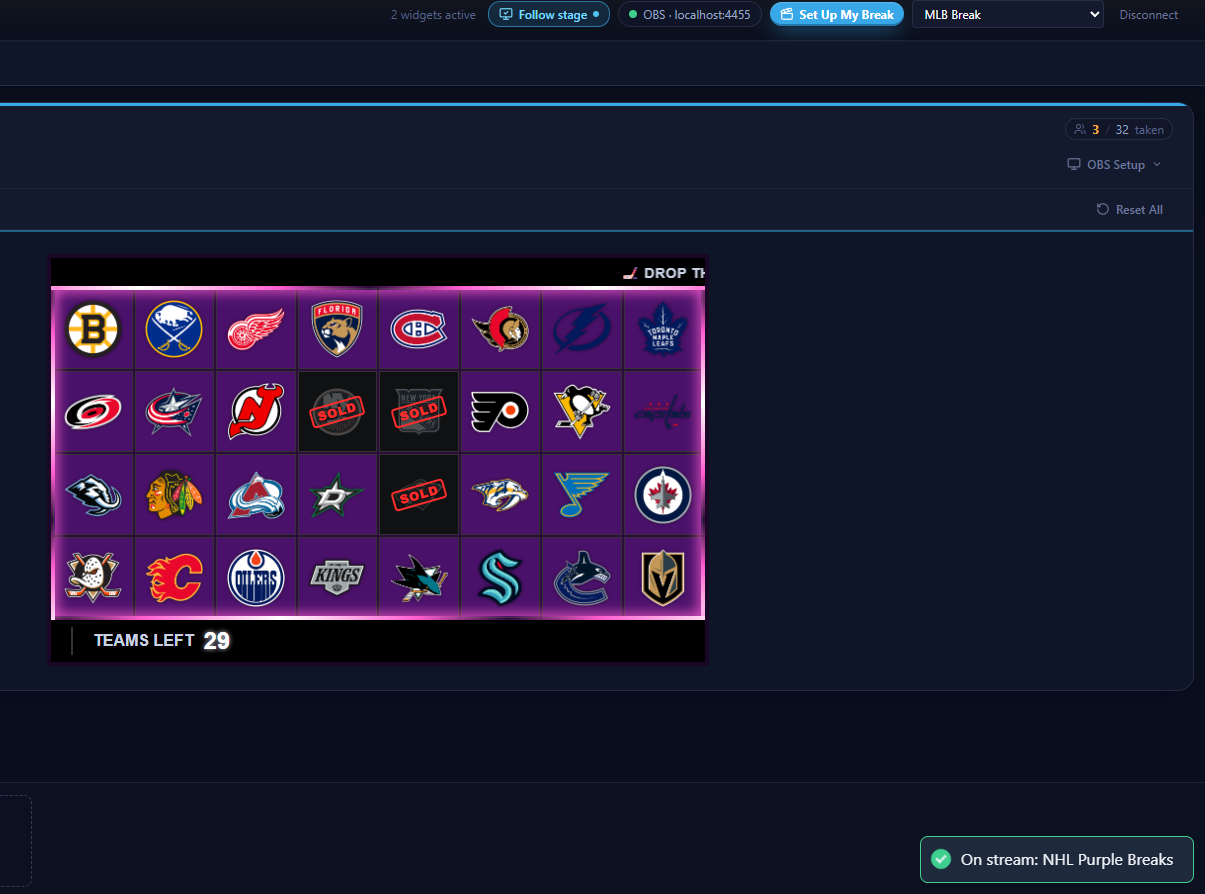
It's off by default on purpose: plenty of breakers keep two overlays up at once (tracker + timer is a classic), and nothing should hide your sources unless you asked for it.
Faster on your streaming PC, too
The old layout kept a live preview running for every enabled widget. The stage keeps exactly one — tiles are lightweight cards, not hidden browser windows. If your dashboard shares a machine with OBS and your stream, that's real headroom back.
Nothing you rely on moved
Set Up My Break still builds a complete OBS scene from your view in one click, the scene switcher still lives in the header, and the mobile layout is unchanged. If you've never connected OBS to BreakerLabs, the Direct Sync setup guide takes about two minutes.
Want the full workflow, click by click? We wrote a guide to running your whole break from the stage.