Additional Spots: Sell Extra Spots on Top of Your Team Board
· Breaker Labs
Plenty of breaks sell more than the league's teams: college teams on top of the NFL, a bonus spot, a mystery spot, a case hit. Until now the board only knew about the teams, so the extras lived in a spreadsheet or in your head. Neither looks good on stream.
Now any Team Tracker can carry up to 18 additional spots on top of its teams. Each one gets its own name and picture, sells like a team, takes a buyer name, and gets a takeover when it goes.
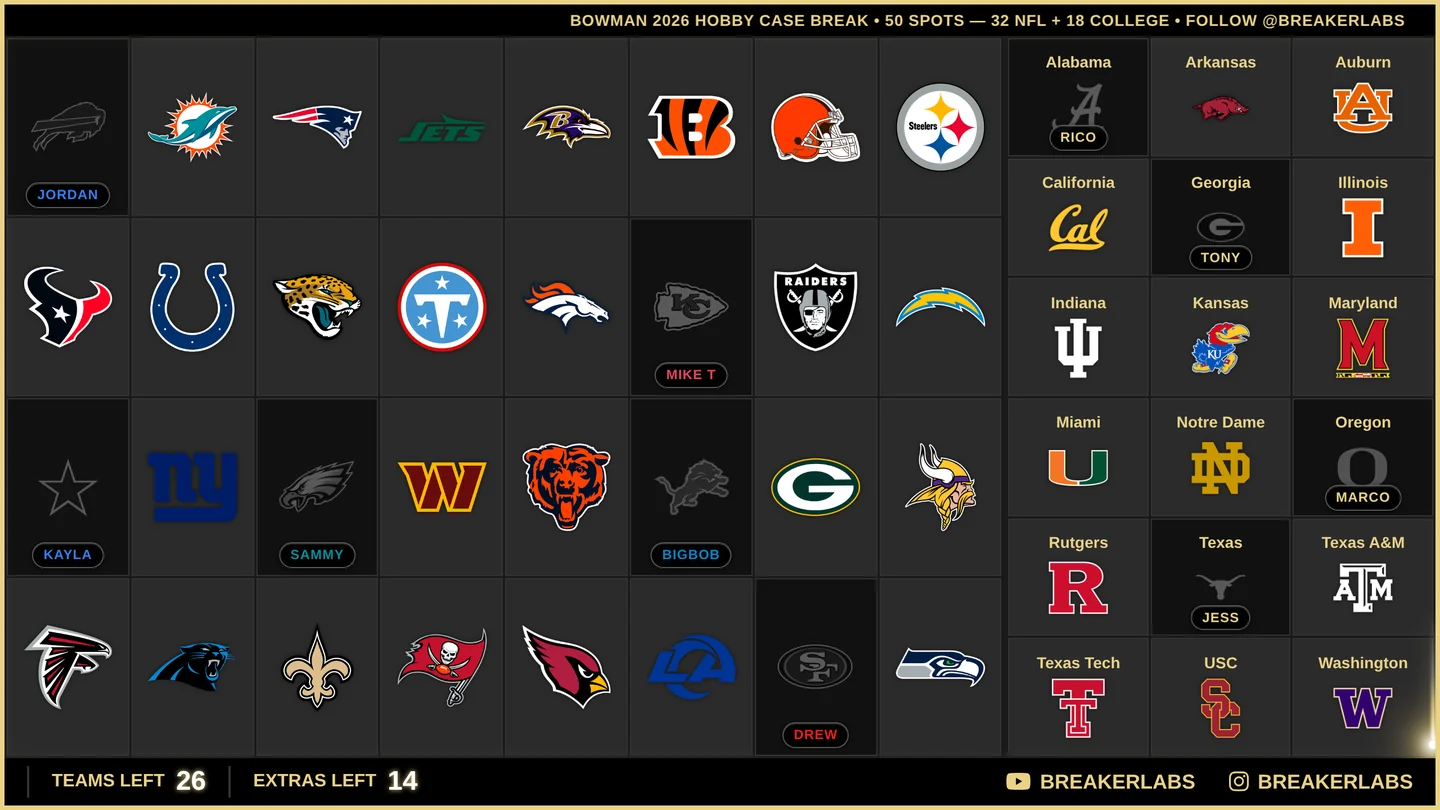
The board in this post is one example: a Bowman football break, which adds the 18 college programs to the 32 NFL teams for 50 spots.
Add them from the Command Center
Open the board in the Stream Command Center and select Additional spots in Stream controls. A form opens with one row per spot: a picture, a name, arrows to reorder it, and a bin to remove it. + Add spot adds another row, up to 18. Select Save spots and they're on the board, including the copy already in your OBS scene.
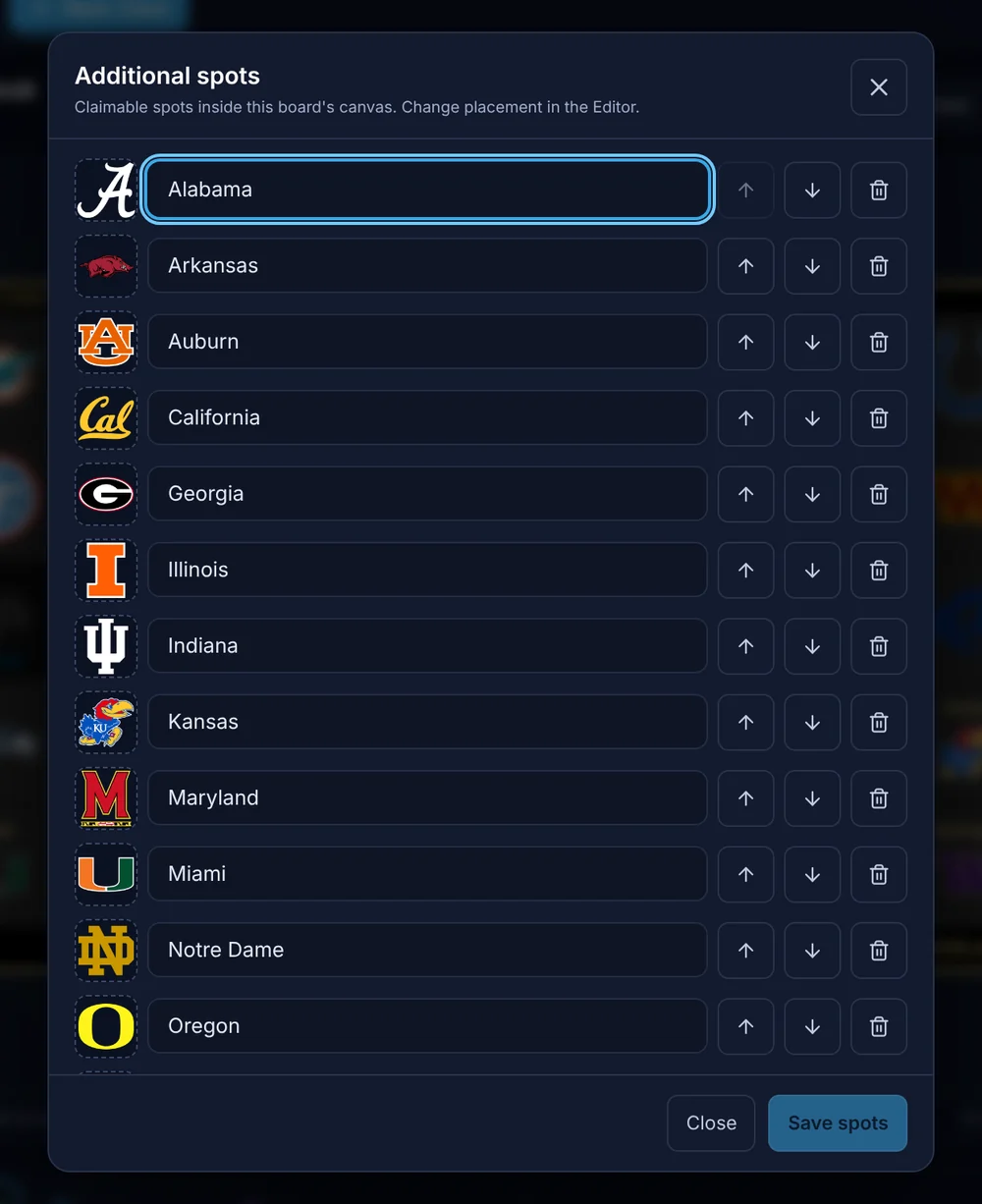
Every spot needs a name. The picture is optional: select the picture square to upload a PNG, JPEG or WebP, or pick an image you've already uploaded. A spot with no picture shows your board's own logo, or the Breaker Labs logo if the board doesn't have one.
Sell them like any team
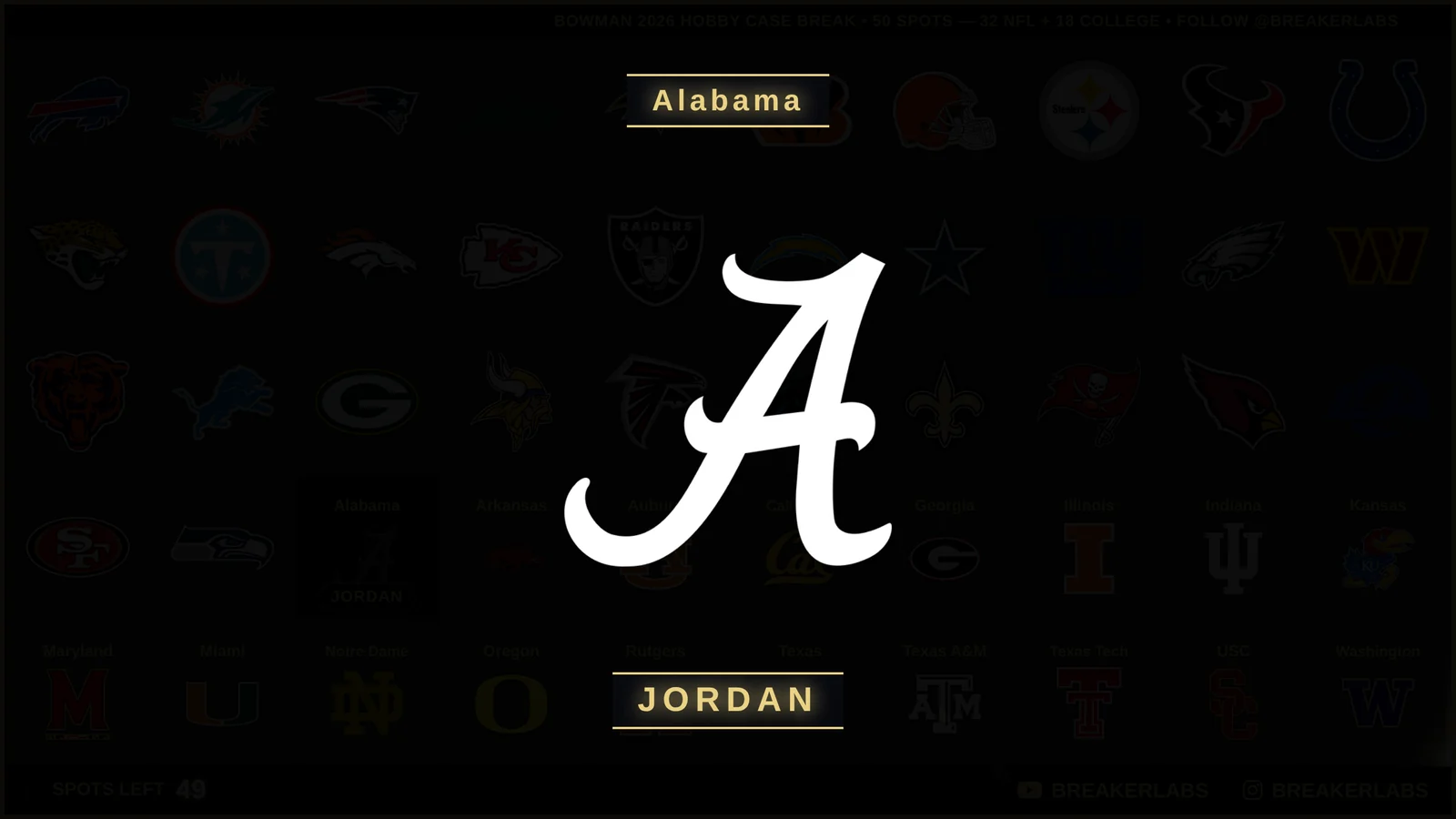
There's nothing new to learn here. The spots sit on the board in the Command Center just like your teams: select one to claim it, type the buyer, done. Buyer names show on the card, the counter counts every spot, and the takeover plays with the spot's own picture and name.
Your OBS source doesn't move
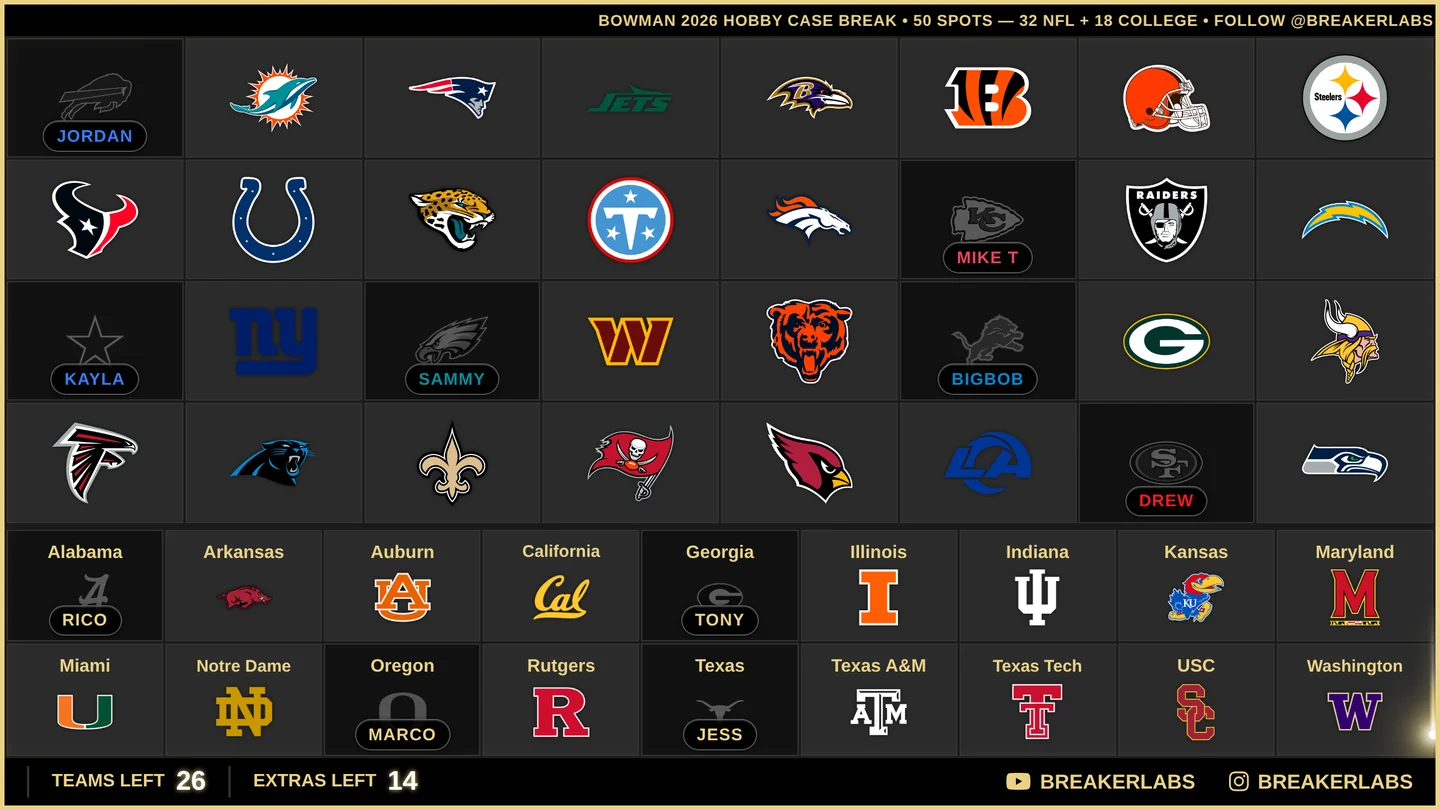
The extras live inside your board's canvas. Adding spots never changes the board's size, so the browser source you placed in OBS stays exactly where it is, and the teams make room. In the editor, Layout → Additional spots sets where they go:
- In the main grid: the spots join the teams as one big grid. That's the 50-spot board at the top of this post: 10 columns, 5 rows, no gaps.
- Right or Left: a rail beside the teams.
- Bottom: a band under the teams.
For a rail or a band you also choose how much of the canvas it takes (15% to 35%), and whether the counter shows one number for everything or teams and extras separately.
Spin every spot on the wheel
A board with extra spots needs a wheel with them too. The Randomizer Wheel's entries have a new Team Board tab: choose your board and the wheel copies every team and every additional spot, with their logos, pictures and colors.
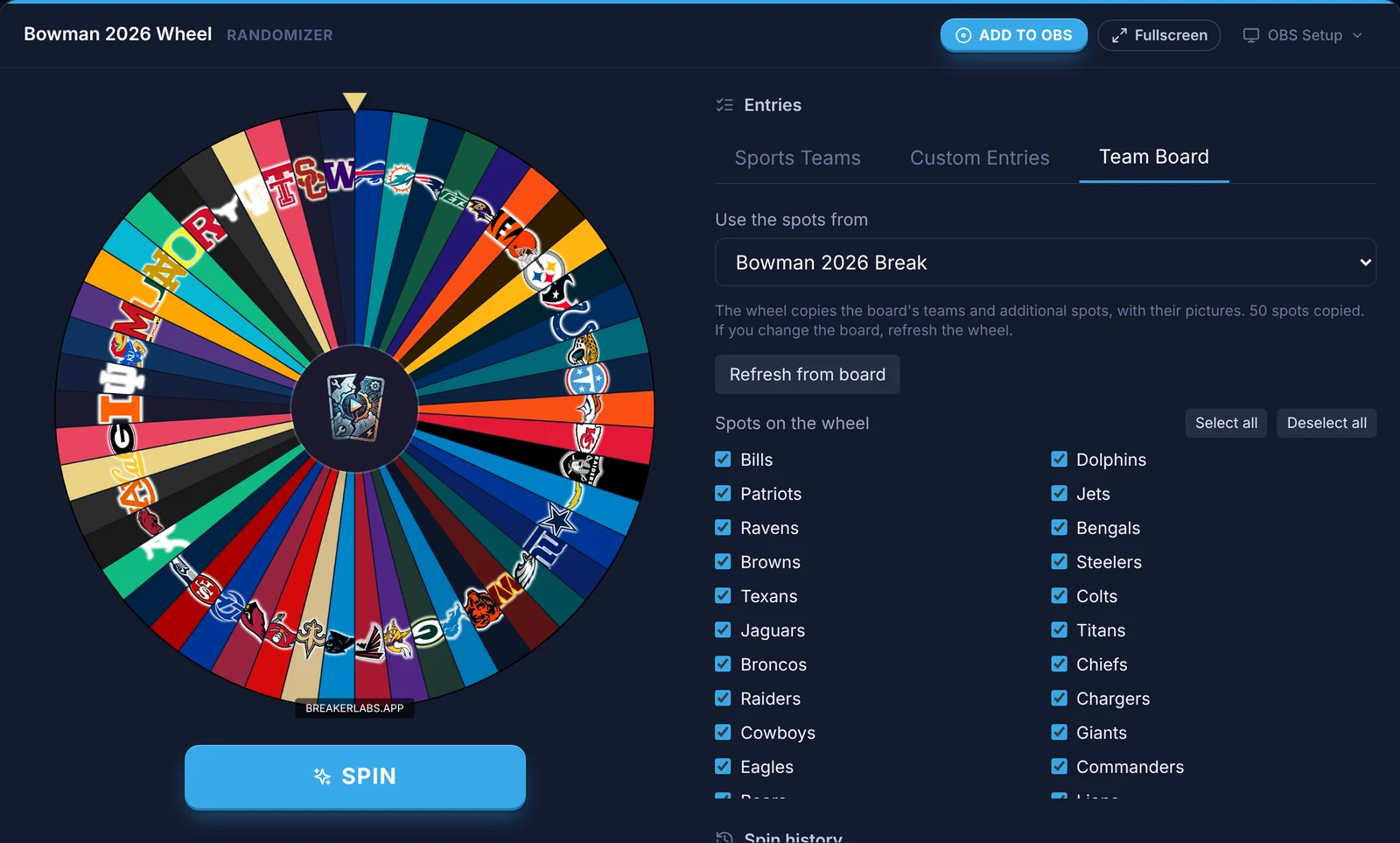
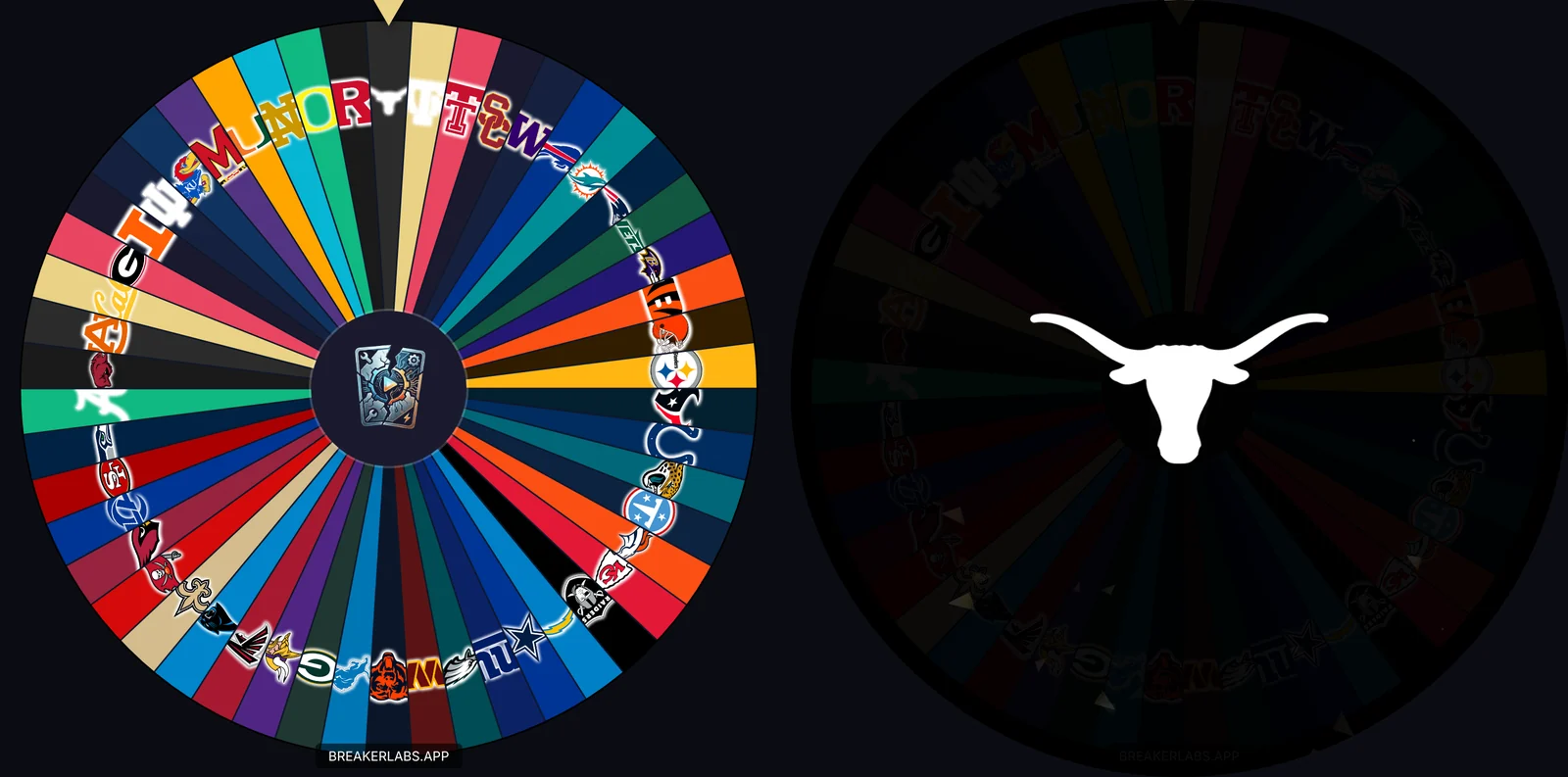
It's a copy, so changing the board mid-break never changes the wheel under you. When you do change the board, select Refresh from board on the wheel. Team Board works with any Team Tracker, including divisional boards, not only boards with extras.
The small stuff
- Removing a sold spot asks first and shows who bought it, so a buyer can't disappear by accident.
- Reset board clears spot sales too, and Reset Configuration in the editor keeps your spots.
- Divisional boards can have extras, and Buyer names now work on divisional boards too.
- Spots belong to the board. Your football board can have 18 and your basketball board none.
Getting started
Additional Spots and Team Board wheels are Pro features, included in the 7-day free trial. If Pro lapses, the board shows only its teams but keeps your spots, sales and buyers, so everything is back when you renew.
For a step-by-step setup, from adding your spots to spinning the wheel, see the Additional Spots guide.