News Ticker: Change What Scrolls Without Leaving Your Break
— Breaker Labs
The news ticker has always been the most useful strip of pixels on a break board. Price, rules, shipping, socials — the stuff you'd otherwise repeat out loud every four minutes.
It also had the worst workflow on the platform. Changing one word meant leaving the Command Center, opening the widget editor, editing, saving, and coming back. Mid-break, with a room full of people watching, nobody was doing that. So the ticker got set once at the start of a season and quietly went stale.
That's fixed. The ticker now lives where you actually run your break.
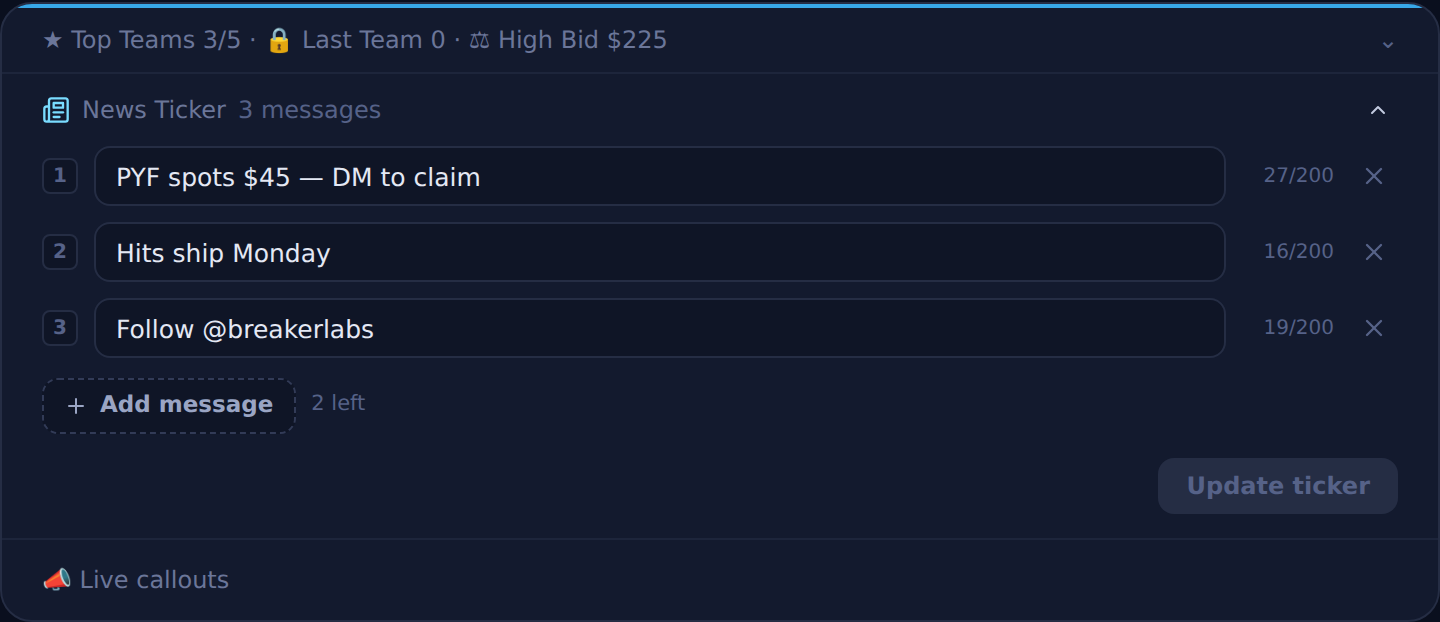
Five messages, one line
The ticker used to be a single line of text. Now it holds up to five separate messages, and they scroll as one continuous line — the way a broadcast ticker does.
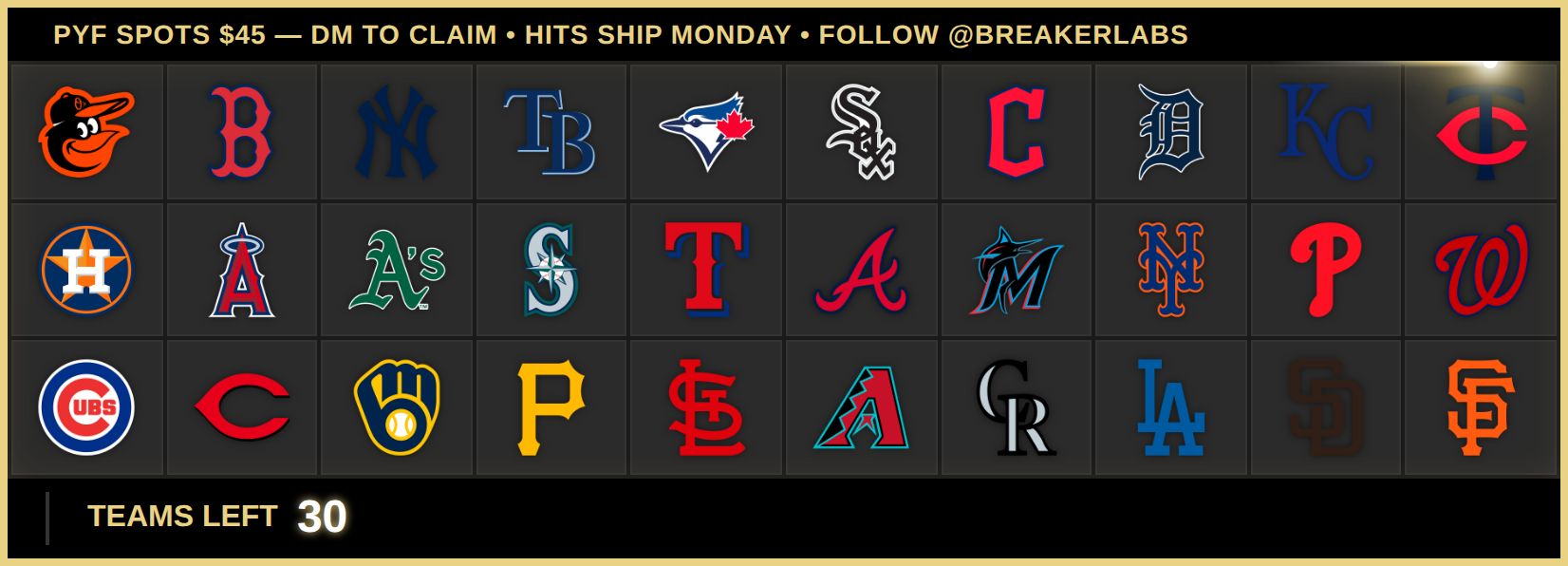
That's one board, three messages: the price, the shipping note, and the follow prompt. You write them as separate rows, and the board joins them.
The practical difference is that you can change one without retyping the rest. Spots go up to $50, you edit row one and hit Update ticker. The other two are untouched.
Where you'll find it
It's a new band in the widget panel, sitting between Top Teams / Last Team and Live callouts. Collapsed, it stays out of the way and just tells you how many messages are running.

Open it, edit, commit. The button stays greyed out until you've actually changed something, and nothing saves on blur — clicking away from a half-typed message won't push it to your stream. That's deliberate: this field writes to a live board, and the same rule already guards the high bid.
Your board refreshes when you update, and your claimed teams are kept. Sold teams are baked into the board when it renders, so they come straight back marked. The only thing a refresh interrupts is a takeover animation that happens to be playing, so don't push a ticker change in the middle of one.
Pick your separator
Bullets aren't for everyone. Some boards want a clean gap, some want a dash. It's a setting now, in the editor next to position and speed.
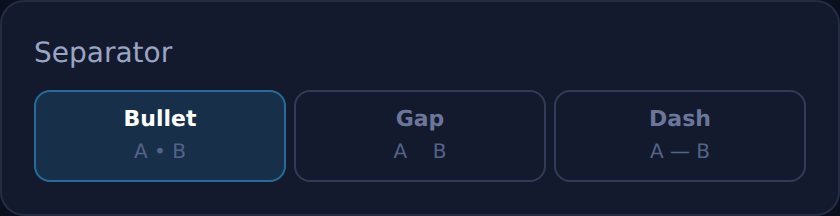
Here are the same three messages divided each way:
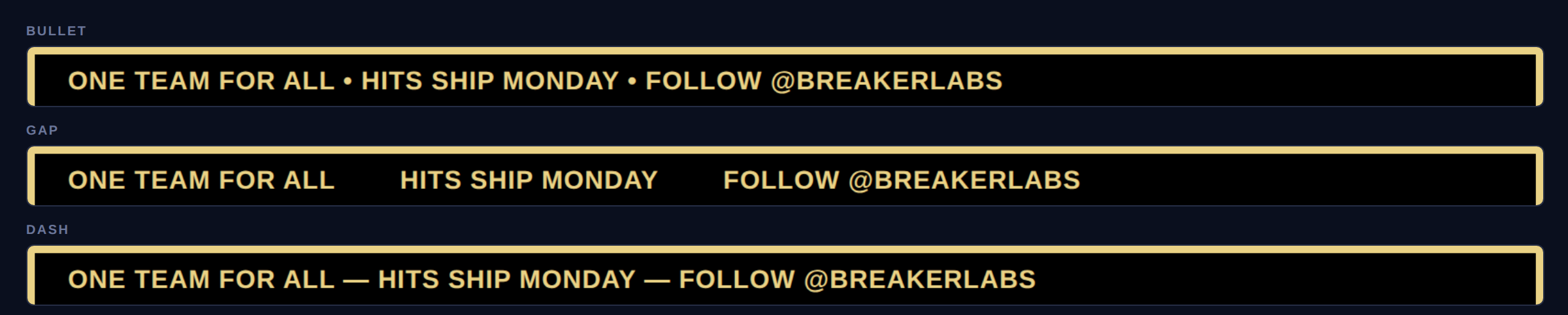
One thing worth knowing: with no divider at all, two short messages can read as one sentence. ONE TEAM FOR ALL and TESTING sitting side by side with only a gap between them is fine; two half-sentences might not be. The bullet exists because it reads unambiguously at speed. Pick whichever suits your copy.
The small stuff
- Speed now means speed. Five messages make a much longer line than one, and the scroll used to take the same time regardless — so a full ticker whipped past unreadably. The loop now stretches with the length of your line. Existing boards keep their exact current timing.
- Nothing changed on your existing boards. If you've already got ticker text set, it keeps rendering exactly as it did and shows up as your first message when you open the editor.
- Blank rows are ignored. Leave one empty and the board simply skips it — no stray separator floating in the middle of your line.
Getting started
The ticker is a Pro feature. Turn it on in the widget editor under Extras → News Ticker, set your position and speed there, and the Command Center band appears on that widget's panel from then on.
Then change your messaging as often as your break deserves — which is probably more often than once a season.