How to Set Up Your News Ticker (Every Setting, Step by Step)
· Breaker Labs
This guide covers every news ticker setting, from turning it on to running it mid-break. If you just want the announcement, it's over here.
Before you start
- A Team Tracker. The ticker runs along the top or the bottom of the board.
- Pro, or the 7-day trial. The news ticker is a Pro feature.
Step 1: Turn it on
Open your board in the editor and go to Text & Banners → News Ticker. Switch on Enable.
A new ticker starts with a sample message, so it shows in the preview straight away. It also starts with Seamless loop and highlighting on.
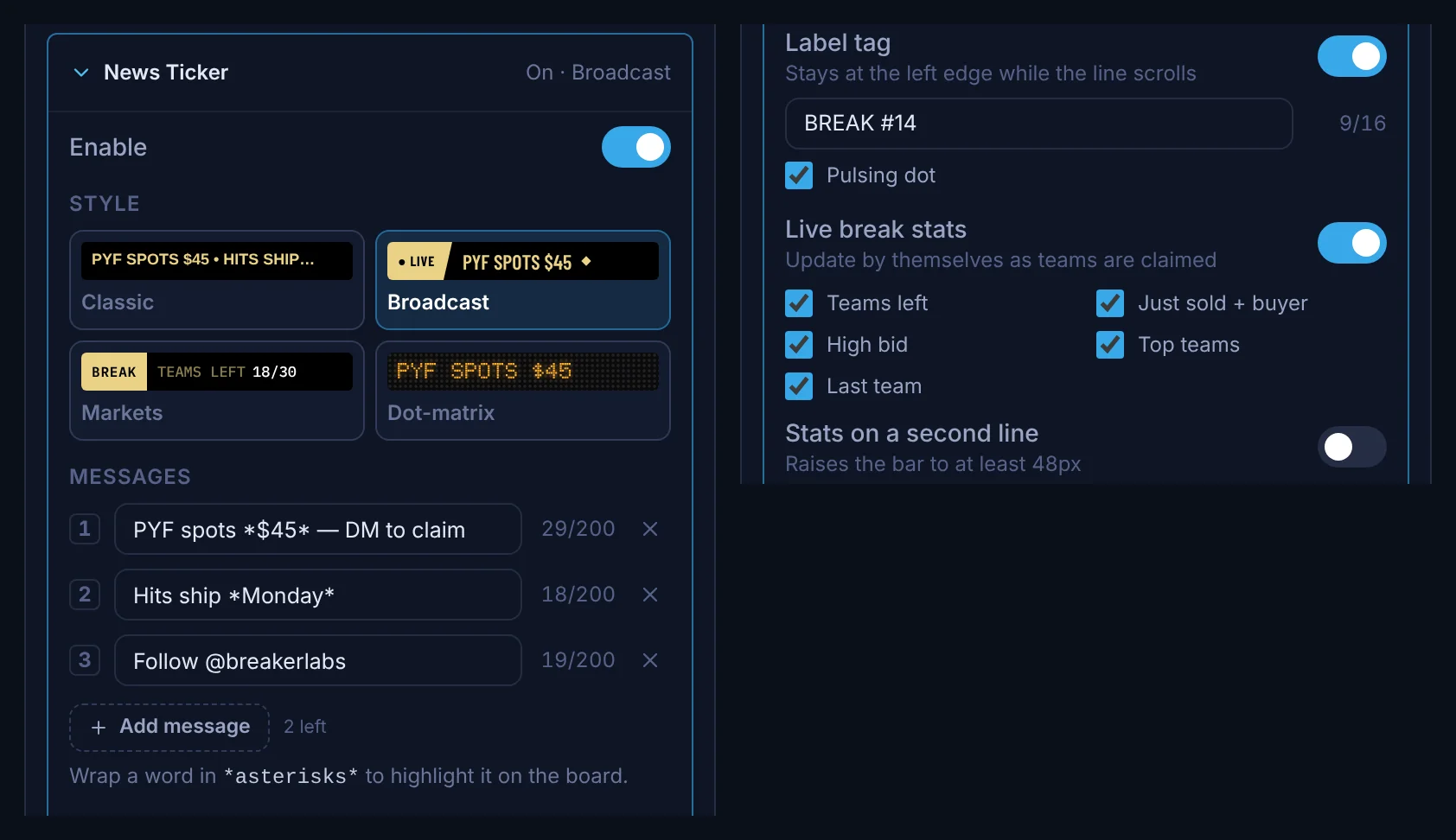
Step 2: Pick a style
Style has four tiles. The preview shows each one on your own board before you save.
- Classic: the ticker as it has always looked.
- Broadcast: a slanted LIVE tag with a pulsing dot, a live clock, diamond separators and condensed type.
- Markets: a BREAK tag, mono type and thin rules between items. Live stats read like prices.
- Dot-matrix: LED type on a dot grid. Pick Amber, Gold, Red or Ice under the tiles.
Step 3: Write your messages
Add up to five messages, each up to 200 characters. They scroll as one line, in order.
- Highlight a word by wrapping it in asterisks, like
*$45*. It stands out from the rest of the line. A row of decoration like*** SALE ***stays as you typed it. - Don't pad with dashes. If a message ends or starts with a row of dashes like
-----, the editor offers Remove the dashes. Use Space between messages in Step 6 instead.
Step 4: Add a label tag (optional)
Switch on Label tag to pin a tag at the left edge, like BREAK #14. It takes up to 16 characters, with an optional Pulsing dot.
Broadcast and Markets show LIVE and BREAK on their own, and your label replaces them. You can change the label's text mid-break from the Command Center.
Step 5: Turn on live break stats
Switch on Live break stats. All five start ticked:
- Teams left: the same number and wording as your footer, for example Divisions left on a division board.
- Just sold + buyer: the latest sale and who bought it.
- High bid: the amount and team you set in the Command Center, with an arrow when it goes up.
- Top teams: your Top Teams picks.
- Last team: the teams you're holding back to sell last, under your board's own Last Team label. Each one drops off when it sells.
Each stat stays off the ticker until it has something to show. Untick the ones you don't want; one always stays ticked, so to show none, switch Live break stats off.
Stats on a second line puts the stats under your messages. Two lines need a bar at least 48px tall, so switching it on raises a shorter bar for you. If you lower the bar below 48px later, the stats go back to one line.

Step 6: Set the look
- Band color: Black, Board (your board's background), Border (your border color) or Clear. Dot-matrix draws its own LED panel, so it has no band color.
- Separator: Bullet, Gap, Dash or Line on Classic. The other styles use their own.
- Space between messages: it reads Auto until you move it, which means the separator's own spacing. Reset puts it back to Auto.
- Top or Bottom, and Bar height from 20px to 120px. The text grows with the bar.
Step 7: Set the motion
- Speed: Slow, Normal or Fast.
- Seamless loop: the line follows straight on from itself, instead of leaving an empty stretch before it repeats.
- Claim flash: every sale shows SOLD, the team and its buyer in the band for about three seconds.
Then save the widget.
Step 8: Run it from the Command Center
In the Command Center, put your board on stage and open the Ticker tab in Stream controls.
- Edit your messages or the label tag text, then select Update ticker.
- Live stats and Claim flash switch on or off as soon as you tap them.
Your changes swap into the live ticker without reloading the board, so a takeover that's playing isn't cut off.
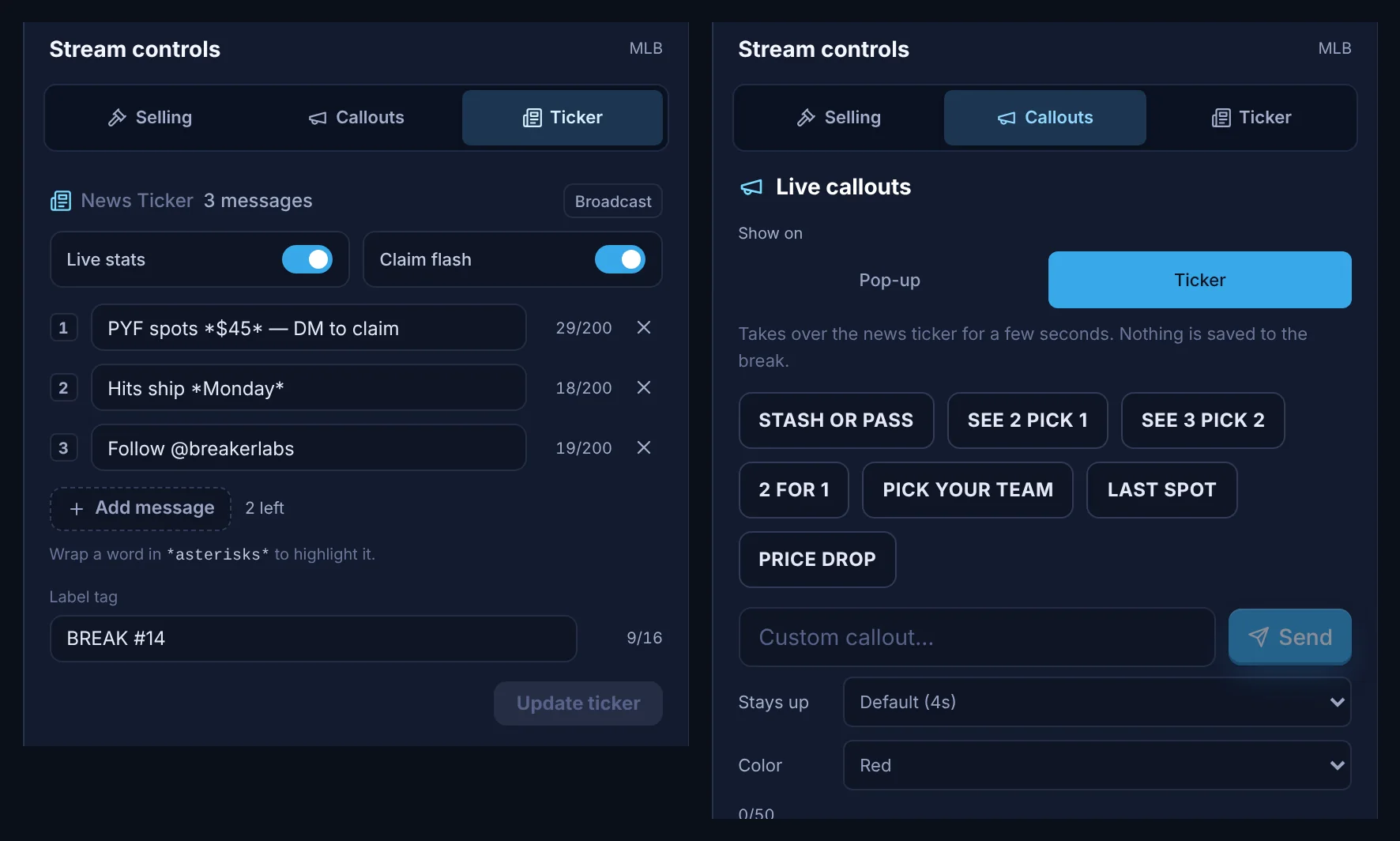
Step 9: Send callouts to the ticker
Open the Callouts tab and set Show on to Ticker. Pick a Color (Red, Border color or White) and how long it Stays up: 4 seconds unless you change it. Then tap a callout, including the new LAST SPOT and PRICE DROP, or type your own and select Send.
The ticker band takes turns:
- When a team sells, its takeover plays first, then the ticker.
- A callout that's showing when a team sells steps aside for the takeover and comes back with the time it had left. Then the SOLD flash plays.
- A new callout replaces the one on screen straight away.
- If you undo a sale while its takeover plays, its SOLD flash is skipped.
OBS
For most changes there's nothing to redo: the board in your OBS scene keeps its size. If the bar gets taller (a bigger Bar height, or stats on a second line), select Add to OBS again in the Command Center so OBS picks up the new size.