Camera Frame: Wrap the Board Around Your Face
— Breaker Labs
Your face is the stream. The rip, the reaction, the "OHHH" when the hit lands — that's what people tuned in for. But on most break overlays, the team board is a big rectangle and the camera gets whatever corner is left.
Camera Frame flips that. The board wraps around your camera — teams on every side, your face in the middle, nothing fighting for space.
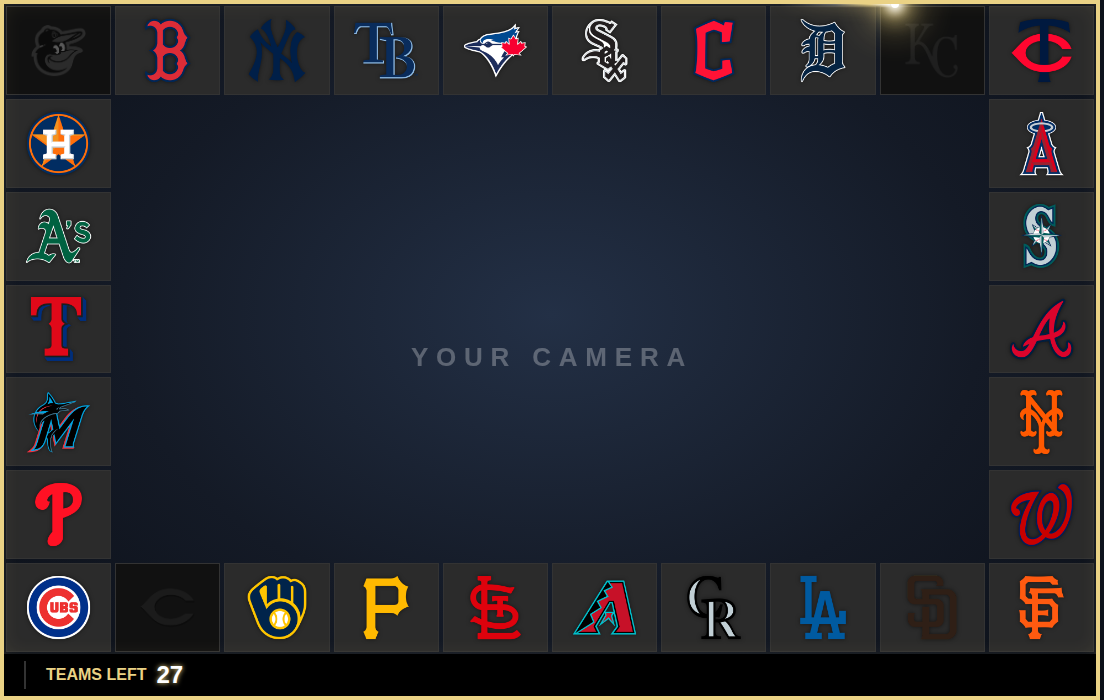
A transparent hole, exactly where your cam goes
The middle of the frame is a transparent cutout — not a black box, not a placeholder. In OBS you simply put the widget source on top of your camera source, and your feed shines through the hole. No cropping, no resizing gymnastics: the widget sizes the cutout for you, and the frame auto-solves how many teams go on each side for your sport's roster.
Everything you've built still works inside the frame: takeovers fire over it, sold teams get your taken treatment, Top Teams keep their rank badges, the Last Team sash stays put, milestones and chase cards ride along. It's the same board — just wearing your camera as the centerpiece.
Two styles
Full Ring — teams on all four sides, camera dead center. The classic "wall of teams" look with you in the middle of it.
Open Top — a horseshoe: the top edge stays open so your camera runs bigger, and the teams shoulder up around the sides and bottom. Built for breakers who run a large cam frame.
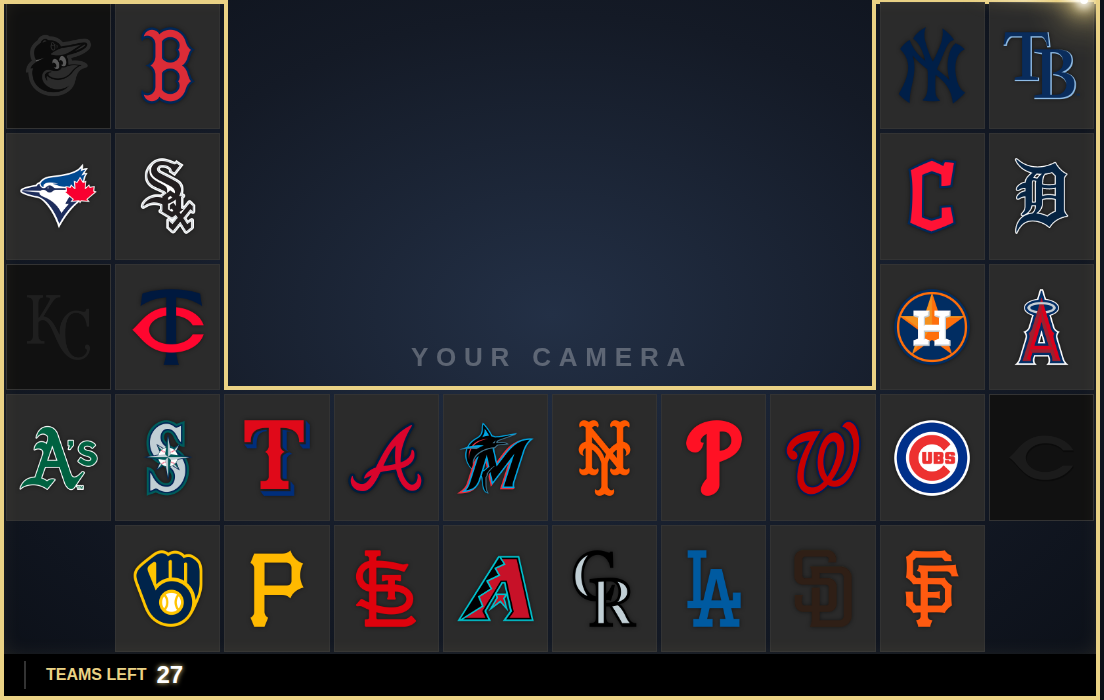
Set up in about a minute
In the widget editor under Layout, switch the board layout to Camera Frame, pick Full Ring or Open Top, and add the source to OBS like always — one click from the Command Center if you use OBS Direct Sync. Drop it over your camera source, and you're framed.
The editor preview shows the cutout with a placeholder so you can dial in gaps and card styling before you ever open OBS.
Available now on Pro
Camera Frame is a Pro feature — and trials get everything, so you can run tonight's break inside the frame. Open your Team Tracker, hit Layout → Camera Frame, and put your face where it belongs: in the middle of the board.