Break Results, Rebuilt: Make the Board Yours
— Breaker Labs
The Break Results board has always done its job: names go up, everyone sees who got what. But it only had one look, and it was ours — not yours. Every board on every stream running BreakerLabs was the same dark grid with the same gold trim.
That changes today. The results board now gets the same depth of customization the Team Tracker has had, plus a few things built specifically for a board whose whole subject is who bought what.
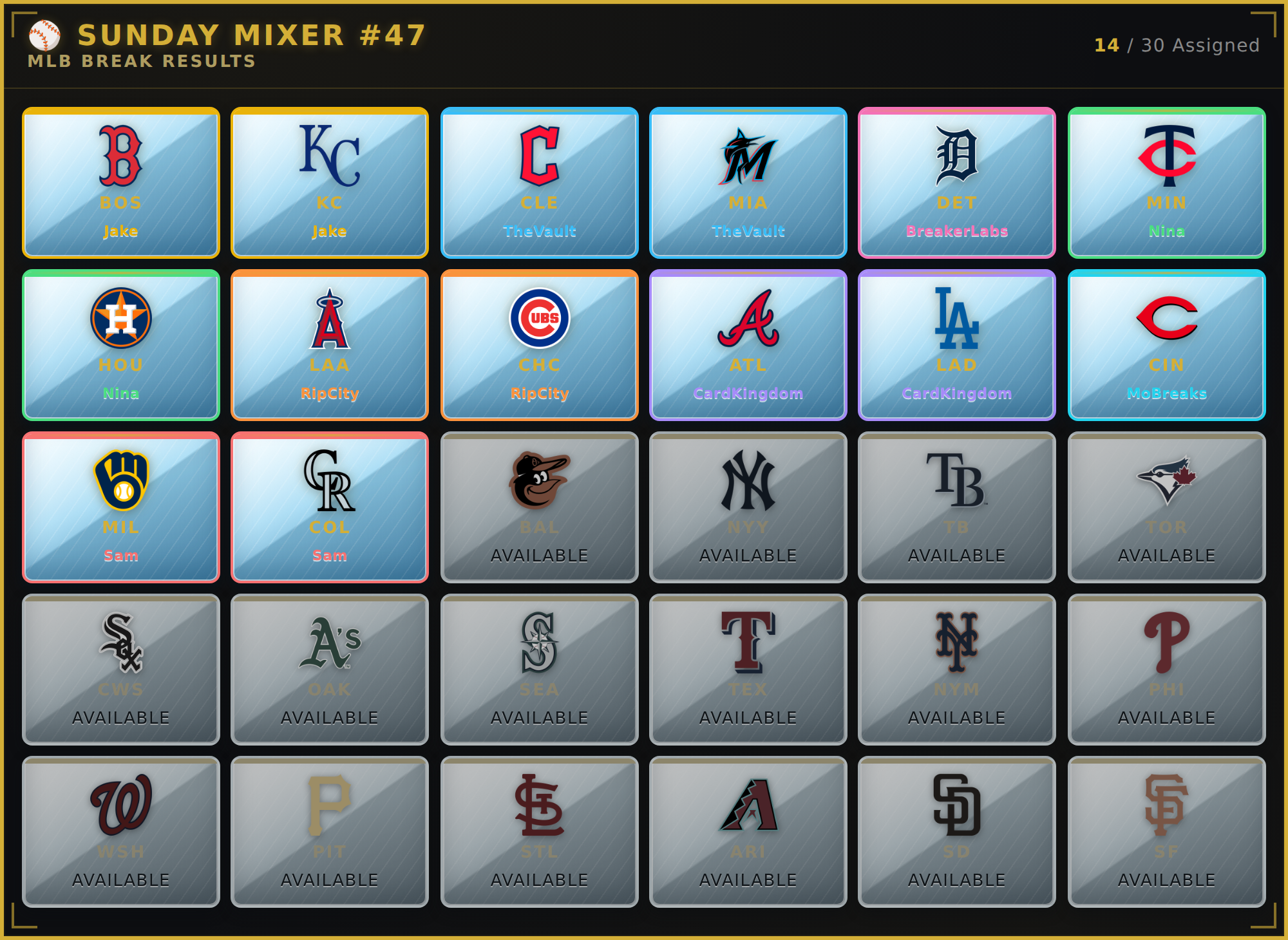
Eleven card styles
The same card styles your Team Tracker uses now work on the results board: Flat and Embossed on every plan, and Slab, Holo, Carbon, Chrome, Neon, Steel Press, Neon Spectrum, Ice Vault and Diamond Cut on Pro.
They are not a filter over the top. Each one changes what the card is made of — brushed metal, carbon weave, a frosted vault case, a graded slab with its own label bar.
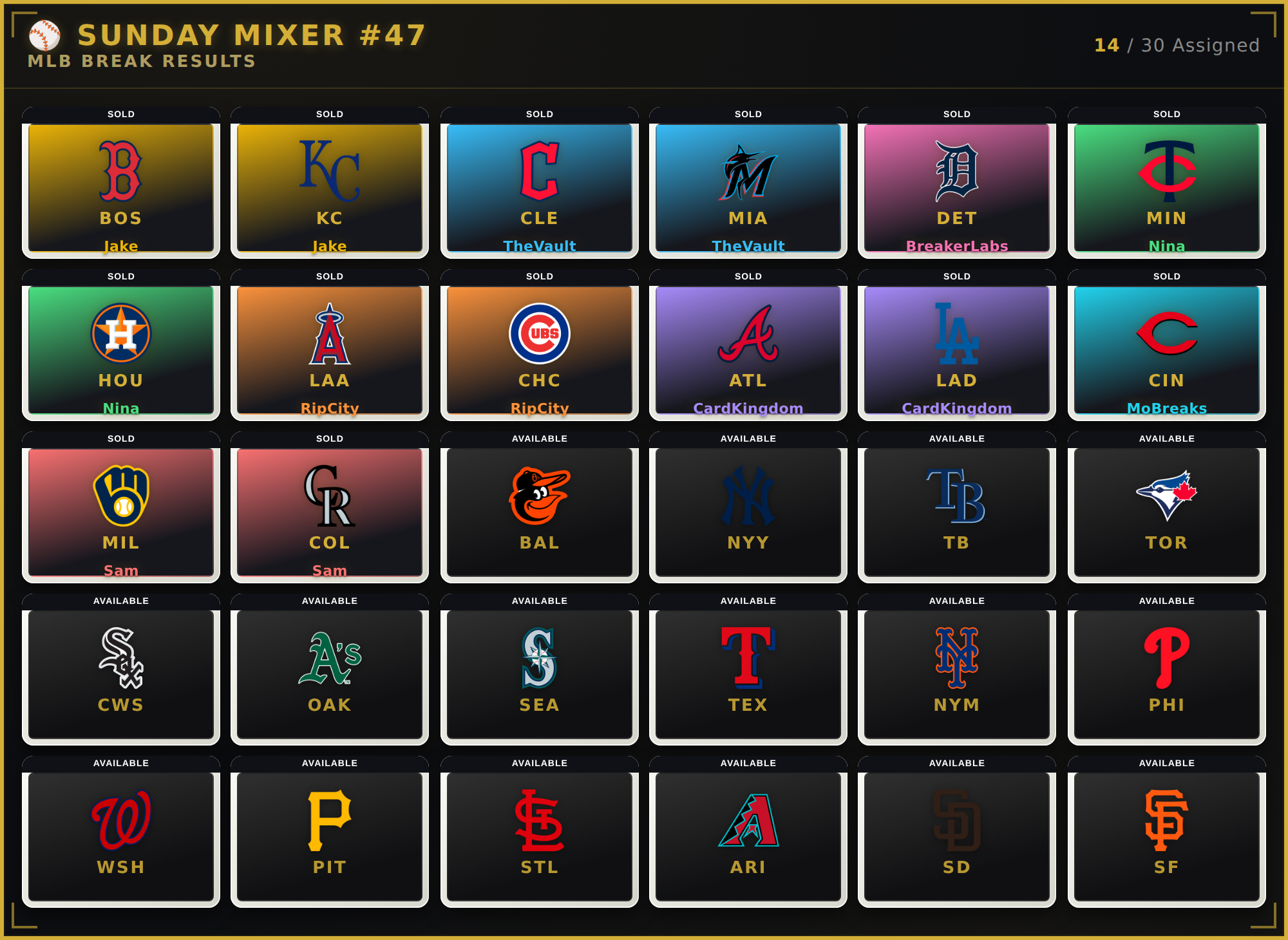
Slab is worth calling out. On a results board it does something it can't do on a tracker: the label bar across the top of each card becomes the state line — SOLD on a card with a buyer, and your own wording on the ones still open. Set your unsold label to "OPEN" or "PC" and the banner says that.
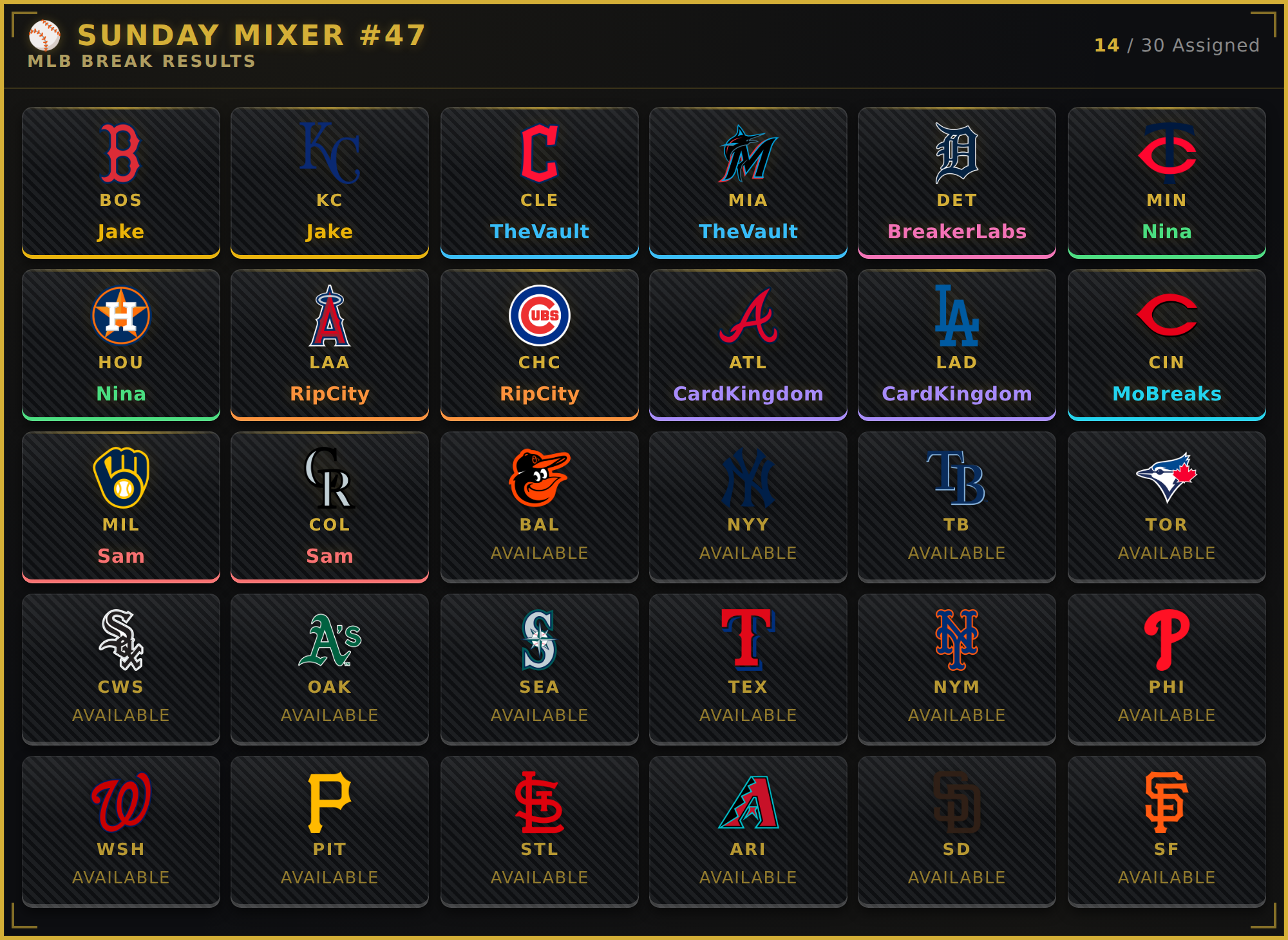
Find it in: Widget editor → Style → Card Style.
Sold and open, in your colours
A results board has two kinds of card, and viewers are scanning it to tell them apart. So they are now two separate colours: a background and border for sold spots, and a background and border for the ones still open.
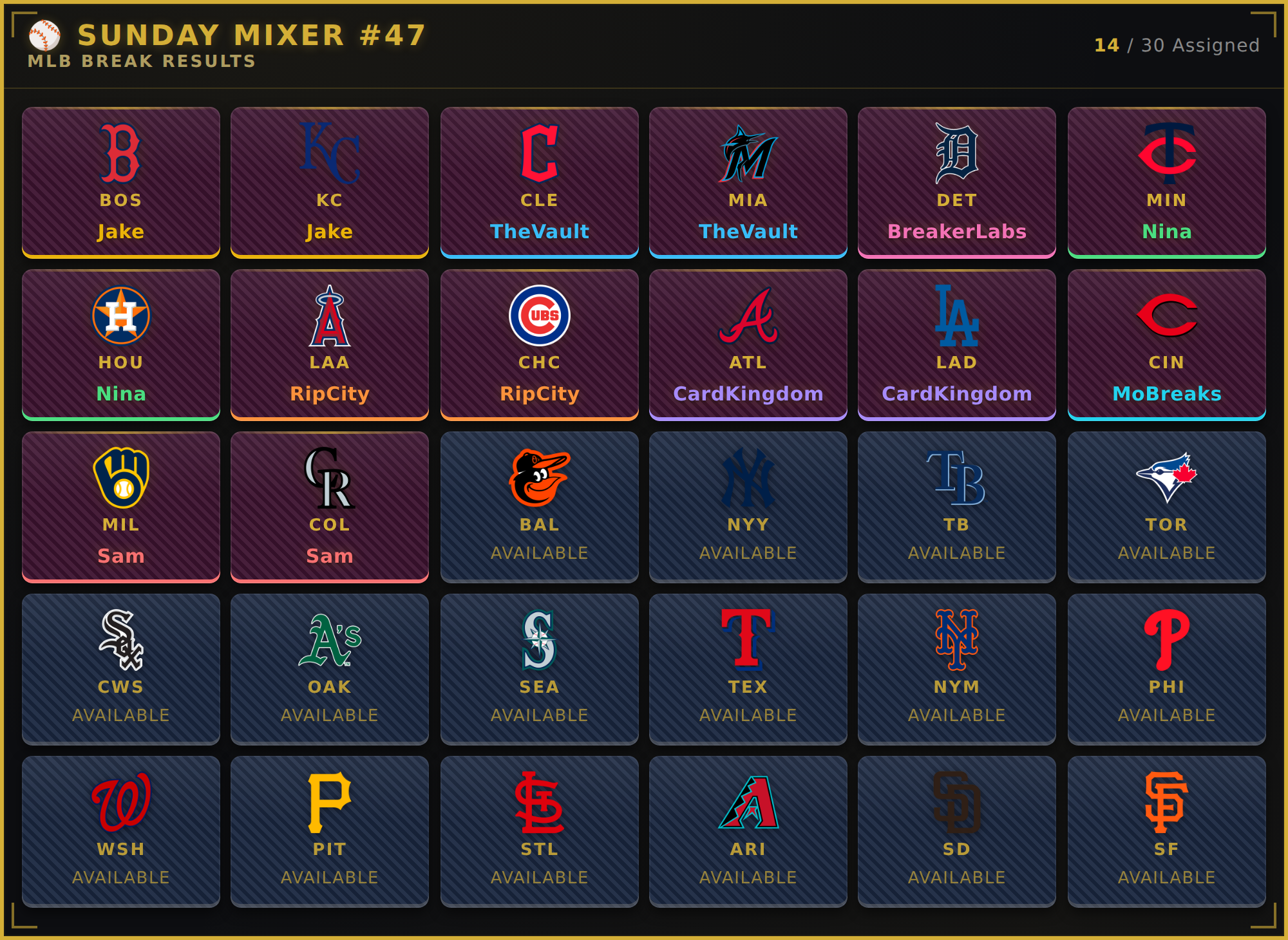
Your buyers' name colours still win the border on a sold card — that's the point of them, and a board where every sold spot has the same outline loses the fastest way to see that one person took four teams.
These work with the card styles rather than against them. Pick Carbon and you get carbon fibre in your colours — the weave stays, the colour underneath is yours. Same for Neon, Steel Press, Neon Spectrum and Diamond Cut, where the look is the texture rather than the colour.
Three styles ignore them, on purpose: Slab, Chrome and Ice Vault come in their own finish, because a frosted vault case in mint green isn't a vault case. The editor names those three under the picker so you're never guessing.
Find it in: Widget editor → Style → Spot Colors.
Everything else that landed with it
This has been a long build, and card styles were the last piece. The rest of it:
Your header, not ours. The board used to print your internal widget name on stream — "nfl results v2" and all. Now you set the on-stream title yourself, drop the sport subtitle for a slimmer bar, or turn the header off completely.
Grouping and sorting. Sort by team, by buyer, or by the order spots were claimed. Grouping by buyer is the one to try — it puts everything one person won side by side, which is what people screenshot.
Per-buyer colours. Every buyer gets their own colour automatically, or you can assign them by hand.
Density that fits. Column count, gap, and row height are yours, and a new board's canvas now sizes itself to the board instead of leaving a strip of dead space under the last row.
Unsold spots you can actually read. A new board now shows every team from the start with AVAILABLE in your accent colour. It used to hide them until the first sale, so a board looked empty at exactly the moment a break begins — backwards for what is, first and foremost, a sales board. The label was also drawn so faintly it effectively wasn't there. Both fixed. You can still hide unsold spots if you prefer the end-state look.
Names that fit their cards. Long handles used to get chopped at about eight characters. They now shrink to fit — measured against the real card, in both directions, with a proper gutter so nothing sits against an edge.
In the Command Center
The Break Results panel was rebuilt to match the other widget types. OBS Setup now sits in the same place on every card, the controls sit above the board rather than on it, and the board itself is no longer a lookalike — the card shows the actual widget, the same one OBS loads. What you see while you're driving the break is what your viewers see.
Getting started
Open any Break Results widget → Style tab → Card Style. If you're on the free trial, the Pro styles are previewable — click one and you'll see it on your board before you decide.
Everything here is opt-in. Boards you already have keep rendering exactly as they do today until you change something, so nothing shifts mid-break on a board you've already got running.
Questions, or a style you want that isn't here? Reply to this post or find us on Discord — the card style list has grown twice now on streamer requests.